

Admin
Plugins
The list of features built into your site, and the switch on each one.
A plugin is one extra feature built into your website. Your inquiry inbox is one. Your photo folders are another.
This screen lists the ones fitted to your site. Every row has a switch, and that switch is the whole point of the screen. It turns the feature on or off.
We chose this list for you and switched it on. It is right as it stands.
Go to Admin, then Plugins. Only an Admin user can open it. The count at the top right says how many plugins your site has.
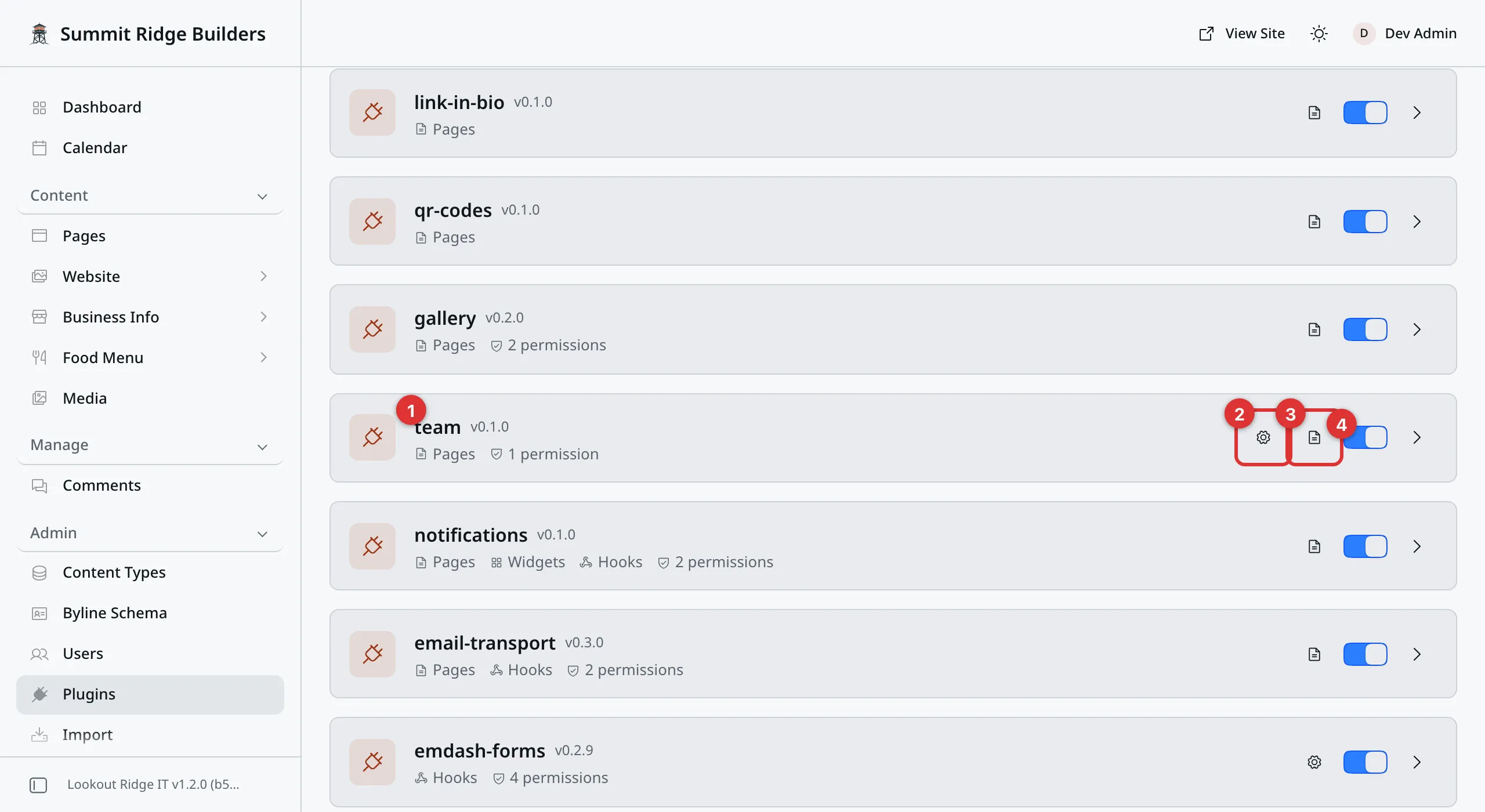
One row is one feature. A switch filled with color means it is on.
1. The name. Plugins are listed by a short code name, not by the name in
your menu. contact-form runs your inquiry form. site-theme runs your
Appearance page. The number beside each one is its version.
2. The gear. Some rows have one. It opens that feature’s own settings, on a screen headed with the code name and the word Settings. Click Save Settings there to keep a change. Most features keep their settings on their own page in the sidebar instead, and have no gear.
3. The page icon. It opens that feature’s own page, the same one its sidebar link opens.
4. The switch. Filled with color is on. Gray is off, and the row also says Disabled. Read the warning below first.
The arrow at the end of a row opens a panel of detail about that plugin. It is safe to read.
Warning
A switch takes effect on your live website at once. There is no Save and no Publish. Nothing asks you if you are sure.
Switch contact-form off and the forms on your Contact and quote pages stop
working. No inquiry can reach you. Nothing new lands in
Leads, and no alert goes out. Your website still looks fine,
so you would not know until a customer said something.
Every other row does the same to its own feature. Its page also drops out of your sidebar. Leave the switches alone.
Contact support
Contact us before you switch anything off here. Contact us right away if something has already been switched off.
Tell us the name on the row and roughly when. Switching it back on is quick. The inquiries people tried to send while it was off are gone, and nothing can bring those back.
Email support@lookoutridgeit.com. Getting support says what to put in the message.
The one switch you may turn on yourself is social-embeds. Your website ships
with it off. Social Embeds says when and how.
What each row is
Here is what those code names mean, in the order the screen shows them. Your site has some of these, not all of them. The rows marked add-on only show up on a site that has that add-on. See Add-ons.
| Row | What it runs | Where to read more |
|---|---|---|
lookout-send | Email news you send to a list. Add-on. | Lookout Send |
commerce | Selling on your website. Add-on. | Commerce |
accounts | Customer accounts on your website. | Accounts |
marketing-blocks | The blocks you drop into a page. | Pages |
site-theme | Your Appearance page: style, colors and fonts. | Appearance |
site-search | The search box on your website. | Site search |
page-parent | The Parent page box on your pages. | Pages |
business-type | The Business type list in your business info. | Business Profile |
header-cta | The buttons at the top right of your site. | Header button |
utility-bar | The thin strip above your header. | Utility Bar |
footer-builder | The layout of your footer. | Footer |
article-rack | The side strip on blog posts and projects. | Article Sidebar |
article-comments | Alerts about new comments on posts and projects. | Comments |
nav-menus | Your Navigation page, where menus are made. | Menus |
alert-banner | A notice strip across the top of every page. | Alert Banner |
popups | Boxes that pop up over your pages. | Popups |
not-found | Your “page not found” page. | 404 Page |
monitor | A Lookout Ridge IT service. Leave it alone. | Nothing to set. |
contact-form | Your contact and quote forms, and Leads. | Leads |
testimonials | Asking customers for a review. | Testimonials |
newsletter | Newsletter sign-ups on your website. | Newsletter |
landing-page | One-off pages for an ad or a mailing. | Landing Pages |
spam-protection | Keeps robot form fills out of your inbox. | Nothing to set. |
analytics | Visitor counts, and your cookie banner. | Analytics and cookies |
seo | Your SEO page. | SEO |
schedule | Dated stops for a business that moves. Add-on. | Schedule |
booking | Customers booking a time with you. Add-on. | Bookings |
feedback | Forms and surveys with their own pages. Add-on. | Feedback |
menu | Food menus, and the menu paper. Add-on. | Menus (Food) |
portfolio | Your Projects screen and work page. Add-on. | Projects |
blog | Your Posts screen and blog page. Add-on. | Posts |
social-embeds | The Social Post block. | Social Embeds |
hero-showcase | The big banner at the top of a page. Add-on. | Showcase Heroes |
link-in-bio | Your one-page Bio Page. Add-on. | Bio Page |
qr-codes | QR codes you make and print. Add-on. | QR Codes |
gallery | Your photo albums and folders. | Media Folders |
team | Your team members, team page and org chart. | Team |
notifications | Tells you when something happens, such as a new lead. | Notifications |
email-transport | Sends the emails your website sends. | Email Transport |
emdash-forms | Runs the forms you build. It has no page of its own. Add-on. | Form Designer |
form-designer | Forms you build yourself. Add-on. | Form Designer |
The gears
A row with a gear has settings of its own. The page in the table says which of
them are yours to change. Some are yours: the header-cta gear sets your header
buttons, the site-search gear shows or hides your search box, and the
schedule gear sets your Timezone.
Four gears hold codes and keys that we set: booking, contact-form,
emdash-forms and spam-protection. Leave those alone. The commerce gear
holds your Stripe keys, which Connect Stripe
explains.
Looking for your colors? They are no longer on this screen. Go to Plugins, then Appearance. Appearance shows how, and Step 3: Choose your colors shows every palette.
Last updated Oct 20, 2026