

Digital products
Sell a file, such as a pattern, an ebook or a price list, and let the buyer download it.
Add-on
Commerce is an add-on, so not every website has it. If it is not in your menu, see Add-ons to add it.
A digital product is a file you sell. A sewing pattern. An ebook. A set of plans for a garden shed. The buyer pays, and the file is theirs to download.
There is no special kind of product for this. It is an ordinary product with a file attached.
Step 1. Make the product
- Go to Plugins, then Commerce, and click the Products tab.
- Make a one-time product, the usual way. See Products and Plans.
- Leave Requires shipping off. There is nothing to post, so checkout asks for no address.
- Click Save & publish.
The product must be published before you can attach a file.
Step 2. Attach the file
- Go to Plugins, then Commerce.
- Click the Products tab, then Downloads under it.
- Find the product in the list.
- Click Upload at the end of its row.
- Pick the file on your computer.
A message reads “Uploaded” and the file name. The File column now shows the file name, its size, and the date.
You can also copy a file and paste it onto the button, with Cmd+V on a Mac or Ctrl+V on Windows.
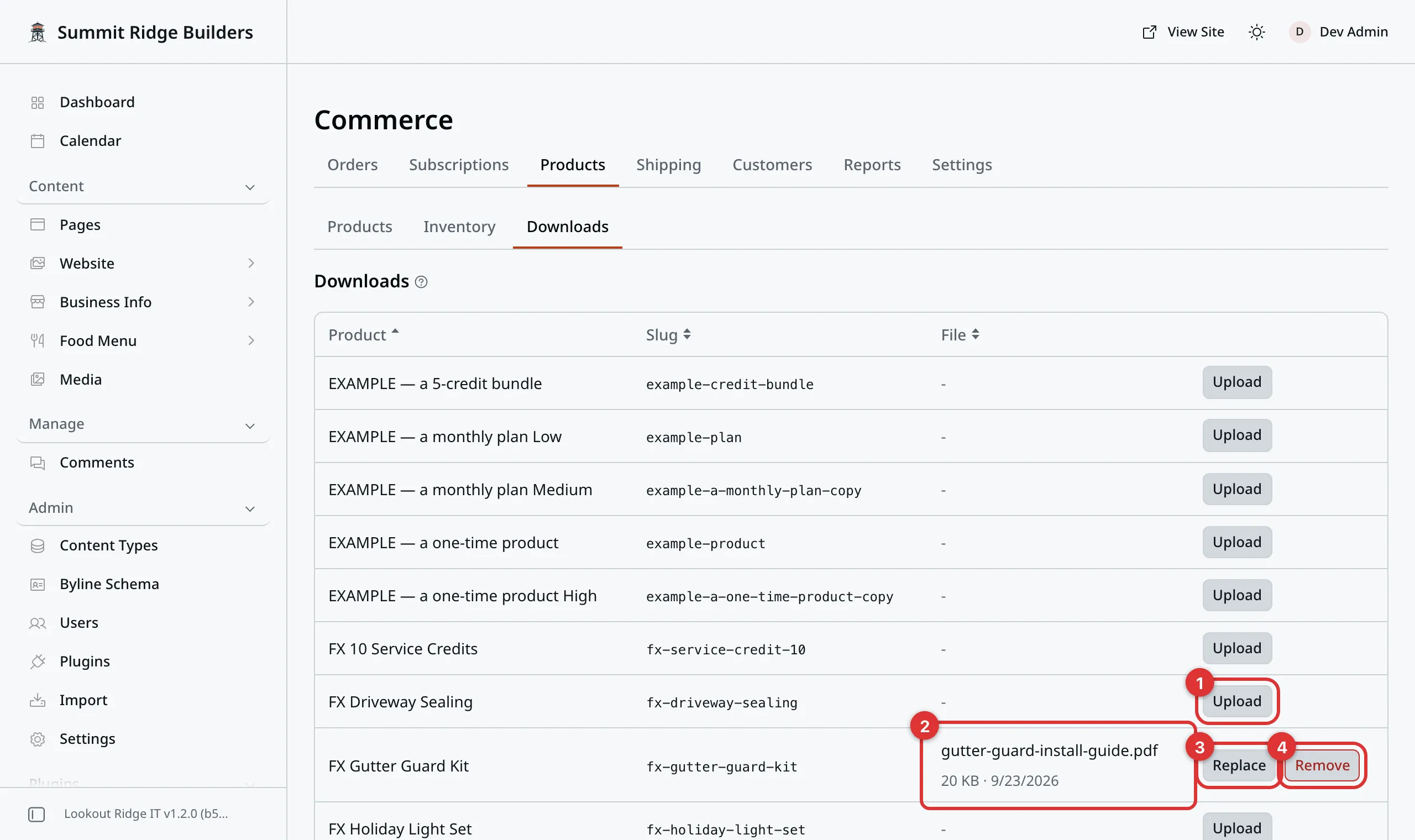
The Downloads tab. One product has a file attached.
The numbers in the picture:
- Upload attaches a file.
- The File column shows the file once it is on.
- Replace swaps in a new version. See Changing the file.
- Remove takes it off. See Removing the file.
Each product holds one file. To sell a set of files, put them in one .zip
file first.
What you can upload
- Up to 100 MB per file.
- Almost any kind of file: PDF, ZIP, pictures, music, video, documents.
- Not programs. A file that installs or runs something, such as a
.exe, is turned away. Put it inside a.zipinstead.
The panel also turns away a file with no ending on its name, such as
pattern with no .pdf.
These files do not go in your Media library. They are kept in a private place, so nobody can find them without paying.
What the buyer gets
As soon as the payment goes through, two things happen.
The buyer gets a Download ready email with the link. See Customer emails.
The file also shows in their account on your website. On the Orders tab, under Order history, the line reads Download and the file name. See What your customers see.
The product page tells shoppers it is a digital download, ready right after checkout. A file in a kit is delivered too.
The link only works for a buyer who is signed in to their account. Sharing the link does nothing. A friend who clicks it gets nothing.
A buyer who signs out cannot use the link until they sign in again.
Changing the file
Found a typo in your pattern? Upload a fixed version.
- Go to Products, then Downloads.
- Click Replace on that product’s row.
- Pick the new file.
Everyone who already bought it gets the new file from then on. That is usually what you want for a new edition.
Removing the file
Warning
Remove takes the file off the product. Everyone who bought it loses their download link, not just new buyers.
If you want to stop selling it, Unpublish the product instead. Past buyers keep their file.
- Go to Products, then Downloads.
- Click Remove on that product’s row.
- Your browser asks you to confirm, and names the file. Click OK.
Refunds
A refund does not take the file back. The buyer already has it on their computer. Their download link keeps working.
Contact support
Contact us if:
- an upload keeps failing and the file is under 100 MB
- a buyer paid but says the download is not on their account
- a buyer says the link will not work while they are signed in
Email support@lookoutridgeit.com. Getting support says what to put in the message.
Last updated Oct 20, 2026