

Plugins
Newsletter
Collect email signups on your website and send them to your mailing list.
Every website has this screen.
It puts a signup box on your website. A visitor types their email address, and it goes to your mailing list. The mailing list itself lives with an email company, such as Mailchimp. We call that company your provider.
Go to Plugins, then Newsletter. It sits in the Marketing group.
There are three tabs:
- Provider: which company gets the signups, and how the form asks.
- Settings: the form layouts you can place on a page.
- Subscribers: everyone who has signed up through your website.
Only an Admin can change the first two. Editors can see Subscribers.
Important
Nothing shows on your website until you pick a provider. No footer box, no signup block, and no newsletter popup. Choose one first.
Choosing a provider
- Click the Provider tab.
- Pick your company in the Provider box.
- Fill in the boxes that appear. A box marked with a star must be filled in.
- Click Save.
You get a message reading Newsletter settings saved. The change is live on your website right away.
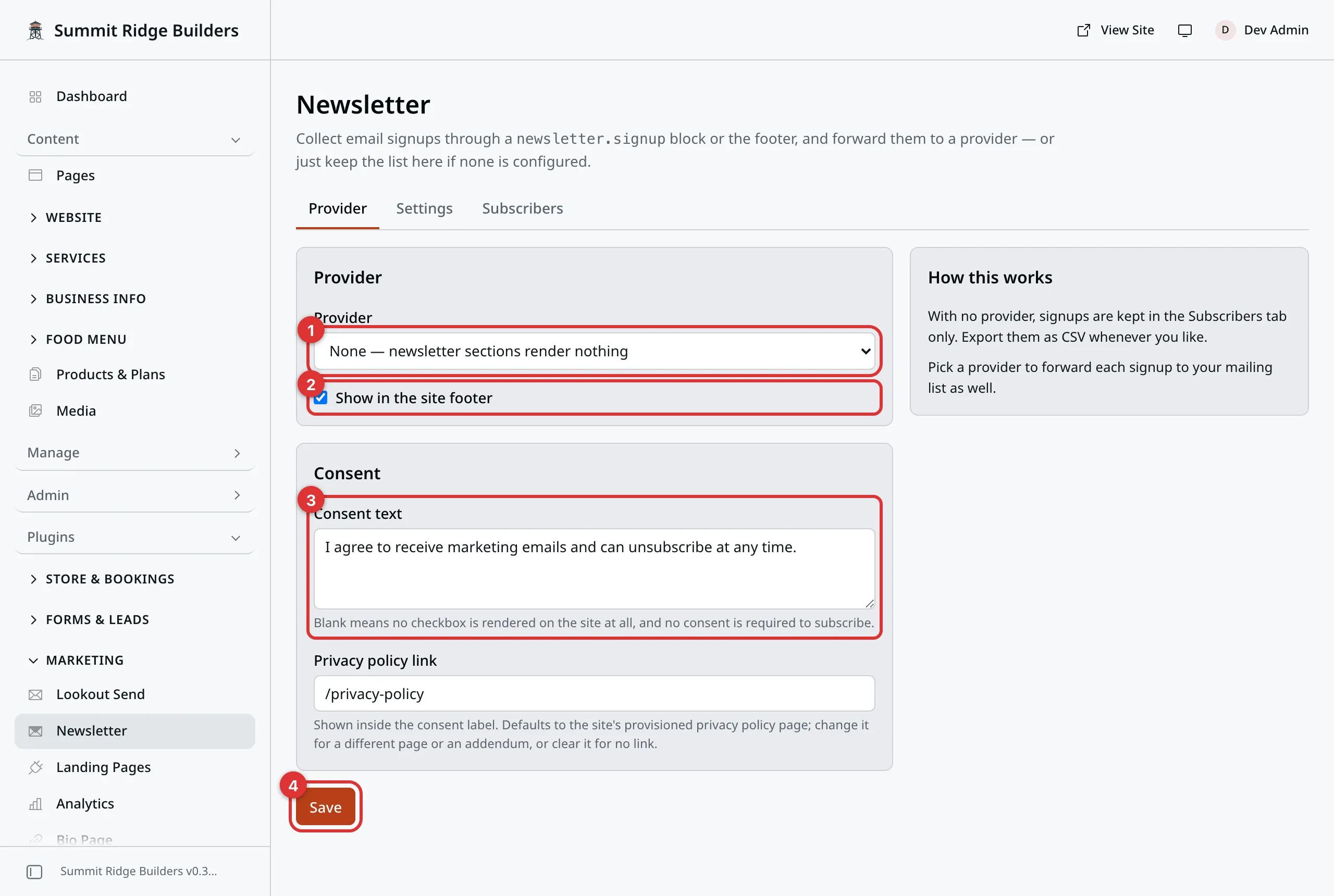
The Provider tab, before a provider is picked.
The numbers in the picture:
- Provider picks your email company.
- Show in the site footer puts a signup box in your footer. See The footer box.
- Consent text adds a checkbox. See Consent.
- Save makes the change live.
The choices are Lookout Send, Mailchimp, Kit (ConvertKit), beehiiv, MailerLite, Brevo, Klaviyo, Buttondown, EmailOctopus, ActiveCampaign, and listmonk (self-hosted). Two more only link out: Substack (link only) and Ghost (link only).
None - newsletter sections render nothing turns the signup forms off.
Your key
Most providers need a key from your account with them. A key is a long code that lets your website add people to your list. You copy it from the provider’s own website and paste it here.
A card on the right, headed Setting up and the provider’s name, says where to find each value. Each box has a short hint under it, too.
Once a key is saved, the box shows dots, and the line under it reads Saved - leave blank to keep. Leave it blank and the saved key is kept. Type in it only when you are replacing the key.
To delete a saved key, click Clear next to it. The line changes to Will be deleted when you save. Click Save to delete it, or Undo to keep it.
Tip
This is your own account with your own provider. If you are not sure where the key is, that company’s help pages are the fastest answer.
Lookout Send
Lookout Send is our own newsletter service. We set up the link to it, so there is no key to paste.
- Pick Lookout Send in the Provider box.
- Under Lists, click Load lists from Lookout Send.
- Click Add next to each list you want to offer.
- Click Save.
A list can only be added once public signup is on for it. Until then, the list’s name says to turn on public signup for it in Lookout Send first. See Lookout Send.
Add fills in the list’s List signup key for you. You can also paste the key by hand: click Add list, and paste it in the second box. The key is in Lookout Send, on the list, under Signup.
If a visitor picks more than one of your lists, they get one email asking them to confirm, not one per list. One click confirms them all.
If Lookout Send is not part of your plan, ask us. Signups are still kept on the Subscribers tab until it is set up.
Link only providers
Substack (link only) and Ghost (link only) have no way to take a signup from another website. So the signup box becomes a button. It sends the visitor to that company’s own signup page.
Confirmation emails
Many providers send a new subscriber an email asking them to confirm. They are only added once they click it. Whether this happens is set in your account with the provider, not here.
Two are different. Brevo and ActiveCampaign add people right away, with no confirmation email.
Switching providers
Your settings for each provider are kept. Switch to a new one and back, and the old keys and lists are still there.
Only the provider picked when you click Save gets new signups.
Keys you saved for other providers are listed under Saved keys for other providers. Done with an old provider? Click Clear next to its key, then Save. The key is deleted, and the provider you picked stays as it is.
Lists
Some providers let one account hold more than one list. For those, a Lists card appears under the provider.
Each list you add shows up as a switch on the signup form.
- Click Add list.
- In the first box, type the name visitors see, such as “Monthly tips”.
- In the second box, paste the list’s ID from your provider.
- Set the Required switch.
- Click Save.
Required on means everyone who signs up joins this list. The switch shows on and cannot be turned off by the visitor. Required off means the visitor chooses.
Remove takes a list off the form. It does not touch the list at your provider.
With no lists at all, signups go to your account’s main list.
Consent
The Consent card adds a checkbox to the form.
Consent text is the wording next to the checkbox, such as “Yes, send me the monthly tips.” Leave it blank and there is no checkbox.
Privacy policy link shows inside that wording. It starts out pointing at your privacy policy page. Change it, or clear it for no link.
The footer box
Show in the site footer puts a signup box in your website’s footer. It is on to begin with.
Uncheck it and click Save to take the box out of the footer. Signup blocks on your pages stay.
Display layouts
The Settings tab holds your form layouts. A layout is a saved look for the signup form. You pick one each time you put the form on a page.
- Click Add layout.
- Type a Name, such as “Homepage”.
- Pick an Arrangement: Full width (single line), Stacked, Narrow or Two column.
- Turn on Ask for the subscriber’s name (First / Last) if you want their name as well.
- Turn on Draw a border around the form if you want a box around it.
- Click Save.
You get a message reading Layouts saved.
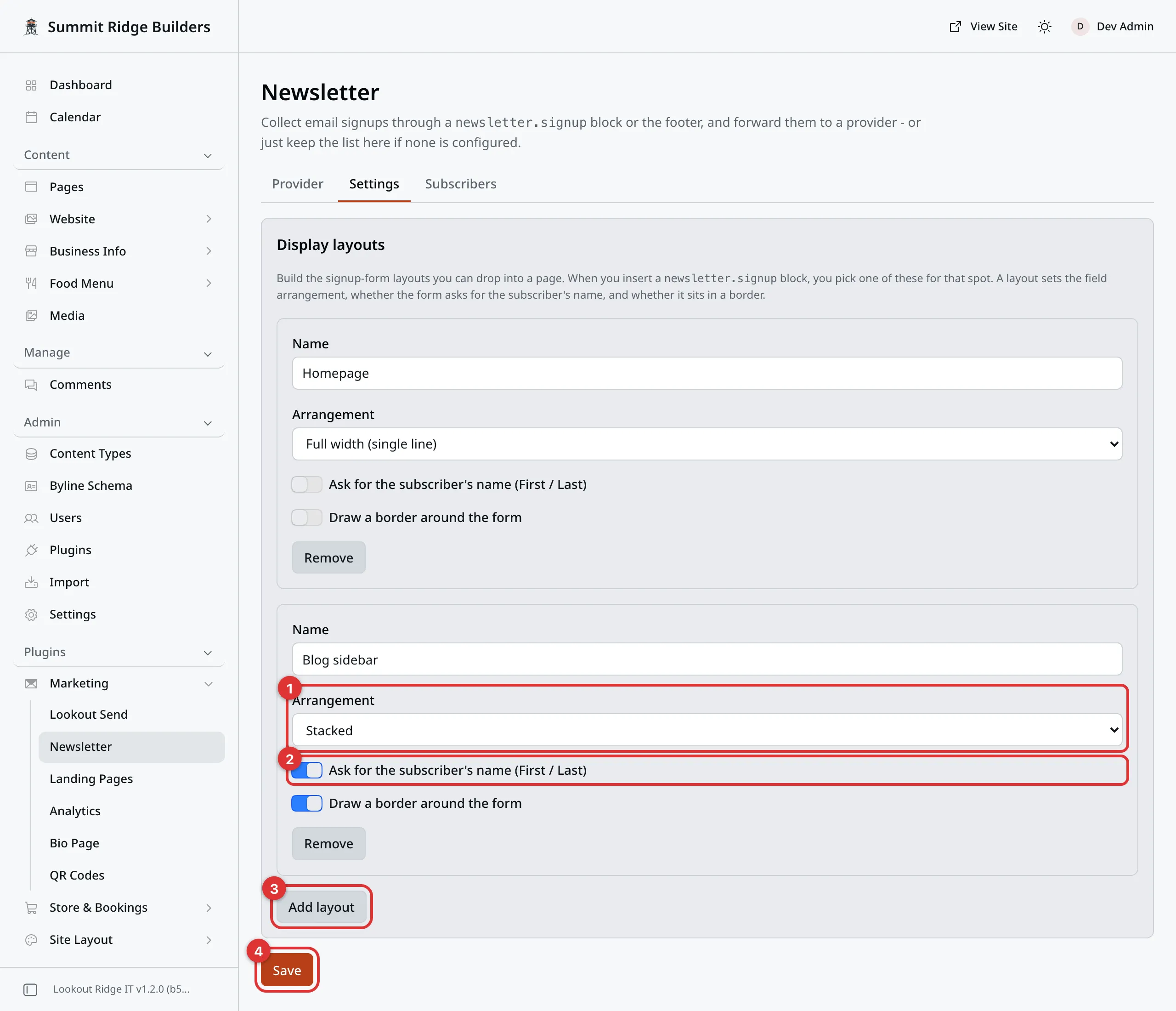
Two layouts. The second one asks for a name and draws a border.
The numbers in the picture:
- Arrangement sets how the boxes line up.
- This switch asks for the visitor’s name.
- Add layout adds another.
- Save keeps them all.
Remove takes a layout away when you next click Save. A form that used it goes back to the plain look: stacked, with no name boxes.
Putting a signup form on a page
Use the Newsletter signup block. Add it the way you add any block: type
/ on an empty line, type newsletter, and click it.
Pages shows how.
The form holds:
| Field | What it does |
|---|---|
| Heading | The wording above the form. Starts as “Subscribe to our newsletter”. |
| Text | Optional. A line or two under the heading. |
| Button label | The wording on the button. Starts as “Subscribe”. |
| Message shown after signing up | What the visitor reads once they have joined. |
| Layout | One of your display layouts. |
The block only holds the wording. The provider, lists and checkbox come from the Provider tab, so every form on your website sends to the same place.
The same signup form can show in other places too. Each one uses the provider, lists and checkbox from this screen:
- a popup, with Newsletter signup picked as what it holds. See Popups.
- the side rail of your blog posts and projects, with the Newsletter module. See Article Sidebar.
- your Bio Page newsletter section.
What a visitor sees
The button is a solid block in your site’s colors. After a visitor clicks Subscribe, or your own wording, the button spins while it sends. Then it turns green, with a check mark and your Message shown after signing up. Nothing else on the page moves.
On a narrow button, a long message would not fit. The button then reads Subscribed, and your full message shows on the line under it.
If something goes wrong, the form says so, and the visitor can try again.
The Subscribers tab
Every signup on your website is kept here, as a copy.
The boxes at the top count them: Total, Sent and Failed.
- Sent: your website passed it to the provider.
- Failed: it did not reach the provider. Reason says why. It shows unconfigured if no provider was set up, or provider if the provider turned it away.
Click All, Sent or Failed to show only those. Type in the search box to find an email address.
To get a spreadsheet, click Export CSV. A file called subscribers.csv
downloads. It holds whatever the list is showing, so filter first if you want
less. Open it in Excel, Numbers or Google Sheets.
Deleting a subscriber
Warning
Delete removes your website’s copy for good. It does not take the person off your mailing list, and it does not stop your emails.
To unsubscribe someone, do it in your provider’s own account. Every email they get from your provider also has an unsubscribe link.
- Check the box on each row you want to remove.
- Click Delete on the bar that appears.
- Confirm.
Clear unchecks them all.
Tip
Want to know the moment someone signs up? Turn on the Newsletter signup event in Notifications.
Last updated Oct 20, 2026