

Content
Services
The work you offer and how it is presented.
Services is the list of jobs you do. One entry is one service.
Every service you publish gets a page of its own on your website. It also shows as a card on any page that has a Services block.
Go to Content, then Business Info, then Services.
The list of your services
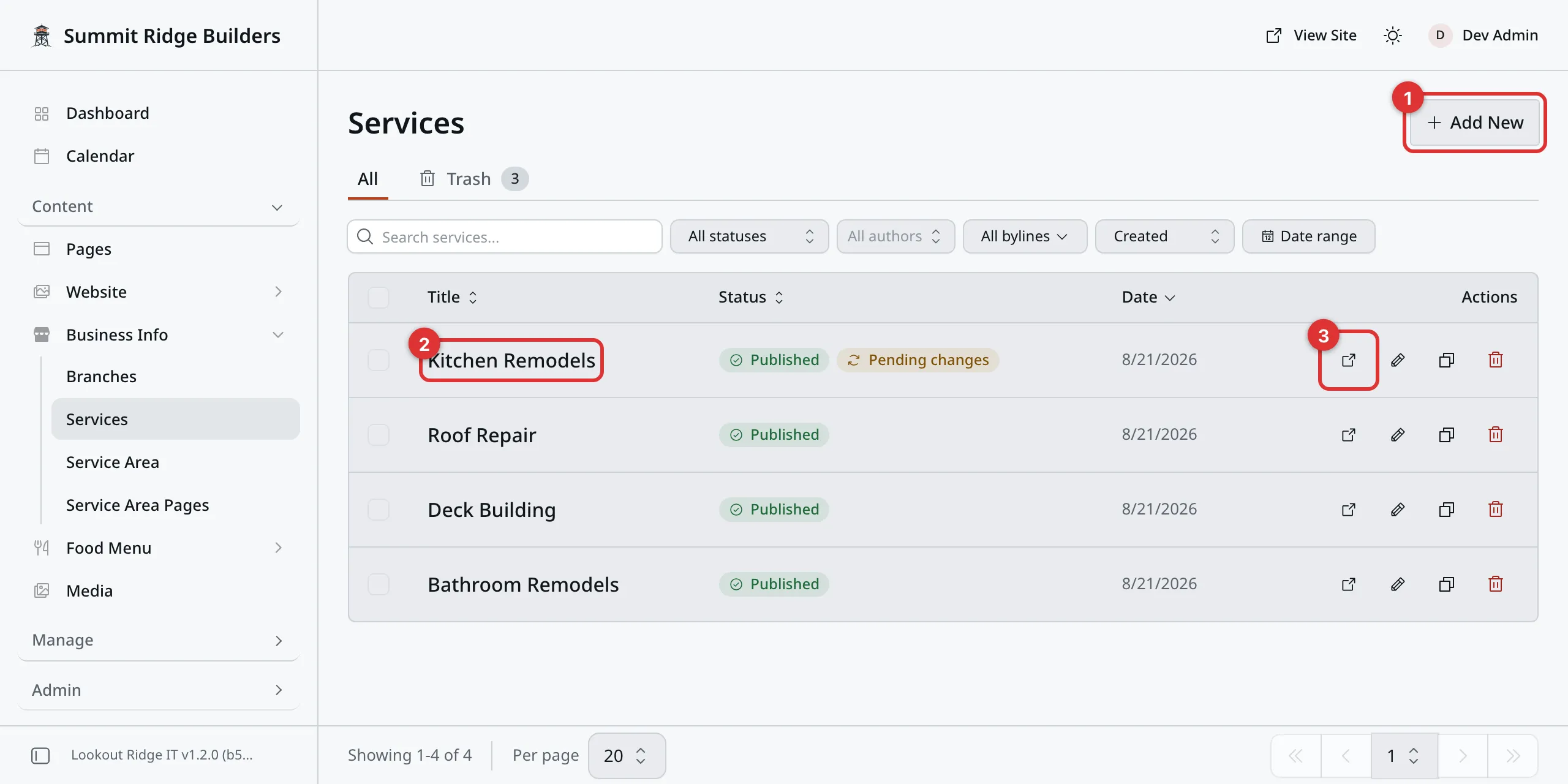
Four services. Each row is one.
1. Add New. Starts a new service.
2. The title. Click it to open the service and edit it.
3. The view icon. Opens that service on your live website in a new tab.
Adding a service
Click Add New. You get a blank form. Fill in what you need, then click Save.
Only the name is required. Leave a box empty and your website just leaves that bit out.
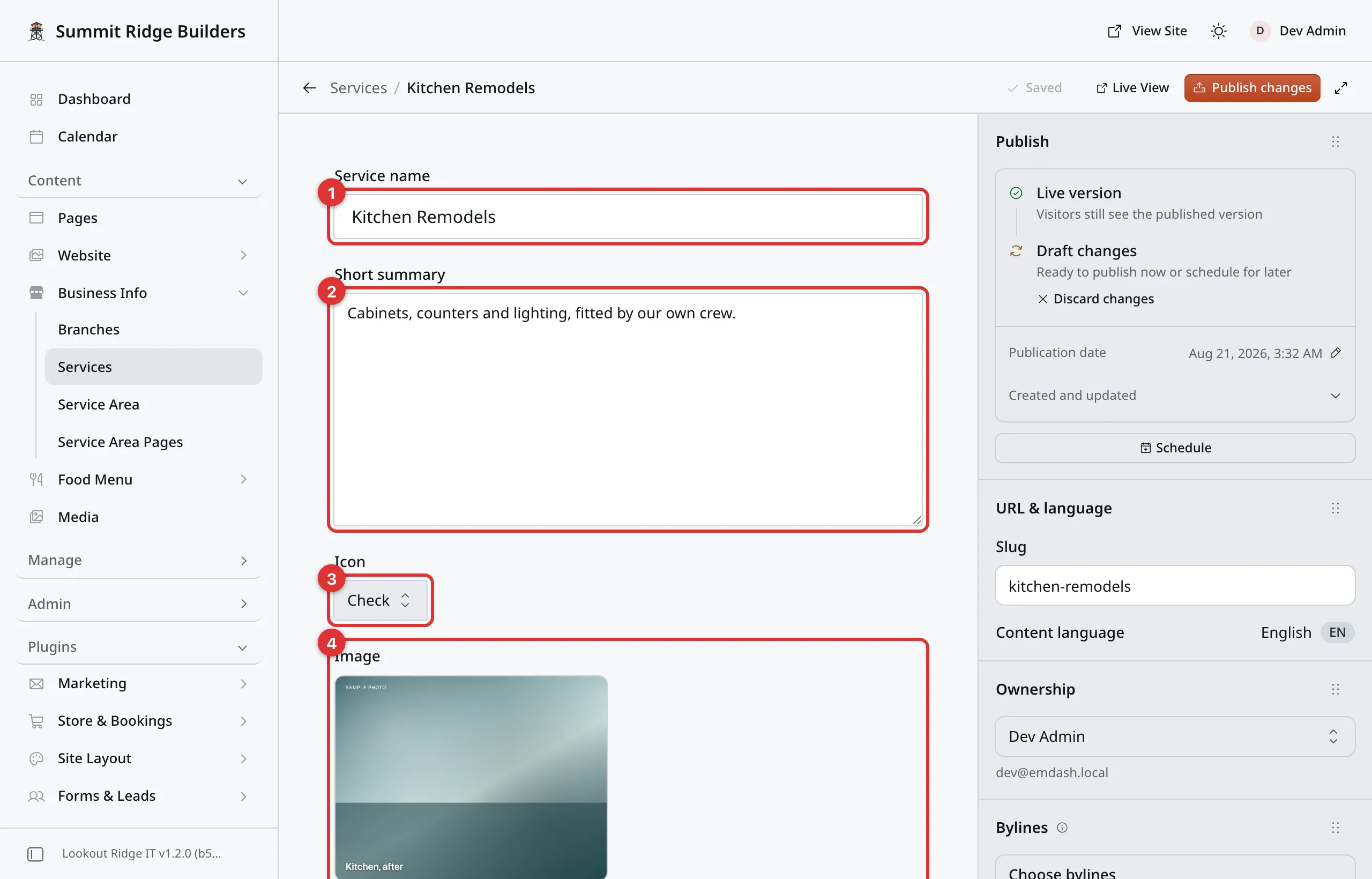
The top of the form.
1. Service name. What you call the job, such as “Deck Building”. It is the heading on the service’s own page, and the title on its card.
2. Short summary. One or two lines. It sits under the name in both places. Write it for a customer who is choosing.
3. Icon. A small drawing from a short list, such as Shield or Clock. It shows on the card when the service has no photo.
4. Image. A photo of this kind of work. Click Select image and pick one. Media walks through the picker.
A photo beats an icon. If you set both, the card shows the photo, and the icon is not used at all.
Full description is the long version. It fills the service’s own page, under the photo. You can type plain text here, or add blocks the same way you do on a page. Pages covers blocks.
Warning
The Slug fills itself in from the name. It is the last part of this service’s web address, and it should be set once, while the service is new.
If you change it on a live service, your website sends the old address to the new one for you, once you publish. Search results still show the old address for a while, so do not change it for no reason.
The boxes further down
Scroll down the form for these. All of them can be left empty.
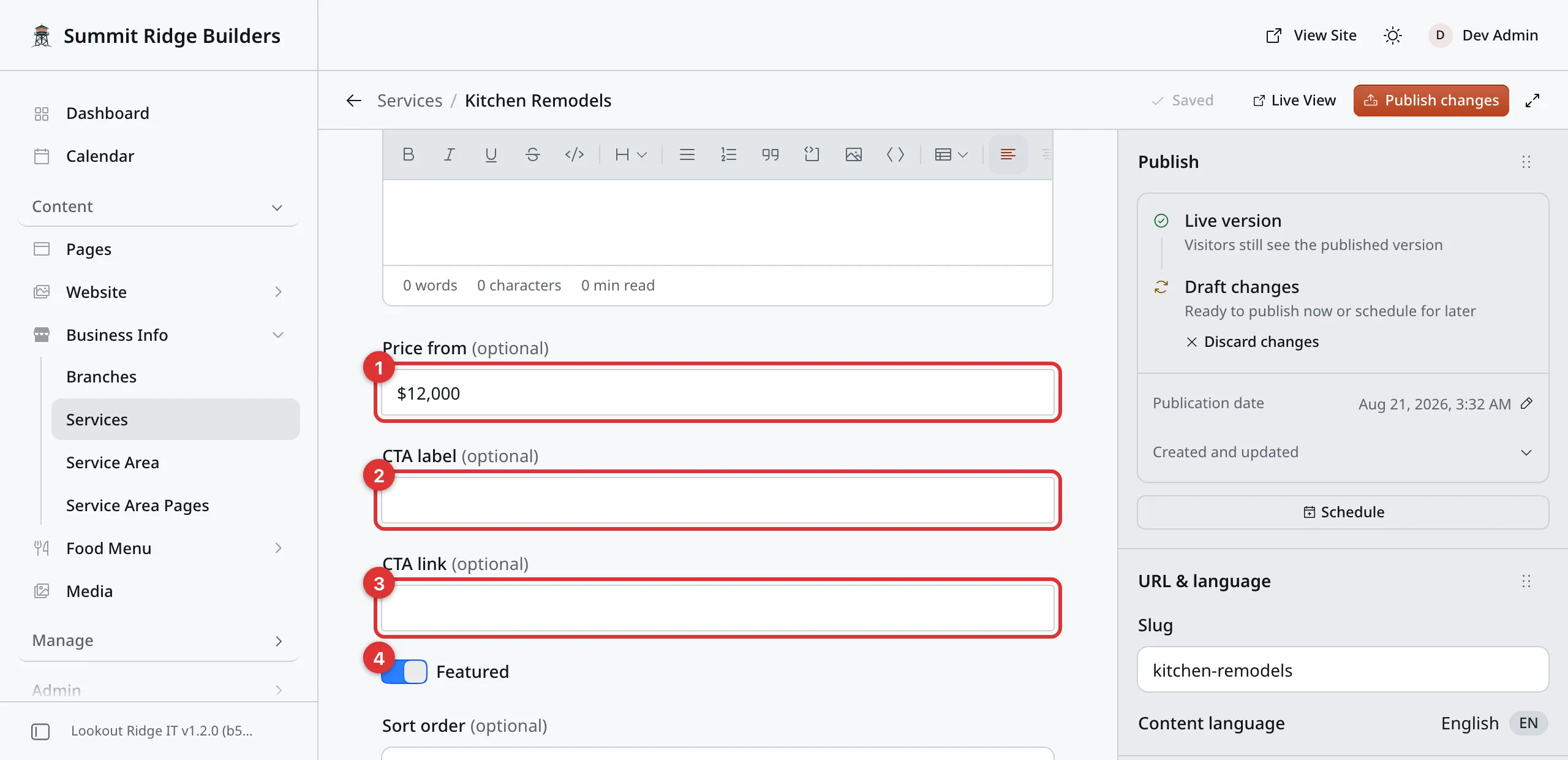
Prices and buttons live at the bottom of the form.
1. Price from. Type it the way you want it read, such as $4,200. Your
website prints it as “From $4,200”. Leave it empty and no price shows at all.
2. CTA label. The words on the button on this service’s page. Leave it empty and the button reads Request a quote.
3. CTA link. Where that button sends people. Leave it empty and it goes to
your quote form. For a page on your own site, start with a slash, like
/contact.
4. Featured. A switch. On its own it changes nothing. It only matters when a Services block is set to show featured work, which is covered below.
Sort order sets the order your services appear in. See the section further down.
Search & social, at the very bottom, sets how the service looks in Google and when it is shared. What Google shows explains it.
Then click Publish now, then Publish now again to confirm. Your website has the new service that second. Saving and publishing covers the rest.
Where services show up
In two places, and both come from the one entry you just filled in.
On a page of its own. Every published service gets its own web address.
“Kitchen Remodels” lives at yoursite.com/services/kitchen-remodels. Your
Services page lists all of them.
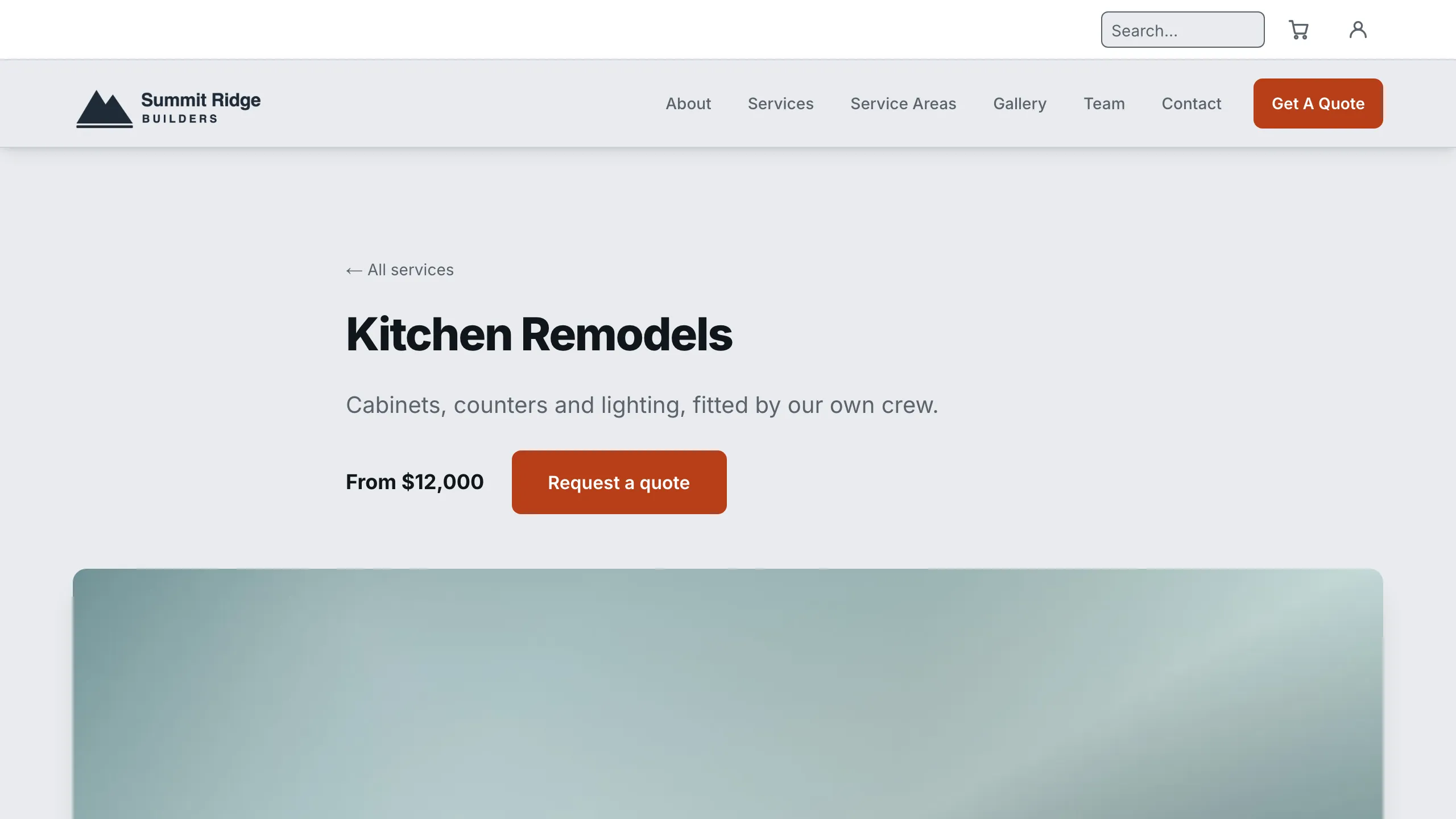
The name, the summary, the price and the button all come from the form.
In a Services block. A block puts a row of cards on any page: the photo, the name, the summary, the price, and a Learn more link to the full page. Pages shows how a block is added.
Change a service here and every card and page showing it changes with it. There is only ever one copy.
Choosing which services a block shows
Open the page, click the Services block, then click the pencil.
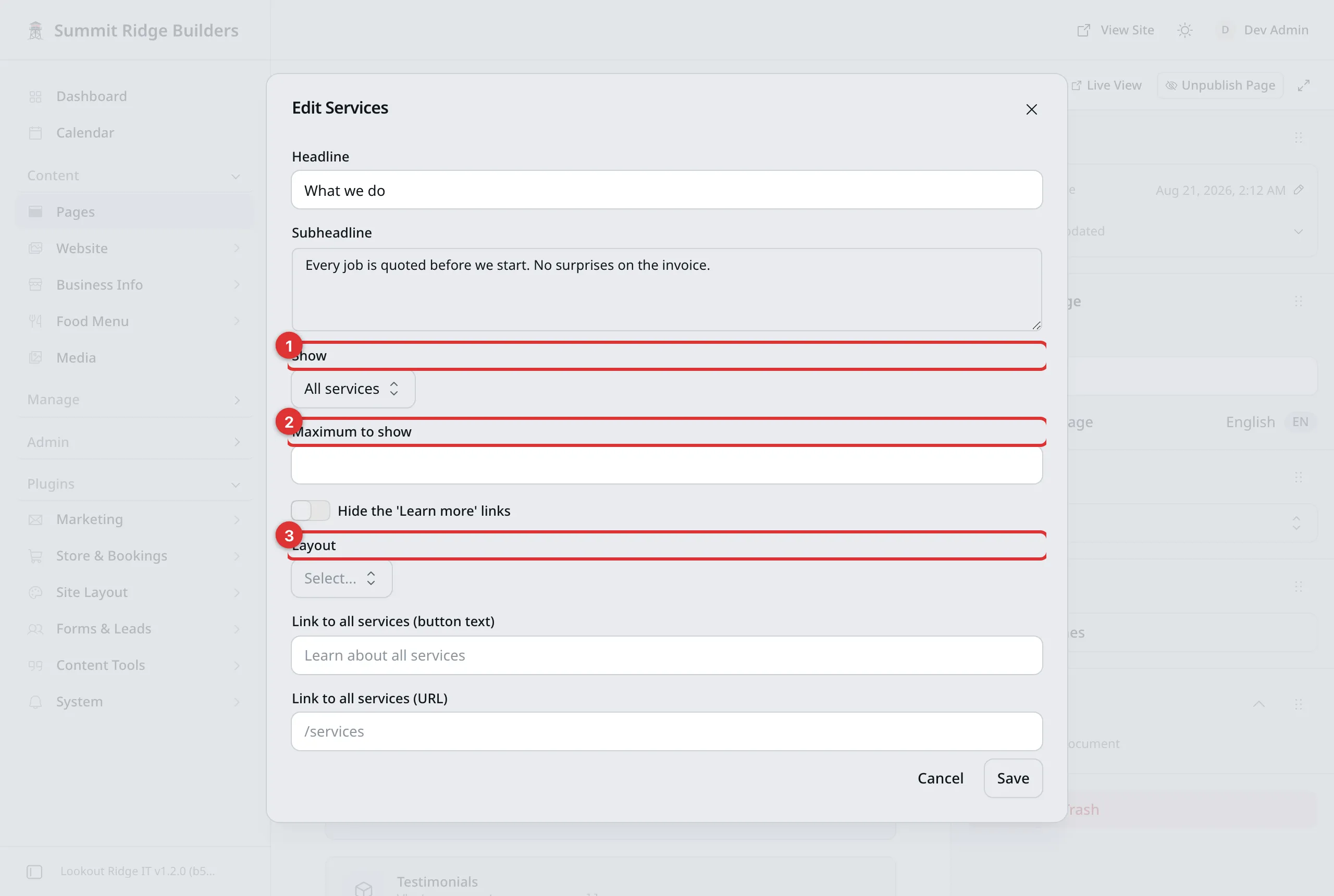
One block, its own settings. Other blocks are not affected.
1. Show. All services shows every published one. Featured only shows just the ones with the Featured switch turned on.
2. Maximum to show. A number, such as 3. Leave it empty to show them all.
3. Layout. Grid (cards) is three cards across. List is one wide row per service, with the photo, price and button on the same line.
These settings belong to this block. Another page can show the same services a different way.
The order services appear in
The Sort order box sets it. The lowest number goes first, and an empty box counts as zero. Two services with the same number fall back to A to Z by name.
Give every service a number, or none of them. Numbering only some is what makes this confusing.
Taking a service off your website
Warning
Both of the buttons below take the service off your website the moment you click. Its page stops working, and its card vanishes from every page that showed it. Any link or search result pointing at it lands on nothing.
Check that no other page links to it first.
Unpublish Service hides it and keeps it. Use it for work you have stopped offering for now. The entry waits exactly as you left it, and publishing brings it back.
Move to Trash is for work you are done with. It goes to the Trash tab, so you can still get it back.
Saving and publishing covers both buttons and how to undo them.
Last updated Oct 20, 2026