

Start here
Signing in
Passkeys, email sign in links, and what to do when you are locked out.
Your admin panel sits behind a sign in screen. Visitors never see it. Only the people you invite can get in.
Go to your website’s address and add /_emdash/admin to the end. The tour of
the admin panel has the full steps.
The sign in screen
The Lookout Ridge IT logo sits at the top of the screen. That is how you know you are in the right place.
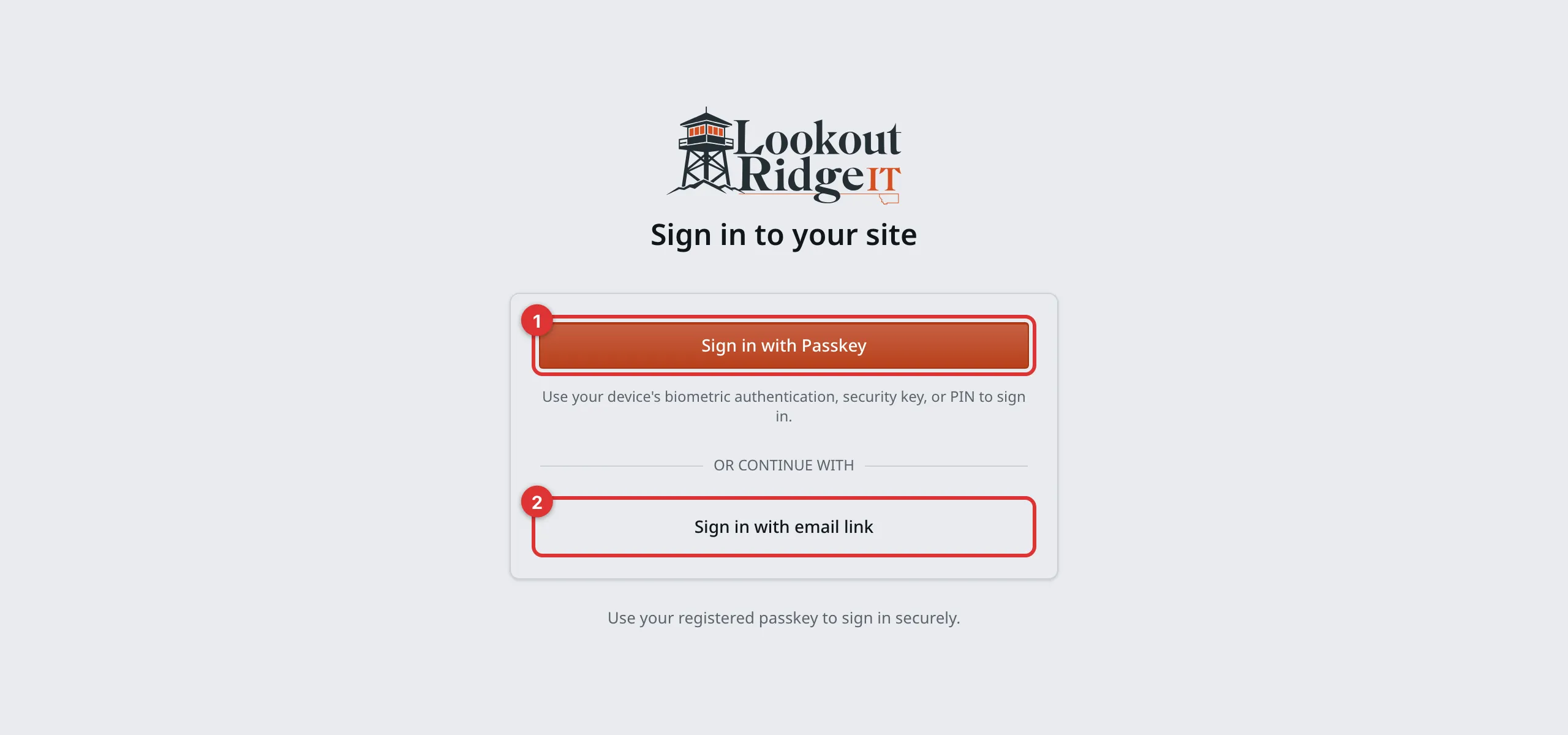
Two ways in. You only need one of them.
1. Sign in with Passkey. The fast way, on a device you have set up.
2. Sign in with email link. The backup way. Works on any computer.
What a passkey is
A passkey is your device standing in for a password. There is no password to type, and none to forget. Your fingerprint, your face, or your device PIN unlocks it.
We set your passkey up with you the first time. After that:
- Click Sign in with Passkey.
- Your device asks you to prove it is you. Use your fingerprint, your face, or your PIN.
- You land on the Dashboard.
A passkey belongs to the device you set it up on. On a borrowed laptop, or a new phone, it may not be there. Use the email link instead.
Signing in with an email link
This way sends a link to your inbox. Clicking that link signs you in.
- Click Sign in with email link.
- Type your email address in the Email address box.
- Click Send magic link.
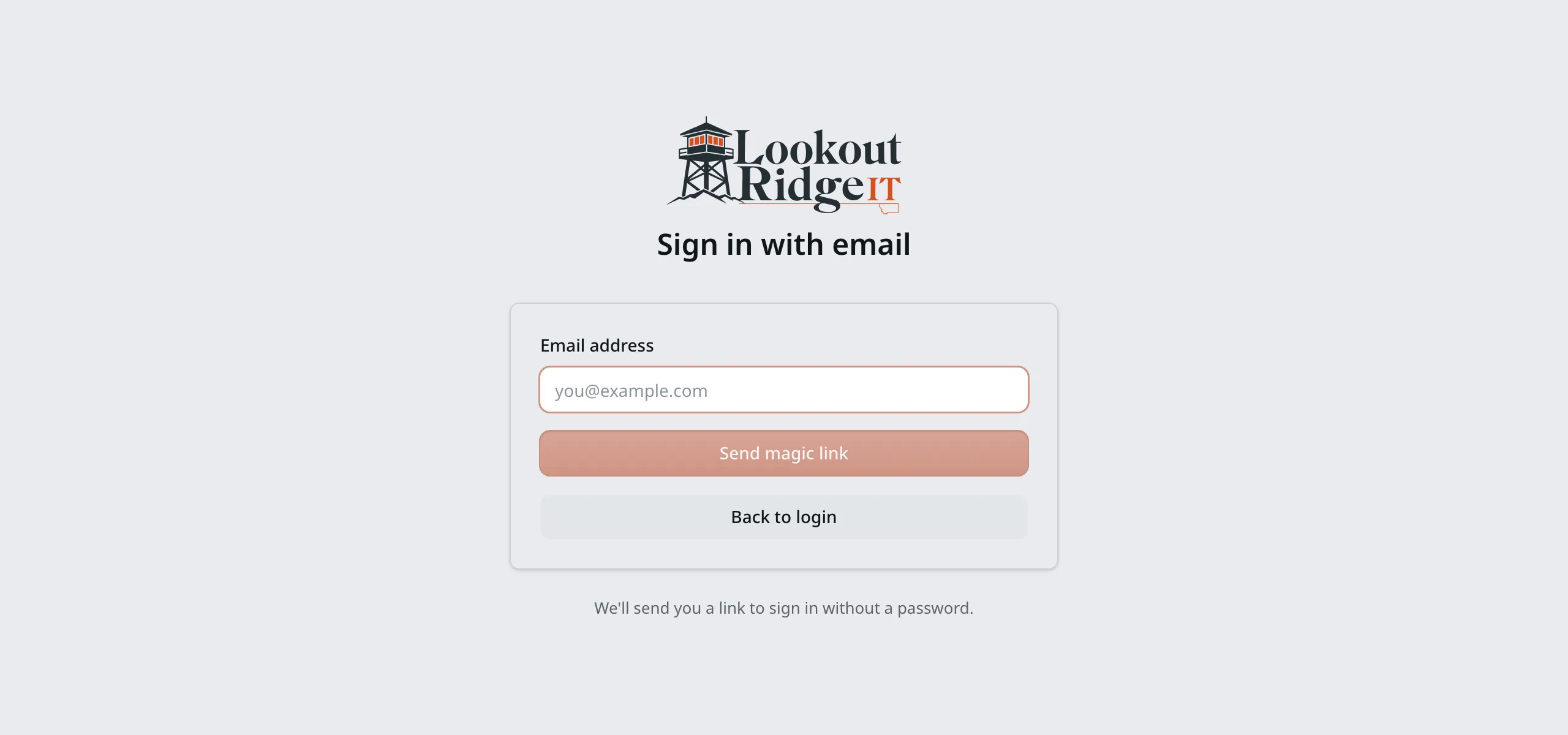
The screen says it will send you a link to sign in without a password.
The screen changes to Check your email. Now open your inbox and click the link in the email. It works for 15 minutes.
The link opens a page on your site. Click Continue to finish signing in. The link works only once, so a second click needs a new link.
Use the email address your account was set up with. Another address will not work, even if it is yours.
Important
If the email has not turned up after a few minutes, look in your spam folder. Still nothing? Get in touch rather than trying again and again.
Your first sign in
The very first time you sign in, a box pops up over the Dashboard. It says Welcome to Your Admin, with your first name after it.
The box tells you your role, which is what you are allowed to do in the panel. An Admin also sees a line about inviting other people. Users explains the roles.
Click Get Started to close it. It does not come back.
When you cannot get in
Stop. Nothing on the sign in screen can let you back in, and guessing will not help.
Contact support
Contact us and tell us three things:
- your website address
- the email address on your account
- what the screen says, word for word
We will get you back in.
Email support@lookoutridgeit.com. Getting support says what to put in the message.
Tip
Bookmark this screen while you are looking at it. Press Cmd+D on a Mac, or Ctrl+D on Windows. It saves you typing the address every time.
Once you are in, the tour of the admin panel shows you around.
Last updated Oct 20, 2026