

Plugins
Team
Add the people who work for you, with a page and a card for each.
Every website has this screen.
Team holds the people who work for you. Each person gets a card on your Team page and a page of their own. An org chart can show who reports to whom.
Go to Plugins, then Team. It sits in the Content Tools group.
There are three tabs:
- Members: everyone, in the order they show on your site.
- Org Chart: the same people, as a tree of who reports to whom.
- Settings: the address of your team pages, and how the org chart shows. Only an Admin can use it.
The Members list
Each row shows a photo, a Name, a Position, a Supervisor and a Status. The status is one of three:
- Published: on your website.
- Draft: saved, but the public cannot see it.
- Published + draft pending: the website shows the old version. You have saved changes that are not live yet.
A new site starts with nobody on the list. It says No team members yet.
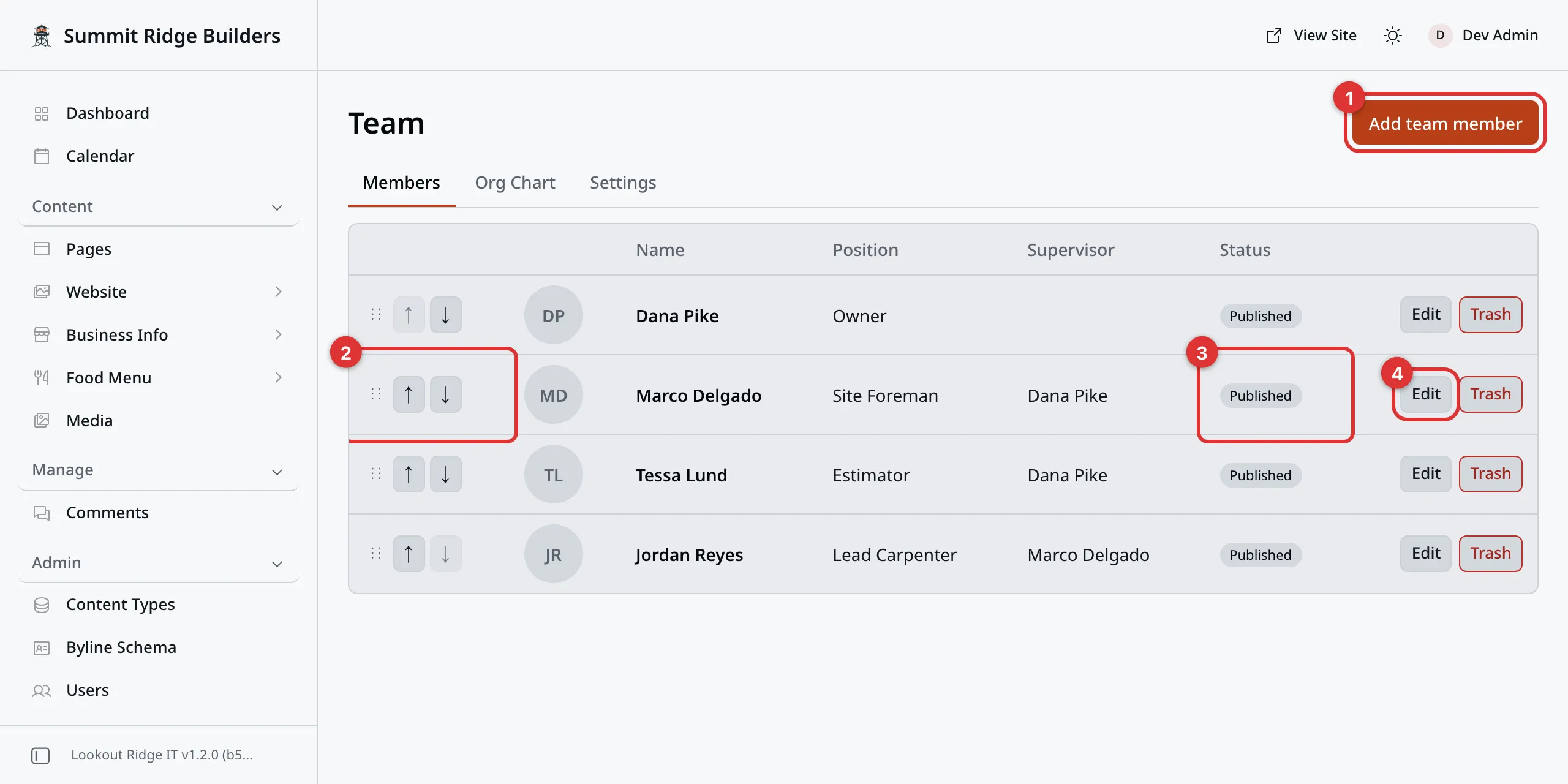
The Members list. Each row has its own handle, status and Edit button.
The numbers in the picture:
- Add team member adds a new person.
- The dotted handle and the arrows move a person up or down.
- The status says whether they are on your website.
- Edit opens the person. Clicking anywhere else on the row does too.
Adding a person
- Click Add team member at the top right.
- Type their Name and Position. Both are required.
- Add a photo. See the next section.
- Fill in anything else you want to show. Every other box is optional.
- Click Save & publish.
They are on your website right away. Their page address is made from their
name, such as /team/dana-pike.
Save as draft keeps the person without putting them on your website. Use it while you wait for a photo or a go-ahead.
| Box | What it shows |
|---|---|
| Location or branch | A line under their position. Used when no Branch is picked. |
| Branch | The branch they work at. Their card names it, with a link to its page. Leave it on - No branch - if you have one location. |
| Email and Phone | Contact links on their card. |
| Profile link | A Profile link, such as their LinkedIn page. Type the full link, starting with https://. |
| Background | A few lines about them. Press Return twice to start a new paragraph. |
| Fun fact | One line at the end of the card. |
| Direct supervisor | Who they report to. It builds the org chart. |
| Sort order | Their place in the list. Lower numbers come first. Dragging is easier. |
Warning
Email and Phone are public. Anyone can see them on your website, and so can spam robots.
Use a work address and a work number. Never put a home number here.
The photo
Click Choose from library to pick a photo you already uploaded. Type in the search box to find it by file name.
Or click Upload to add one from your computer. It goes into your Media library too.
Remove takes the photo off. A person with no photo gets a colored tile with their initials. It looks planned, so you can go live before every photo is in.
A square photo, face in the middle, works best.
Changing a person
Click Edit on their row. Change what you need, then click Save & publish. The change is live at once.
Save as draft on someone already published keeps your changes but leaves the live version as it was. Their status turns to Published + draft pending. Click Save & publish when you are ready.
Cancel leaves without saving.
Changing the order
Your Team page shows people in the order of this list.
Drag a row by the dotted handle on its left. Or use the up and down arrows next to it. The new order shows at once and saves on its own. A message says Order saved. Your website changes right away.
While the order saves, the other buttons on the list wait. It takes a moment on a big team.
Moving a person never publishes changes they have waiting. If their status says Published + draft pending, their new place goes live when you publish them. The Order saved message says so.
Who reports to whom
Open a person and pick their boss in Direct supervisor. Leave it on No supervisor for the owner, or anyone at the top.
The Org Chart tab draws the tree from these choices. People with no supervisor sit at the top. Click Edit on anyone in the tree to open them.
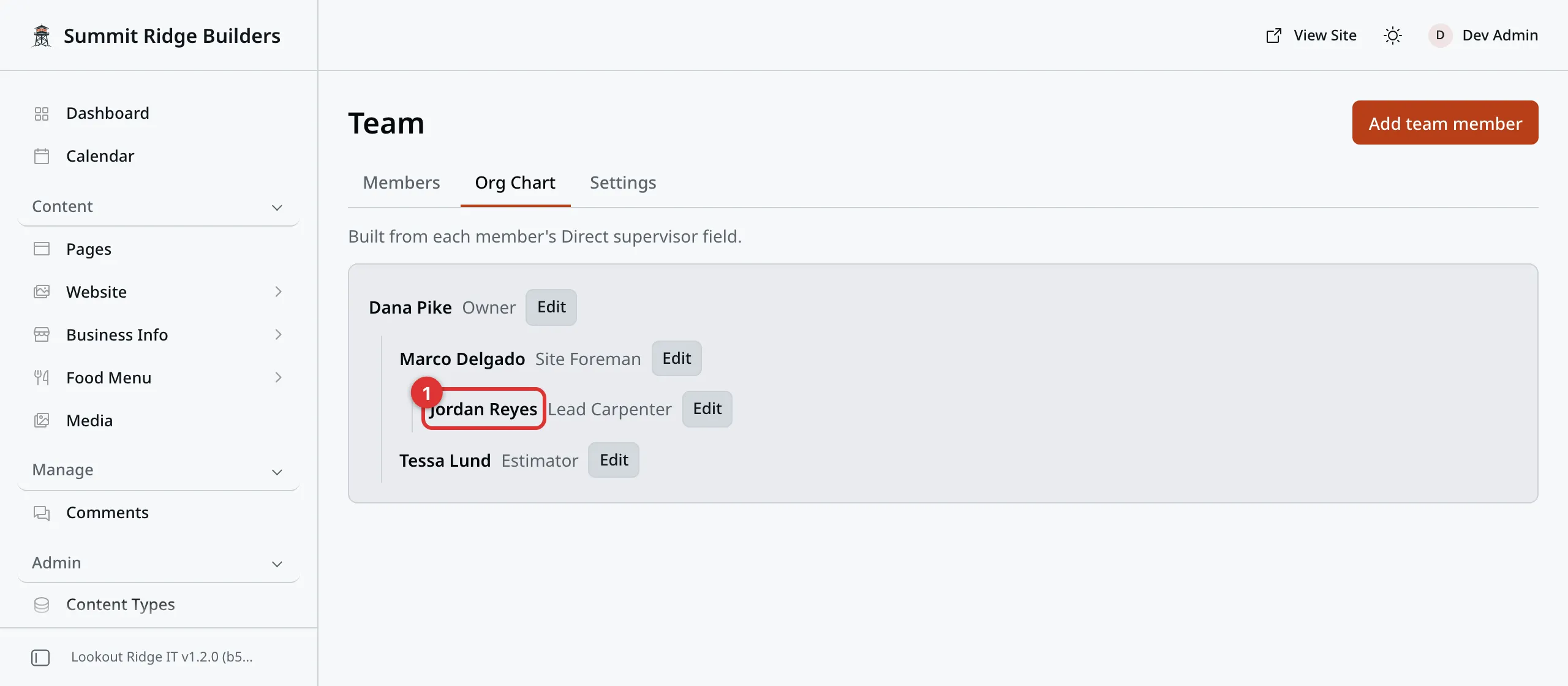
The Org Chart tab. Each person sits under the one they report to.
Number 1 in the picture reports to the site foreman, so he sits under him.
A person’s own page can also show who they report to. Turn on Show reporting lines on the Settings tab. Their page then adds a Reports to line, and lists their Direct reports, if they have any. It starts off, and it does not change the org chart.
If two people are set as each other’s supervisor, one of them is moved to the top of the chart. Nobody goes missing.
Crediting someone as an author
A team member can be named as the writer of a blog post or a project. Pick them in the Author box on that post or project. Posts and Projects show where it is.
The post or project then shows their name. Under it sits an About the author box, with their photo, their position, the start of their Background, and a link to their own page. With no author picked, none of this shows.
On a site with a blog, the person’s own page also lists their five newest posts, under Writing by and their name.
Taking someone off the website
Warning
Trash takes the person off your website at once, with their page. Your browser asks you to confirm first.
This screen has no way to bring a trashed person back. If you trash the wrong one, contact us.
Click Trash on their row. There is no unpublish button, so Trash is the only way to take someone off.
Showing your team on the website
Your site comes with a Team page at /team. It holds the Team block,
and it is in your top menu and your footer. Each person also has their own page
at /team/ plus their name. The Team page path setting can change that
address. See The Settings tab.
There are three blocks you can add to any page. Pages shows how a block is added.
| Block | What it shows | Its settings |
|---|---|---|
| Team | Everyone published, as cards. | Headline, Subheadline, Hide contact details |
| Team member | One person’s card. | Team member, Photo side (Left or Right), Hide contact details |
| Org chart | The tree of who reports to whom. | Headline |
The Settings tab can also put the org chart on your Team page, above or below the cards.
Hide contact details leaves email, phone and profile links off the cards. Good for a home page, where you want people to call the business.
In the Team member block, a person still in draft shows (draft) after their name. Their card shows nothing until you publish them.
Drafts never show in any block.
Important
A small team? You may not want a Team page at all. Take Team out of your menus instead. Menus shows how.
The Settings tab
These settings change your live website as soon as you click Save settings. You get a message reading Settings saved.
- Team page path is the address of your Team page and of each person’s
page, without the first slash. It starts as
team. Read the warning below first. - Show reporting lines adds the Reports to and Direct reports lines to each person’s own page. It starts off.
- Show org charts turns every Org chart block on or off at once. Turned off, the blocks stay on their pages, but nobody sees them. It starts on.
- Org chart style is how the tree is drawn. Column is an indented list. Tree draws boxes joined by lines. On a phone, a tree shows as a column. It starts on Column.
- Org chart on the Team page adds the org chart to your Team page, headed Our Organization. Pick Top of the page, Bottom of the page or Off. It needs Show org charts on. It starts on Off.
Warning
Changing Team page path moves every person’s page to a new address. Links to the old addresses stop working, in your menus and on other websites.
Your Team page keeps its old address too, until you change it to match. Some
words are taken, such as blog or contact, and the panel turns them away.
Talk to us before you change it.
Contact support
Contact us if:
- you trashed someone by mistake
- you want your team pages at a new address
- your Team page is empty but people show Published here
Email support@lookoutridgeit.com. Getting support says what to put in the message.
Last updated Oct 20, 2026