

Content
Service Area
The places your business covers.
Service Area is the list of towns you work in. It is one of the one-of-a-kind entries: there is exactly one, it is already there, and you open it and edit it.
Go to Content, then Business Info, then Service Area. One row is waiting. Click its title.
Important
The list has an Add New button, like every list. Do not use it here. Your website only reads the one entry that came with it, so a second one never shows anywhere. The tour of the admin panel explains why.
What is in the entry
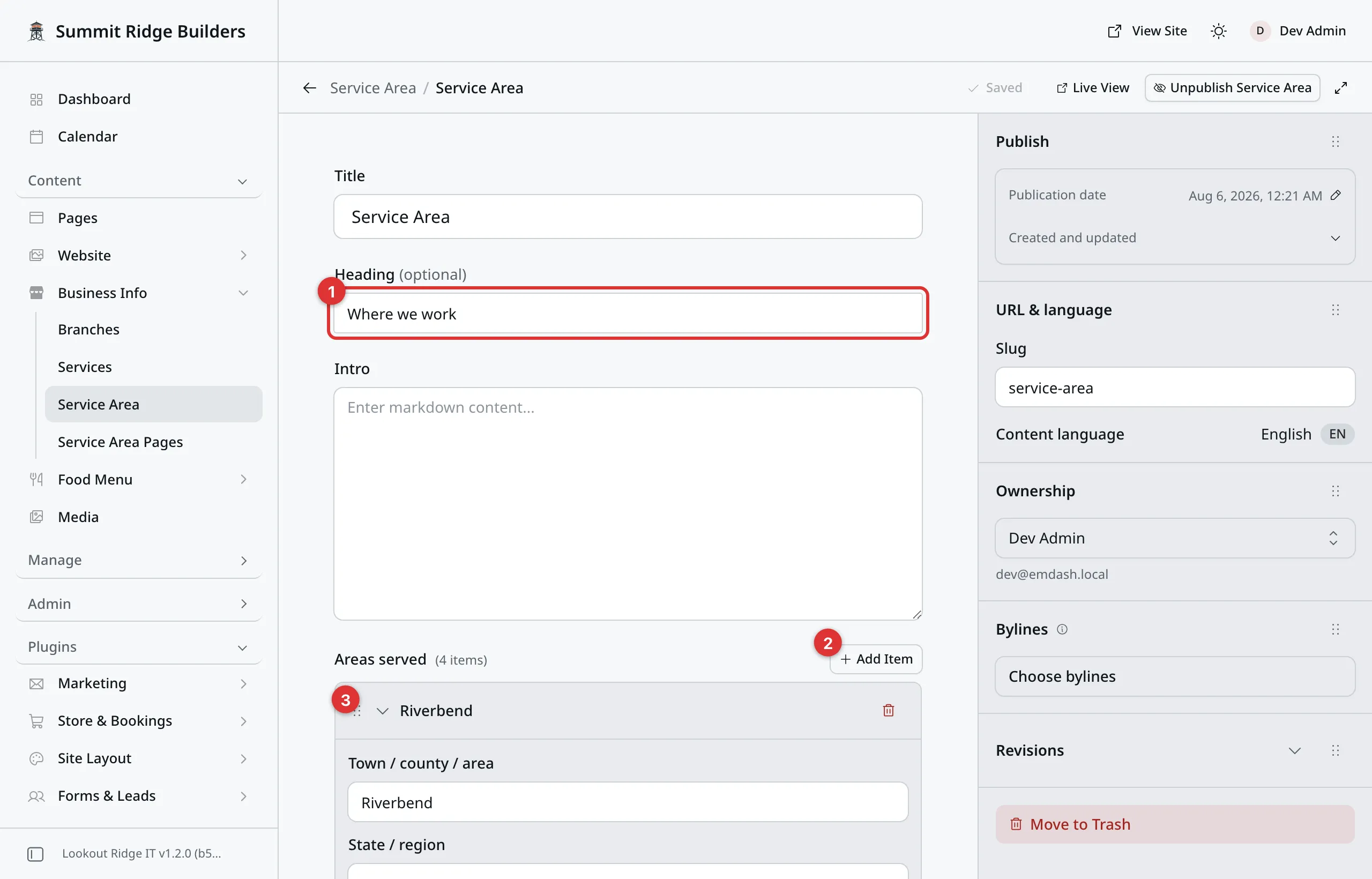
One row here is one place you work.
1. Heading. The small title above the list on your website, such as “Where we work”.
2. Add Item. Adds an empty row for one more place.
3. The six dots. Drag these to move a place up or down the list.
Title at the very top is a label for the panel only. Visitors never see it. Leave it as it is.
Intro is an optional line under the heading. It only shows where the list appears as a section on a page, not in the footer.
Adding a place
- Click Add Item. A new row opens at the bottom.
- In Town / county / area, type the place, such as
Maple Falls. - In State / region, type the state or county short code, such as
MT. Your website prints the two together as “Maple Falls (MT)”. - Leave Note empty, or add a short aside such as “our yard is here”. It prints in small type next to the town, but only where the list shows as a section on a page. The footer leaves notes out.
- Click Publish changes, then Publish changes again to confirm.
Important
Town / county / area cannot be left empty. If it is, the entry stops saving, and a red message tells you which row is the problem. Fill the box in, or take the row out.
Renaming or removing a place
To rename one, open the entry, change the words in its boxes, and click Publish changes, then Publish changes again to confirm.
Warning
Removing a row takes that place off your website as soon as you publish. Anyone searching for that town stops finding you.
To remove one, click the red trash icon on the right of its row, then click Publish changes, then Publish changes again to confirm.
The footnote
The last box on the form is a footnote, for something true of the whole list. “Outside these towns, call us. We travel for larger jobs.” is the kind of line it is for.
It prints in small type under the list.
Where the list shows up
In your footer. Most styles show the list at the bottom of every page, under your heading, with the places side by side. The Footer screen decides what your footer holds.
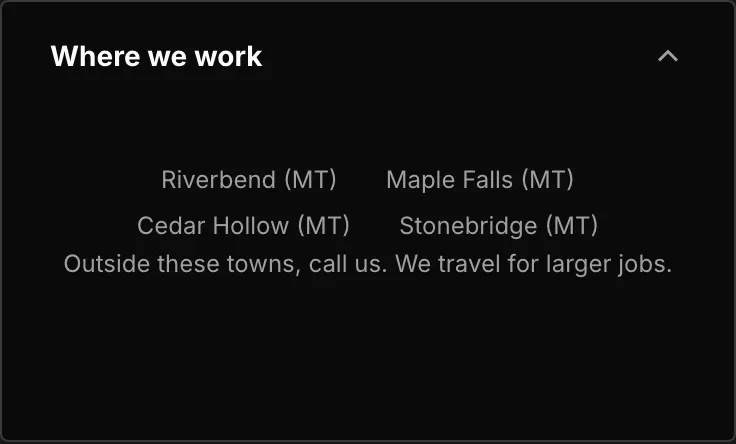
The footer strip. It is on every page of your website.
In a Service Area block. The same places can also show partway down a page, as rounded chips. It is the same one list, so you only ever type a town once.
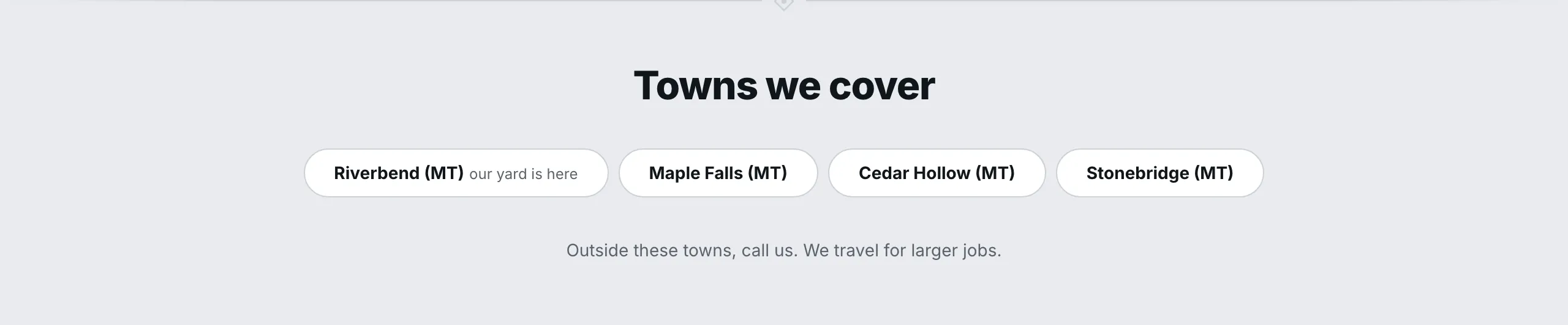
The same four places, shown as a section on the Contact page.
To put one on a page, add a Service Area block. Pages shows how blocks are added. The block asks for one thing, a Heading override, and you have to type something there before the Insert button wakes up. Whatever you type becomes the title above the chips on that page.
Publishing a change
Nothing you type here reaches your website until you click Publish changes, then Publish changes again to confirm. Until then the old list stays up. See Saving and publishing.
Last updated Oct 20, 2026