

Plugins
Accounts
The sign-in accounts of the people who buy from you or book with you.
An account lets a customer sign in to your website. There is no password. They type their email, and your website sends them a link that signs them in.
Your shop and your bookings share these accounts. One customer, one sign-in, whatever they do on your site.
Go to Plugins, open the Store & Bookings group, and click Accounts. There are two tabs: Accounts and Settings.
Editors and admins can look at this list. Only an admin can add an account, change one, close one, or change the settings.
Where accounts come from
An account is made four ways.
- A paid order. Every order makes an account from the email the buyer paid with. See Commerce.
- A booking. Someone who books a time with you gets one. See Bookings.
- Signing up. A visitor can make one themselves, at your web address
followed by
/account/create. - You add it. See Adding a customer below.
What the customer sees when they sign in is covered on What your customers see.
The Accounts tab
Two tiles sit at the top. Active counts open accounts. Closed counts closed ones that are waiting to be deleted.
Under them is a box reading Search email or name, and three chips: All, Active and Closed. Click a chip to see only those accounts.
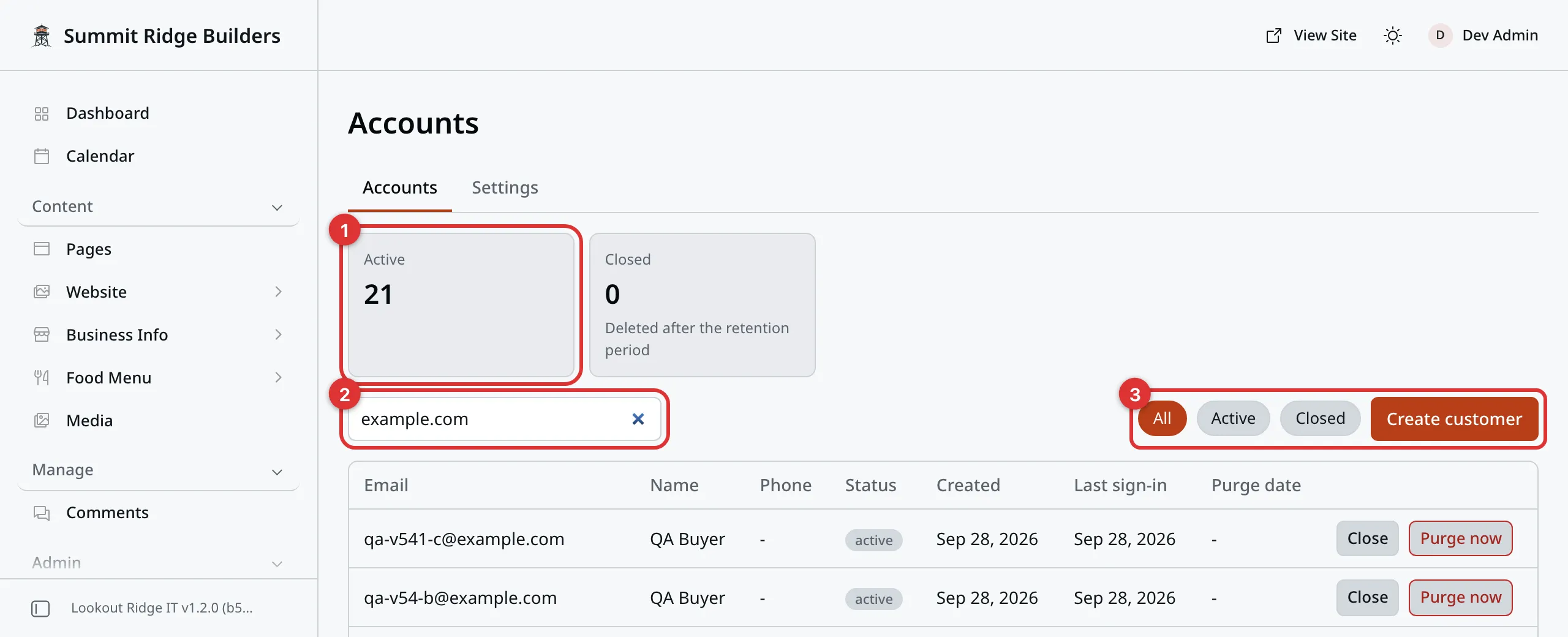
The Accounts tab. The tiles count every account, even while you search.
The numbers in the picture:
- The tiles count open and closed accounts.
- The search box finds an account by email or name.
- The chips show all accounts, or only one kind.
| Column | What it shows |
|---|---|
| The address they sign in with. | |
| Name | Their name, when they gave one. |
| Phone | Their phone, when they gave one. |
| Status | active or closed. |
| Created | The day the account was made. |
| Last sign-in | The last time they signed in. |
| Purge date | For a closed account, the day its record is deleted. |
At the end of each row are the Close and Purge now buttons. See Closing and purging.
With a lot of accounts, Previous and Next move between pages.
Adding a customer
Use this when a customer asks you to set them up, such as after a phone call.
- On the Accounts tab, click Create customer.
- Type their Email. Name and Phone are optional.
- Click Create.
You see Customer created. We emailed them how to sign in. The new account opens. The customer gets an email with a link that signs them in.
If that email already has an account, nothing new is made. The message says so, and the account opens for you to check. Cancel closes the form without adding anyone.
With Commerce, a buyer can also be added from the Commerce Customers tab. See Customers.
Opening an account
Click a row. ← Back to list takes you back.
Account shows the email, the status, the dates, and Newsletter opt-in. That last one says whether they asked for your newsletter when they signed up.
Under that are Name and Phone. Change either one and click Save. A message reads “Saved.” The customer sees the change on their own account page.
The email cannot be changed here. For a buyer, change it on their customer record. See Customers.
The next three boxes gather what this person has done elsewhere on your site.
Commerce shows their customer record, their plans and their orders. Click an order to open it.
Bookings shows their bookings.
Forms shows forms they have sent you, with the Feedback add-on.
A box reads “not enabled on this site” when your website does not use that add-on. That is normal.
Closing and purging
There are two ways to shut an account. They are not the same.
Close stops the account from signing in. Every device they were signed in on is signed out at once. The record is kept for a set number of days, then deleted on its own. The number is set on the Settings tab.
Purge now deletes the account record right away.
Warning
Both take effect the moment you confirm. A closed account cannot be opened again. The person cannot sign in with that address until the record is gone.
Purge now cannot be undone. The record and every sign-in are deleted at once, and nothing can bring them back.
Neither one deletes their orders, credits or bookings. Those stay in your records.
To close an account:
- Find the account, or open it.
- Click Close, or Close account inside the account.
- Your browser asks you to confirm, and says they will not be able to sign in again. Click OK.
A message reads “Closed” and their email.
To purge an account:
- Find the account, or open it.
- Click Purge now.
- Your browser asks you to confirm, and says it cannot be undone. Click OK.
A message reads “Purged” and their email.
Once the record is gone, that address can make a new, empty account.
Customers can also close their own account, from the Settings tab of their account page.
The Settings tab
| Setting | What it does |
|---|---|
| Show account pages | Turns the account pages on your website on or off. |
| Days a closed account is kept | How long a closed account’s record stays before it is deleted. It starts at 30. |
| Delete accounts inactive for (days) | Deletes an open account nobody has signed in to for this long. 0 means never. |
Click Save settings when you are done. A message reads “Settings saved.”
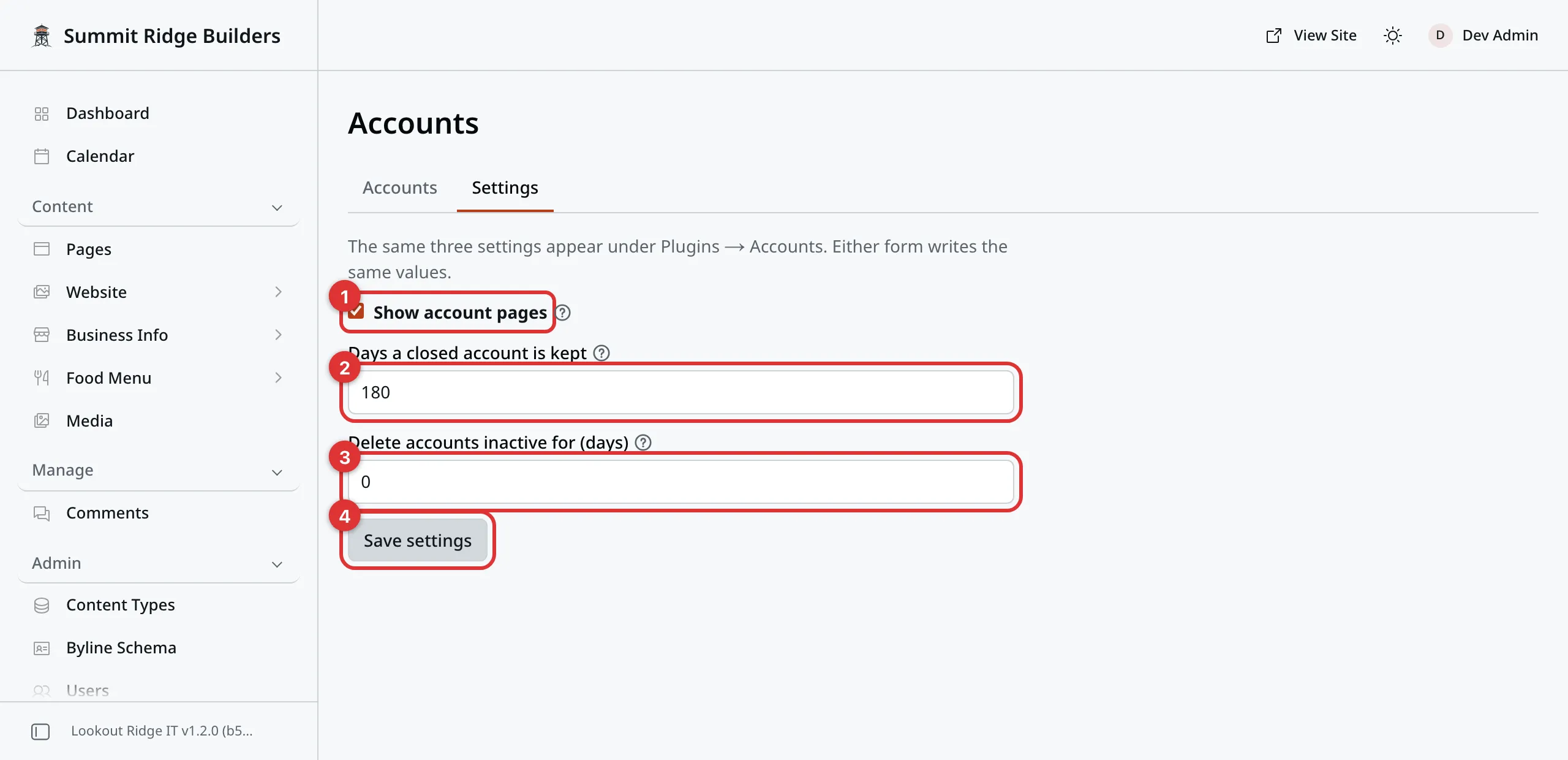
The three settings, in the order of the table above.
Numbers 1 to 3 in the picture are the three settings, in the order of the table. Number 4 is Save settings.
The same three settings are also under Admin, then Plugins. Find the
row named accounts and click the gear.
Show account pages does nothing while you have Commerce or Bookings. Both need customers to sign in, so the pages stay on.
Days a closed account is kept should match your privacy policy. Your policy says how long you keep a closed account. Put the same number here.
Warning
Delete accounts inactive for (days) deletes open accounts, not just closed ones. A loyal customer who buys once a year could lose the name and phone they saved. Their orders stay, and their next sign-in starts a fresh account.
It starts at 0, which means never. Leave it there unless you have a reason.
Contact support
Contact us if:
- a customer closed their account by mistake and needs it back
- a customer says sign-in links never arrive
- you are not sure what number your privacy policy needs
Email support@lookoutridgeit.com. Getting support says what to put in the message.
Last updated Oct 20, 2026