

Plugins
Feedback
Build forms and surveys, share them, and read every response.
Add-on
Feedback is an add-on, so not every website has it. If it is not in your menu, see Add-ons to add it.
Feedback builds forms and surveys. A job survey, a sign-up sheet, a warranty claim. You build the form, share it, and read what comes back.
Go to Plugins, open the Forms & Leads group, and click Feedback.
The screen has five tabs:
- Forms: build and manage your forms.
- Responses: what people sent you.
- Analytics: how many people open each form, and how many finish it.
- Audiences: lists of people allowed to fill in a form.
- Field groups: sets of questions you can drop into any form.
Important
Your contact form and quote form are not built here. Those came with your website, and what they send lands in Leads. Nothing on this screen can change them.
Feedback or Form Designer?
Some websites have both. They do not share forms or replies.
- Feedback does more. Each form gets its own web page. It can be kept to signed-in customers, or locked with a passphrase. It has analytics, email designs, and reusable question sets.
- Form Designer is the simpler, older one. Its forms only show inside a page.
Both add a block called Form to your pages. Read the line under the name. The Feedback one says Embed a published form on this page.
If you have both, build new forms in Feedback.
Building a form
Open Forms and click New form.
The editor has four parts: Settings, Fields, Email and Delivery actions. Nothing you change is kept until you click Save. Cancel throws your changes away. Back to the list takes you out.
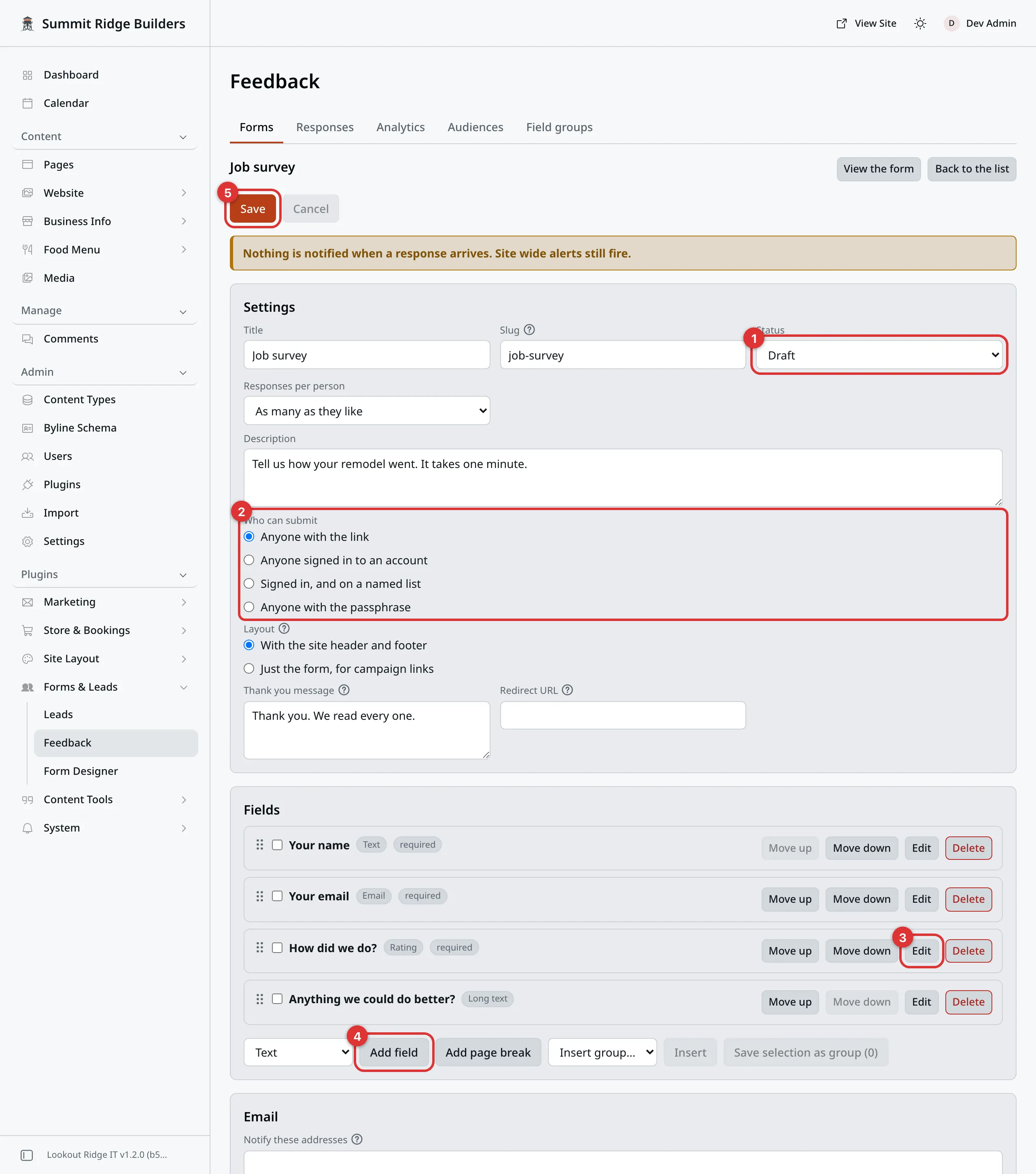
A form open in the editor. The Email and Delivery actions parts sit further down.
The numbers in the picture:
- Status says whether the form is live.
- Who can submit says who may fill it in.
- Edit opens one question.
- Add field adds a question of the kind picked beside it.
- Save keeps your changes.
Settings
| Box | What it does |
|---|---|
| Title | The name at the top of the form. |
| Slug | The web name. The form lives at /forms/ plus this. Set it once. |
| Status | Draft hides it. Published puts it live. Archived and Template are covered below. |
| Responses per person | As many as they like, or One only. One only needs a signed-in form. |
| Description | A line under the title. |
| Thank you message | What people read after they send it. |
| Redirect URL | Sends them to another page instead. Leave it empty unless you have a thank-you page. |
Who can submit
Pick one under Who can submit:
- Anyone with the link. Most forms.
- Anyone signed in to an account. Only your customers, once they sign in.
- Signed in, and on a named list. Pick the list in Audience. See Audiences below.
- Anyone with the passphrase. Type a Passphrase. The form stays locked until a visitor types it.
Layout
With the site header and footer shows the form as a normal page of your website.
Just the form, for campaign links shows your logo and the form, and nothing else. Good for a link in a social post or a flyer.
The layout only changes the form’s own page. It does not change the block.
Adding questions
Each question is called a field. Under Fields, pick a kind of field in the box, then click Add field.
There are many kinds. Text, Long text, Email, Phone, Number, Date, Select, Radio, Checkbox, Rating (1 to 5), Scale (0 to 10), Address, File, Matrix, Signature and more.
To change the order, drag a field by the grip on its left. Or use Move up and Move down. Edit opens the field. Delete takes it off the form.
When you open a field, you can set:
| Box | What it does |
|---|---|
| Label | The question, as the visitor reads it. |
| Name | The inside name. See the warning below. |
| Placeholder | Faint example text inside the box. |
| Help text | A short line under the box. |
| Default value | What the box starts out holding. |
| Width | Full width, or Half width so two sit side by side. |
| Required | They cannot send the form until this is filled in. |
Choice fields also get Options, one row per choice. Style shows them as a Dropdown or as Buttons.
A File field takes files up to 10 MB unless you set a smaller Maximum size (MB). Accepted types limits which kinds of file.
A Matrix field is a grid. Each row is a question, and each column is an answer every row offers. For example, rows for “Price”, “Speed” and “Care”, with columns for “Poor”, “Fair” and “Great”. Allow more than one answer per row lets people pick several in a row. Require an answer in every row makes them fill in the whole grid.
A Signature field lets a visitor sign with a mouse or a finger. They can choose Type my name instead.
Warning
Label is the wording. Change it whenever you like.
Name is how the answer is filed. Rename it and old responses show that answer as “field no longer on form”. Rules that point at it are updated for you, but exports will not line up.
Change the label. Leave the name alone.
Showing a field only sometimes
Open a field and click Only show this field when…. Pick an earlier field, a test, and a value. For example: show Company name when Who is this for? is A business.
The tests are is, is not, contains, does not contain, is filled and is empty.
A field can have more than one rule. Click Add rule. Then pick how they join:
- all of these are true: every rule must match.
- any of these is true: one rule is enough.
Add group adds a small set of rules that joins the other way. That covers a case like “a business, and in town or out of town”.
Always show takes every rule off.
A rule can only point at a field above it. It cannot point at a File, Signature or Matrix field.
If you delete a field that others depend on, you are warned first. Their rules are removed too.
Forms with more than one page
A long form is easier in steps. Click Add page break under Fields. Every field below the break moves to a new page.
Click Edit on a page break to give that page a title. A page can also have rules, the same as a field. Visitors skip a page whose rules do not match.
Visitors see which step they are on, with Back and Next buttons. Each page is checked before they move on. Submit sits on the last page.
Remove page break joins its fields to the page before. A form can have up to 20 pages.
Putting the form live
- Set Status to Published.
- Click Save.
The form is now live at /forms/ plus its slug. Click View the form to
open it in a new tab. Share that link anywhere: an email, a text, a QR code.
Warning
On a published form, Save changes the live form at once. There is no separate publish step. Someone may be halfway through filling it in.
Make big changes at a quiet time of day.
Putting it inside a page
- Open the page under Content, then Pages.
- Type
/formand choose Form. Check the line under it says Embed a published form on this page. - Pick your form in the Form box. Only published forms are listed.
- Click Publish changes, then Publish changes again in the box that opens.
Pages covers blocks, and saving and publishing covers that last step.
If the form is later unpublished, the block shows nothing.
A form for signed-in customers or people on a list does not show in full on a page. The page shows its title and an Open the form button instead. The button opens the form’s own page.
A form can also open in a popup. See Popups.
Emails
Who hears about a response
Under Email, type addresses in Notify these addresses. One per line. Each one gets an email for every response.
Your site-wide alerts still go out too. Those are set in Notifications.
Notification email template sets how that email looks.
Sending the visitor a reply
An autoresponder is an automatic reply to the person who filled in the form.
Warning
The autoresponder goes to whatever email address the visitor typed. It does not check that the address is theirs. Someone can type a stranger’s address, and your website emails that stranger.
Keep the reply short and plain. Never put anything private in it.
Switch on Send an autoresponder to whoever filled the form in. Then open Autoresponder template to write it. The form needs an Email field, or there is nowhere to send it.
Designing an email
Both templates work the same way. Type a Subject. Then add blocks: a Heading, a Paragraph, a Button, a Divider, or All answers, as a table. Pick one and click Add block.
Merge tags lists short codes that drop an answer into the email.
Preview shows the email on screen, and it changes as you type. Hide the preview closes it. It does not send anything.
To see it in a real inbox, type your address in Send a test to and click Send test.
Delivery actions
Delivery actions can send each response to another system. Contact us if you need one. We will set it up with you.
Reading responses
Open Responses. The newest are at the top.
The boxes above the list filter it: Every form or one form, Any status or one status, and Starred only. Click the star on a row to mark it.
Click a row to open it. You see every answer, plus the sender’s country and where they came from. From here you can:
- Star it, to find it again later.
- Mark read.
- Archive it. It leaves the main list but is kept.
- write Private notes, then click Save notes. Only you see them.
- open any file they sent. Each link works for one hour. Open it again for a fresh one.
To act on many at once, check the boxes on their rows. A bar appears with Mark read, Star, Unstar, Archive, Mark spam and Delete.
Warning
Mark spam also stops any email or delivery for that response that has not gone out yet.
Delete removes the response for good. Nothing can bring it back, and neither can we. Your browser asks you to confirm first.
Downloading them
Export CSV saves a file for Excel, Numbers or Google Sheets. Export JSON is for handing to another system.
An export holds what your filters show, up to the newest 500. For more than that, filter by form or by status and export each part.
What your customers see
On a form for signed-in customers, each customer can see what they sent. It is
on the Forms tab of their account page, at /account.
Analytics
Open Analytics and pick 7 days, 30 days or 90 days.
Each form gets a row. Visits is how many opened it. Starts is how many began typing. Completions is how many sent it. Conversion is the share who finished. Partials is how many gave up halfway.
Click a form for more. Where people stop shows the question people quit on. If one question loses a lot of people, make it shorter or make it optional.
Analytics stores nothing that could name a visitor. It works whatever visitors chose on your cookie banner.
Audiences
An audience is a named list of email addresses. A form set to Signed in, and on a named list only lets in people on that list.
- Open Audiences and click New audience.
- Give it a Name, such as “Service plan customers”.
- Type the addresses in Addresses, one per line. Or use Or load a CSV to read them from a spreadsheet file.
- Click Save audience.
A person on the list still has to sign in to their account to fill in the form.
Field groups
A field group is a set of questions you use again and again. Three come ready made: Contact info, Address and Company.
To use one in a form, pick it in Insert group… under Fields, then click Insert. The questions are copied in. Changing the group later does not change forms that already have it.
To make your own, check the fields you want in a form. Then click Save selection as group and give it a name. Or open Field groups and click New group.
Copies, templates and the archive
At the top of Forms, check the boxes next to one or more forms. Then:
- Duplicate makes a copy as a draft.
- Save as template makes a template copy. A template never shows on your website. It is a pattern to start new forms from.
- Archive takes them off your website but keeps them and every response.
The Show box switches the list between Active, Archived and Templates. On a template, Use template makes a new draft from it. On an archived form, Restore brings it back.
Warning
Delete removes the form and every response it ever got. Nothing can bring them back, and neither can we. Pages with the form on them are left with a gap.
Export the responses first. Archive the form if you only want it gone from the site.
Delete this form, at the bottom of the editor, does the same thing for one form.
How long responses are kept
Responses are deleted on a timer. The timer starts at 365 days. A response older than that is removed on its own, with any files it had.
The setting is Keep responses for (days). It is under Admin, then
Plugins, on the gear of the feedback row. Zero keeps them forever.
Warning
Lowering Keep responses for (days) deletes every older response the next time the timer runs. They do not come back.
Export first if you might need them.
Contact support
Contact us before you:
- rename a field’s Name on a form that already has responses
- lower Keep responses for (days)
- need a delivery action or a new way to send responses on
Email support@lookoutridgeit.com. Getting support says what to put in the message.
Last updated Oct 20, 2026