

Plugins
Bookings
Let customers book a time with you, then accept or decline each one.
Add-on
Bookings is an add-on, so not every website has it. If it is not in your menu, see Add-ons to add it.
Bookings lets a customer pick a free time on your website. They prove their email with a short code. Then the request comes to you, and you say yes or no.
It is built for one diary. A consultant, a groomer, an estimator. It does not take payment.
Go to Plugins, open the Store & Bookings group, and click Bookings.
The screen has eight tabs. It opens on Agenda.
- Agenda: everything booked, by day.
- Bookings: every request, and your yes or no.
- Polls: let a group vote on a time.
- Schedule: book a customer in by hand.
- Meeting types: the kinds of visit people can book.
- Hours & rules: when you work, and the limits.
- Legal: rules a customer must agree to, such as a cancellation policy.
- Calendar settings: join your own calendar, so you are never booked twice.
Important
The Schedule tab here is not the Schedule add-on. That one lists dated stops for a food truck or a market stall. This tab only books a customer in.
Set it up in this order
- Add at least one meeting type.
- Set your hours on Hours & rules.
- Add any policies on Legal, if you have them.
- Join your calendar on Calendar settings, if you keep one.
- Put the form on your website.
Until one meeting type is active, the form shows nothing at all.
Meeting types
A meeting type is one kind of visit. “Free estimate, 45 minutes” is one. “Site walk, 90 minutes” is another. A customer picks one first.
Open Meeting types and click New type. If the list is empty, Use defaults gives you one to start from.
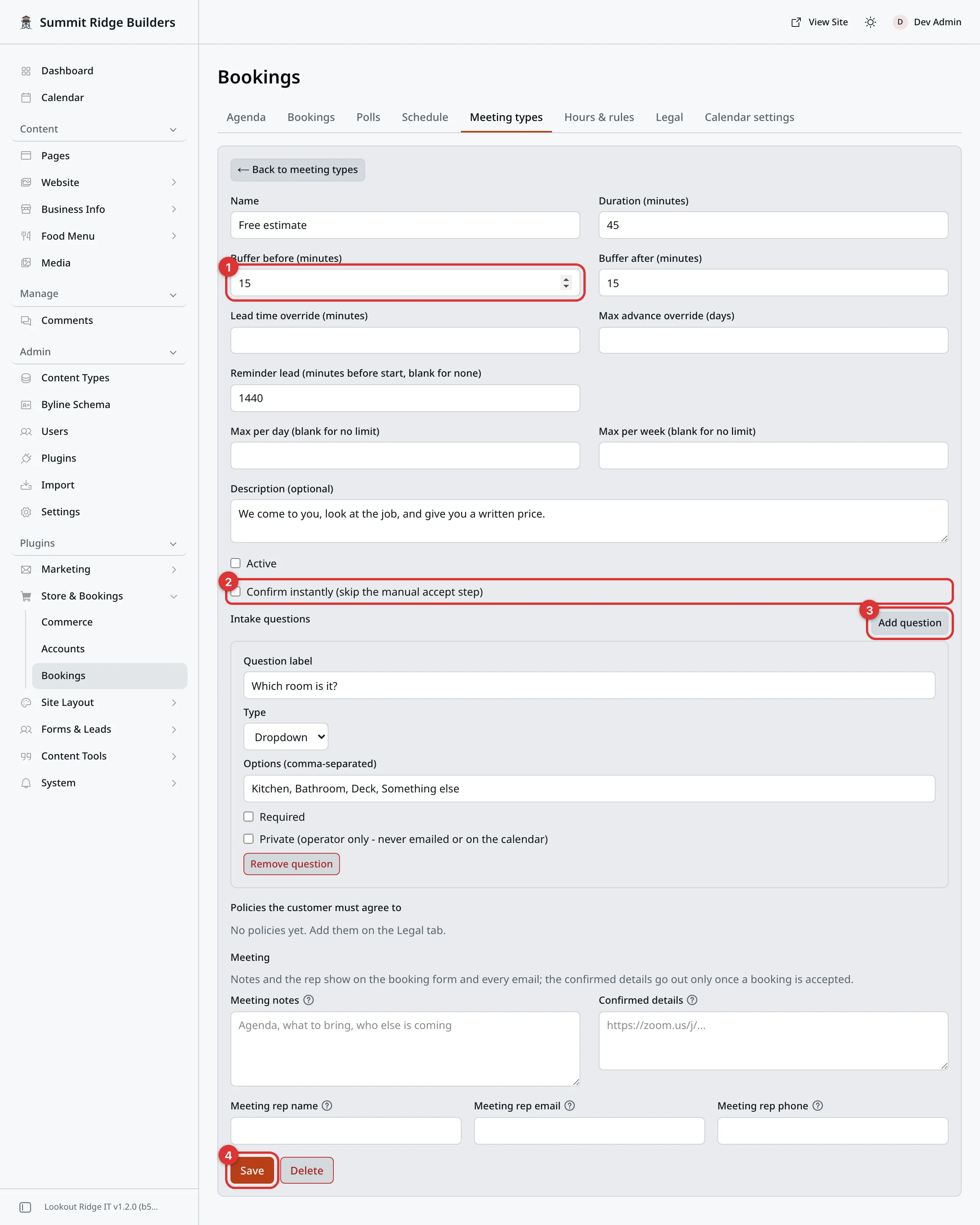
One meeting type, open. Active is not checked here, so the form hides it.
The numbers in the picture:
- Buffer before keeps free time before the visit.
- Confirm instantly skips your yes or no. See below.
- Add question adds your own question to the form.
- Save puts the type on your form.
| Box | What it does |
|---|---|
| Name | What the customer reads. |
| Duration (minutes) | How long the visit takes. |
| Buffer before (minutes) | Free time kept before it, to travel or set up. |
| Buffer after (minutes) | Free time kept after it, to pack up. |
| Lead time override (minutes) | How much notice you need for this type. Empty uses your main rule. |
| Max advance override (days) | How far ahead this type can be booked. Empty uses your main rule. |
| Reminder lead | How many minutes before the visit the customer gets a reminder email. Empty sends none. |
| Max per day and Max per week | A cap on this type. Empty means no cap. |
| Description (optional) | A line under the name. |
| Active | Turn it off to hide this type without deleting it. |
Click Save. The type is live on your form right away.
Confirm instantly
A booking normally waits for you to accept it. Check Confirm instantly and this type skips that step. The customer is booked the moment they enter their code.
Use it for a visit you always say yes to. Leave it off if you want to look first.
Intake questions
The form always asks for a name, an email, a phone number and notes. Add your own questions under Intake questions.
- Click Add question.
- Type the Question label, such as “What needs fixing?”
- Pick a Type: Short text, Paragraph or Dropdown.
- For a dropdown, type the choices in Options (comma-separated).
- Check Required if they must answer.
- Click Save.
Check Private on a question the customer should not see again. A private answer shows only in your panel. It is left off every email and off the calendar file.
Policies
Under Policies the customer must agree to, check each policy this type needs. The list comes from the Legal tab. A type with none checked asks for no agreement.
Meeting notes, details and rep
The last card on a meeting type holds what the customer is told about the visit.
| Box | What it does |
|---|---|
| Meeting notes | What to know before the visit, such as what to bring. Shown on the form and in every email. |
| Confirmed details | Sent only once the booking is accepted. A video link, a phone number or an address. |
| Meeting rep name, Meeting rep email and Meeting rep phone | Who runs this type of visit. The customer sees them as their contact. |
The rep gets an email for each new request. They get a copy of every booking once it is accepted, too. Leave the rep boxes empty if you do not need one.
Warning
Delete on a meeting type removes it for good. Customers can no longer pick it. Bookings already made with it stay in your list.
To pause a type, uncheck Active instead.
Hours & rules
This tab holds your week and your limits. Nothing here counts until you click Save at the bottom.
The line at the top says which time zone your times are in. We set that for you. If it names the wrong one, contact us.
Booking page path is the web address of your booking page. It starts as
/book.
Weekly hours has a row for each day. Click Add window to add a block of time, such as 9
to 12. Add a second window for the afternoon if you take lunch. Remove takes a window away. A day with no windows is a day off.Under Rules:
- Lead time is how much notice you need, in minutes. At 120, nobody can book a slot that starts in the next two hours.
- Max advance (days) is how far ahead people can book.
- Cancel cutoff (hours) is the last point a customer can cancel or move their own booking online. It starts at 24.
- Max bookings per day, all types and Max bookings per week, all types cap your whole diary. Leave them empty for no cap. A day that is full does not show on the form at all.
Blackout dates are days you are closed, such as a day off for a family event. Pick a day and click Add date. Click the small × on a date to remove it.
Legal: policies to agree to
A policy is a rule the customer agrees to before they book. A cancellation fee is a common one.
- Open Legal and click Add policy.
- Type a Title, such as “Cancellation policy”.
- Type the full rule in Policy text.
- Type a short, plain version in Summary (in the confirmation email).
- Click Save.
Then open each meeting type that needs it, and check it under Policies the customer must agree to.
Switches sets how the form asks. One switch for all of a type’s policies shows one switch. You can change its words in Switch text. One switch per policy shows a switch for each.
The customer must turn every switch on before they can ask for a time. Each switch has a link to read the full policy. The booking keeps a copy of the exact words they agreed to. Their emails list each policy’s summary, with a link to the full text.
Remove policy takes one away. Meeting types stop asking for it.
Your calendar
If you keep a calendar, join it here. The form then hides any time you are already busy. An accepted booking is written back to your calendar too.
Open Calendar settings and pick a Provider.
iCloud, Fastmail or Nextcloud
These use a kind of link called CalDAV.
- Pick CalDAV in Provider.
- Click iCloud, Fastmail or Nextcloud. This fills in the Server URL. For Nextcloud, put your own server’s name in place of the example one.
- Type your Username. That is the email you sign in to that calendar with.
- Type a Password. Use an app password, made in that calendar’s own account settings. iCloud will not take your normal password.
- Click Discover calendars, then pick one in Calendar.
- Click Save, then click Test.
A good test says Connected and counts the busy times it found.
To change a saved connection, leave Password empty. The old one is kept.
Google or Microsoft
Google Calendar and Microsoft 365 / Outlook need a setup step on our side first. Until then, the Connect button stays gray. Contact us and we will turn it on.
Warning
If your calendar cannot be read, the form offers no times at all. It will not guess and risk a double booking.
A changed password or a closed app password is the usual cause. Open Calendar settings and click Test if people say the form is empty.
Warning
Disconnect stops the form from checking your calendar. New bookings can then land on top of things you already have. Your browser asks you to confirm first.
The Agenda
Agenda shows what is booked, grouped by day. It holds every request and every accepted booking: from your website, from the Schedule tab, and from polls. Click one to open it.
The buttons pick the view:
- Upcoming lists the next bookings, soonest first. Show past flips it to bookings that have started.
- Day, Week and Month show one span of time. ← Previous, Today and Next → move through them.
Day, Week and Month can also show as a Calendar instead of a List. Requests are amber, and accepted bookings are green.
Set as default makes the view you are looking at the one every admin sees first.
Answering requests
Open Bookings. Two tiles count what is Requested and what is Upcoming (accepted). The buttons above the list filter it: requested, accepted, declined, and so on. It starts on all of them.
Click a row to open it. You see the time, the type, the customer’s details and every answer they gave. Private answers are marked (private). If the customer agreed to a policy, Agreed to lists it.
Warning
Accept, Decline and Cancel booking each email the customer the moment you click. There is no draft, and no way to take the email back.
A declined or canceled booking cannot be opened up again. The customer has to book again.
The Note box adds a line of your own to the email. Something like “I am booked that week. Could you try the week after?” Type it before you click.
- Accept confirms it. The customer gets a confirmation email with a link to add it to their own calendar. It holds your Confirmed details. It goes on your calendar as confirmed.
- Decline says no. It clears the time off your calendar. The customer gets an email that says you could not take it. Your browser asks you to confirm.
- Cancel booking shows on a booking you already accepted. The customer gets a cancellation email. Your browser asks you to confirm.
- Send reminder now shows on an accepted booking that has not happened yet. It emails the customer their reminder right away. You can send it at most once every five minutes.
A request you do not answer before its start time expires on its own.
Click ← Back to bookings to return to the list.
Export CSV saves the bookings in the list as a file for Excel, Numbers or Google Sheets.
Booking someone in by hand
A customer calls, and you agree a time on the phone. Put it in on the Schedule tab.
- Pick the Meeting type.
- Pick a day in the little calendar. Gray days have no free time.
- Click a free time.
- Check the Meeting card. It starts with the meeting type’s notes, details and rep. A change here is for this booking only.
- Fill in Name and Email. Phone (optional) too, if you have it.
- Fill in the two notes boxes. They are explained below.
- Choose whether to turn on Email the customer a confirmation.
- Click Book this time.
A booking made here skips the code and is accepted at once. It goes on your calendar. It shows on the Bookings tab.
If Email the customer a confirmation is on, they get the same email as an accepted request. Turn it off if you already told them everything on the phone.
Warning
The two notes boxes do not go to the same place.
Notes the customer sees (optional) goes on the confirmation email and on the calendar file the customer gets. Write it for them to read.
Private notes (optional) stays in your panel. Put a gate code or a quote you gave here, never in the first box.
Polls: finding a time for a group
A poll is for a meeting with a few people. You offer some times. They vote. You pick the winner, and everyone is booked in.
- Open Polls and click New poll.
- Give it a Title.
- Type a Group name: who the meeting is with, such as “Smith family kitchen remodel”.
- Pick a Meeting type.
- Pick a day in Date to offer and click Add date. Add as many days as you like.
- Under each day, click the start times you want to offer. They come from your hours on Hours & rules. To offer another time, type it and click Add time.
- Type the addresses in Invitee emails, one per line.
- Fill in the Meeting notes, Confirmed details and the rep. The rep starts as you.
A poll can offer up to 20 times. It cannot offer a time that has passed.
Warning
Create and send invites emails every address on the list right away. Check the times and the addresses before you click.
Each person gets a link to vote. They see the meeting notes and the rep as their contact.
Letting anyone with the link vote
Turn on Anyone with the link can vote to get a share link. Then you do not need a list of addresses. Post the link, or text it.
On the poll’s page you get Copy link and New link. New link stops the old one working. With the QR Codes add-on, Make a QR code opens one with the link filled in.
A guest types a name and an email. Confirm guest emails with a code is on at first. A guest then gets a code by email and types it before they vote.
Warning
Turn off Confirm guest emails with a code only for people you know, such as voters in the room with you. With it off, anyone with the link can vote under any name or email. Your website emails whatever address they type.
Reading the votes
Click a poll in the list to open it. The Vote tally has one bar per time. The best time is marked leading, or tied. A time marked overlaps a booking clashes with something already booked.
Invitees and guests lists who was asked and who voted. Check guests and click Remove selected to take their votes off. Export CSV saves the list as a file.
Close voting stops new votes. Reopen voting lets them back in. Cancel poll ends it with no booking.
Booking the winner
Click the winning time in the tally.
Warning
Confirm winner & create booking books the time you picked, right away. It cannot be undone.
The rep gets a summary. Everyone invited gets a confirmation email with the notes, the Confirmed details and a link to add it to their calendar. Guests who confirmed an email get it too. Put nothing in Confirmed details that a guest should not see.
If the time overlaps a booking, your browser asks you to confirm first.
A poll time can fall outside your weekly hours. Your daily and weekly caps still apply.
Putting it on your website
There are two ways, and you can use both.
The booking page. Your site has a page at /book, or at whatever you set
in Booking page path. It shows the form under the heading Book an
appointment. Nothing links to it until you add it to your menu.
Menus shows how.
If you make a page of your own with the same address, your page shows instead. Put a Booking form block on it, or it will have no form.
The Booking form block. Put the form on any page. Edit the page, add a Booking form block. Then click Publish changes, then Publish changes now. Pages shows how a block is added. The block has these settings:
- Headline, Subheadline and Intro: words above the form.
- Message after a request is sent: what the customer reads at the end.
- Meeting types offered: All active types, or The first active type only.
What your customer sees
- They pick a meeting type, then a day, then a time. Times show in their own time zone.
- They type their details and answer your questions. They see the meeting notes and the rep as their contact.
- If the type has policies, they turn on each switch to agree.
- They click Request this time.
- A six digit code lands in their inbox. Their time is held for 10 minutes.
- They type the code and click Confirm.
If the type has Confirm instantly on, they are booked. If not, the request waits for you on the Bookings tab.
A customer who is already signed in to their account skips the code. Their name, email and phone are filled in for them.
Their email also gets an account on your website. At /account they can see
their bookings. Reschedule moves one to a new free time. Cancel cancels
it. Both work until your Cancel cutoff (hours). After that, they have to
call you.
A move or a cancel updates your calendar. You hear about it through your alerts.
Who hears about a booking
Booking alerts go to Notifications. That screen decides who is told about new, accepted, moved and canceled bookings.
A meeting rep is emailed too. See Meeting notes, details and rep.
The Notify email (retired) box on Hours & rules no longer does anything. The address in it was copied to Notifications for you. Change who gets told over there.
Showing the form on another website
You can put the form on a second website you own.
- Open Hours & rules and find Embed on another site.
- Click Copy to copy the Embed snippet. Hand it to whoever runs that other site.
- Under Allowed domains, type that site’s full address, starting with
https://. Click Add domain. - Click Save.
Contact support
The form’s spam check needs a setup step on our side for each new website. Until we do it, the form on that site cannot send.
Contact us each time you add a domain. Tell us the full address.
Email support@lookoutridgeit.com. Getting support says what to put in the message.
Things to know
- One diary. Every type shares one set of hours and one calendar.
- No payments. A booking cannot take a deposit.
- Two people can race for the last slot. If that happens, you see both requests. Accept one and decline the other.
Contact support
Contact us if:
- you want to join a Google or Microsoft calendar
- the time zone at the top of Hours & rules is wrong
- your form shows no times and Test on the Calendar settings tab passes
Email support@lookoutridgeit.com. Getting support says what to put in the message.
Last updated Oct 20, 2026