

Plugins
Schedule
Dated stops and opening times shown on the site.
Add-on
Schedule is an add-on, so not every website has it. If it is not in your menu, see Add-ons to add it.
Schedule is a list of dated stops. Where you will be, and when. It is built for a business that moves: a food truck, a market stall, a mobile groomer.
One stop is one date in one place. Saturday at the farmers market is a stop. The same market next Saturday is a second stop.
Schedule is not the Bookings add-on. Bookings lets a customer book a time with you. Schedule only tells people where you will be.
Go to Plugins, then Schedule. It sits in the Content Tools group.
The Schedule screen
Three tiles at the top count your Upcoming, Past and Total stops.
Under them are two buttons, Upcoming and Past. They switch the list between stops still to come and stops already behind you.
The list has a row for each stop: Date, Time, Location, Address, Series, Note and Google events. A stop made with a weekly repeat says weekly in the Series column. Click the Date or Location heading to sort by it.
Google events says whether Google can list the stop in its event results. See Stops in Google.
Warning
If a box at the top says No timezone set, set your time zone first. Until you do, the screen and your website may treat a stop as past a few hours early or late. Your time zone below shows how.
Adding a stop
Click New stop at the top right. The Add a stop page opens.
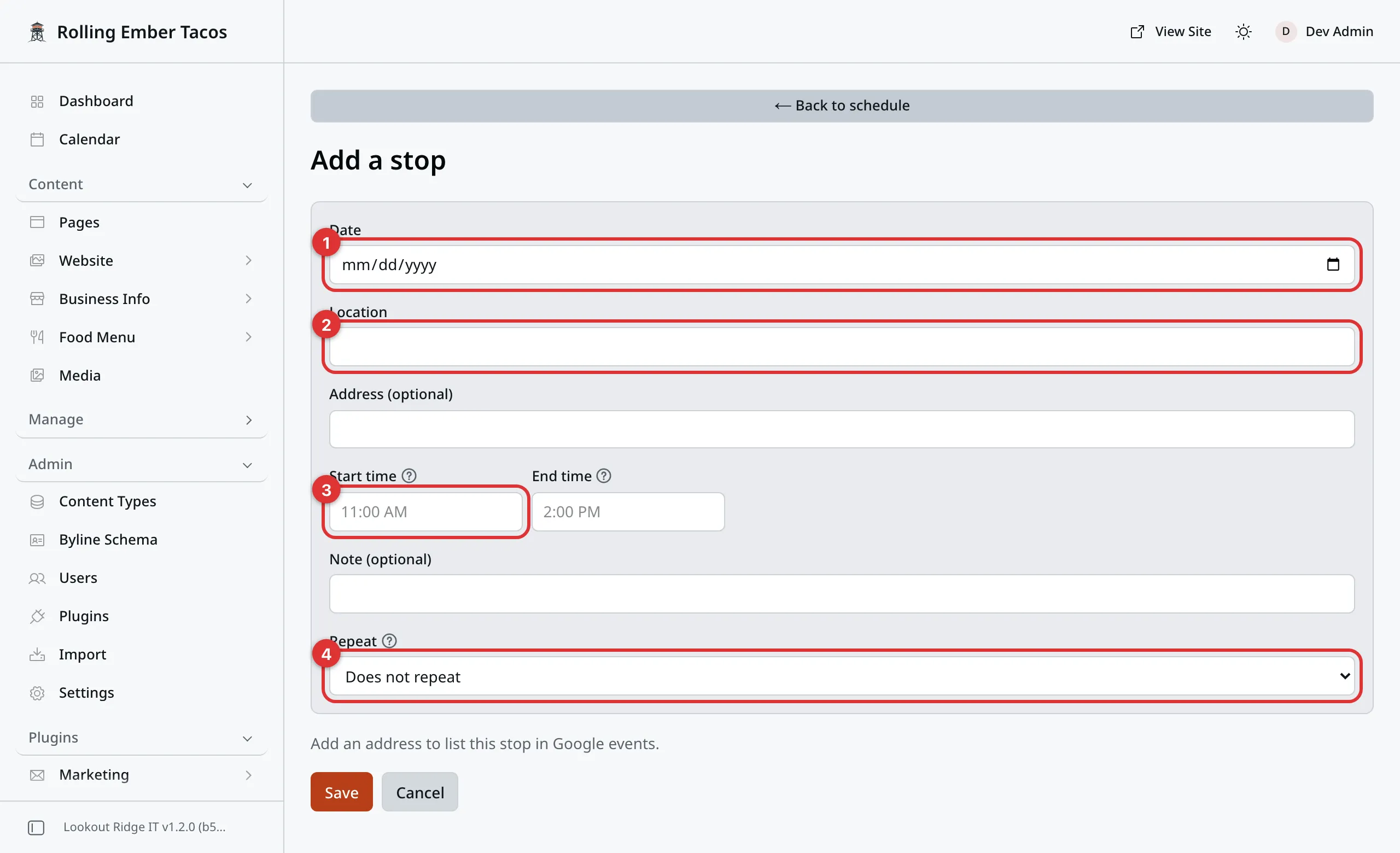
The boxes for a new stop.
- Pick the Date. Click the small calendar to choose a day.
- Type the Location. The name people would say out loud, such as “Hamilton Farmers Market”. This one is required.
- Fill in Address (optional) if you want it under the name.
- Type the Start time and End time the way you say them.
11:00 AM,11am,9 to 2. Your website prints them back just as you typed them. - Fill in Note (optional) for a line like “Look for the orange awning”.
- Leave Repeat on Does not repeat for a one-off stop.
- Read any notes above the Save button. They say what Google needs to list this stop. See Stops in Google.
- Click Save.
A message says the stop was added, and you are back on the list. The stop is on your website right away.
Cancel, or ← Back to schedule at the top, leaves without adding anything.
Repeating a stop every week
Say you are at the same market every Saturday until October. You do not have to add each date by hand.
- Click New stop and fill in the first date and the rest of the page.
- Set Repeat to Weekly.
- In Repeat mode, pick Until a date or After a number of times.
- Fill in Repeat until, or Number of occurrences.
- Click Save.
You get one ordinary stop per week, all in one go. The message tells you how many were made. A single run can hold up to 104 stops, two years of weeks.
Each one shows weekly in the list. They belong to one series, so you can remove them all together later.
Important
Repeat only shows when you add a stop. Once the stops are made, you cannot add more weeks to the run or take a stop out of it. Add a new stop for any extra dates.
Changing or removing a stop
Click a row to open it. The Edit stop page opens, with the same boxes filled in.
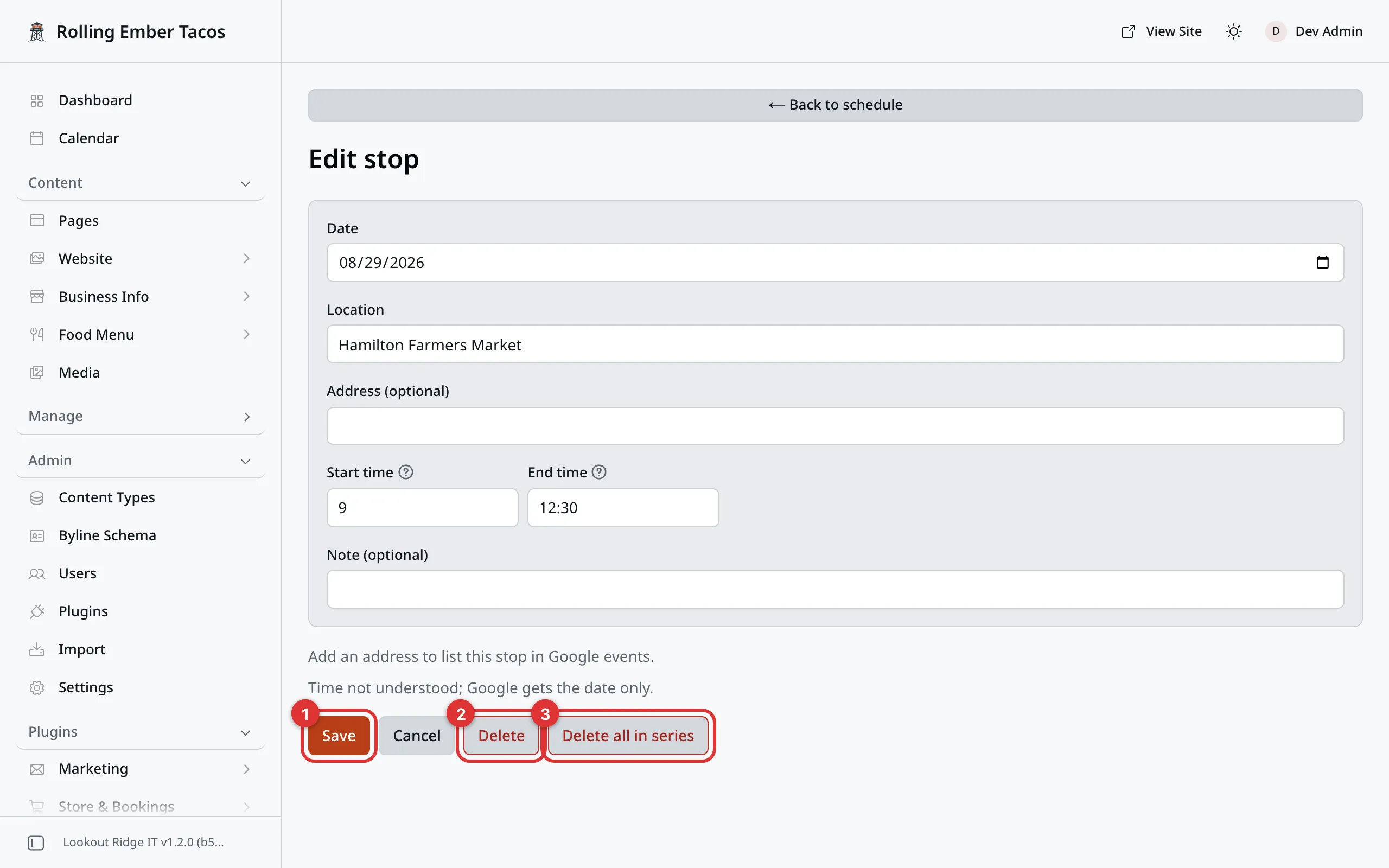
The same boxes as a new stop, filled in.
1. Save. Stores your changes. Your website has them right away.
2. Delete. Removes this one stop.
3. Delete all in series. Only on a stop made with Weekly. It removes every stop in that run, not just this one.
Change the date on a stop and it simply moves. You do not have to delete it and start again. Changing one stop in a series leaves the others alone.
Warning
Both delete buttons take stops off your website the moment you confirm. Nothing can bring them back, and neither can we.
Delete all in series is the one to watch. It clears every date in that weekly run, past and future, including dates months away. If you only meant to cancel one week, use Delete.
Your browser asks you to confirm either way, and the message tells you which one you picked.
What happens to a date once it has passed
Nothing you have to do.
The day after a stop, it drops off your website on its own. Visitors only ever see what is still to come.
The stop is not gone. Click Past to see it. Past stops are listed newest first. Open one and change its date to use it again next year.
How the schedule reaches your website
Through a block on a page. Most sites put it on the home page.
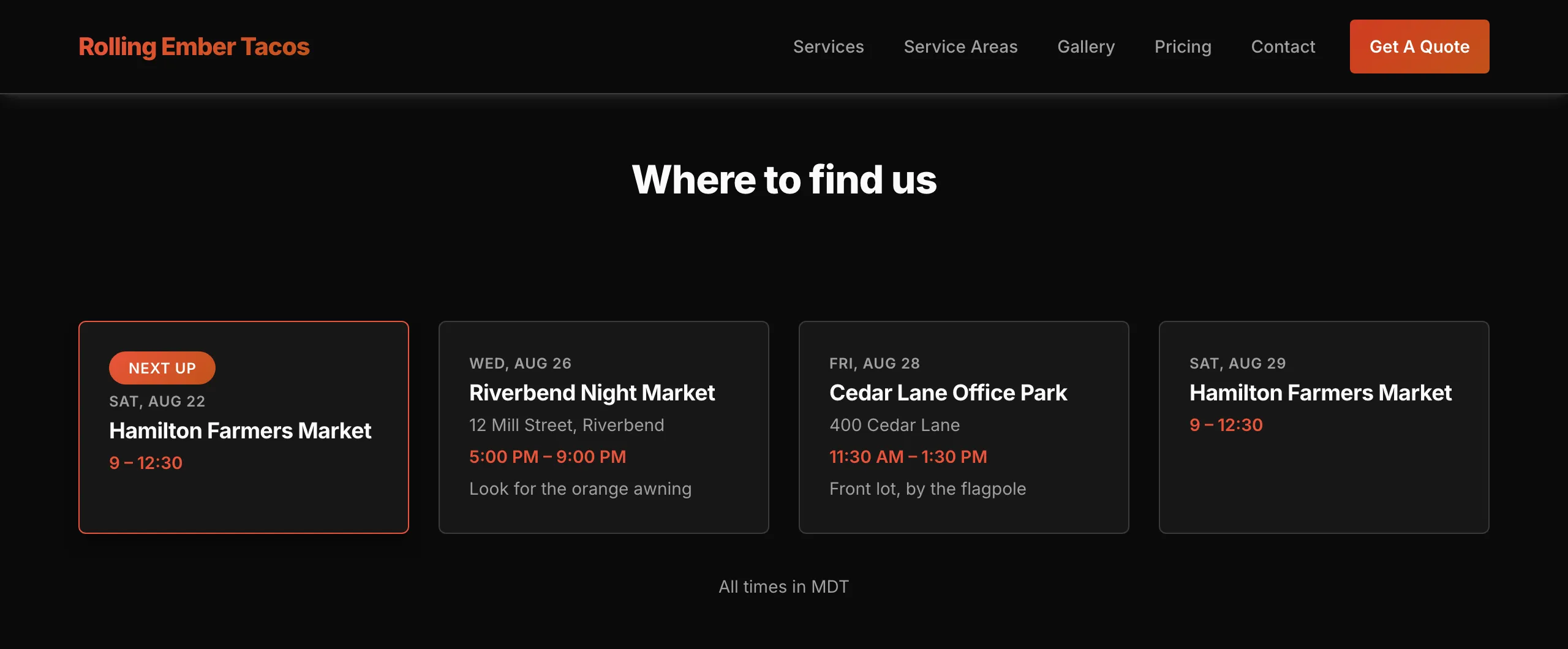
Four stops. The soonest one gets the Next up badge on its own.
The block prints the date, the place, the address, the times and the note, in date order. Past dates are not there.
The name of each place is a link to that stop’s own page. See Each stop’s own page.
To put it on a page, edit the page and add a Schedule block. Then click Publish changes, then Publish changes again in the box that opens. Pages shows how a block is added, and saving and publishing covers the last step.
After that, the block looks after itself. Adding a stop on this screen does not mean going back and publishing the page again.
Important
Two blocks in that list are called Schedule. Read the line under each name.
The one you want says it shows Upcoming dated stops. That is this screen.
The other one is a fixed week, Sunday to Saturday, with up to seven rows typed straight into the page. It has no dates and it never changes on its own. Use it only if your week is always the same.
The block’s own settings
Click the block, then click the pencil. All of these can be left empty.
Headline and Subheadline put a heading above the list.
Maximum stops to show is a number. The rest hide behind a button that counts them, such as Show 2 more, and a visitor can click it. Leave it empty to use the number in your settings, which starts at five.
Show past stops is a switch. Turn it on and old dates stay on the page, ahead of the ones still to come. Most businesses leave it off.
Message when there are no stops is what visitors read when your list is empty. Leave it empty and the whole section disappears instead.
Warning
An empty schedule with no message is a section that vanishes off your page. Nothing is broken, but the page changes shape.
Add your next stop before your last one goes past, and this never comes up.
Each stop’s own page
Every stop gets a page of its own. Its address starts with /schedule/, then
the date and the place. There is nothing to set up. The page is there as soon
as you save the stop.
The page shows:
- the date, and the times just as you typed them, with your time zone
- the address, with an Open in Google Maps link
- your note
- a map, if Show a map for each stop is on. See Your time zone for that setting.
Rename a stop’s place and its old link still works. It sends visitors to the new one.
Once a stop’s date has passed, its page says This stop has passed. It also asks search engines to drop it from their results.
Maps
Show a map for each stop adds a Google map to each stop that has an address. It shows on the stop’s own page. In the schedule on your other pages, it hides behind a Show map link, so the list stays short.
A map never loads on its own. A visitor sees a box that says the map comes from Google Maps, with a Load map button. The map loads once they click it, or once they accept cookies. Analytics and the cookie banner explains the cookie banner.
Stops in Google
Google can show your stops in its event results, when people search for things to do nearby. Your website sends Google the details it needs. A stop needs three things for a full listing:
- an Address (optional). A stop with no address gets its own page, but Google does not list it.
- your time zone, so Google gets the right start time. See Your time zone.
- times your website can read, such as
11:00 AMor11am. If it cannot read them, Google gets the date only.
The Google events column on the list says Ready when a stop has all three. Otherwise it shows a short label for what is missing: No address, No timezone or Time unclear. Point at the label for the full sentence.
Google decides for itself what to show. A stop marked Ready is one Google can list, not one it must.
Your time zone
Schedule has four settings of its own. Go to Admin, then Plugins.
Find the row named schedule and click the gear at the end of it.
- Timezone is the clock you work by: Eastern, Central, Mountain, Arizona (no DST), Pacific, Alaska, Hawaii or UTC.
- Timezone label override changes the short name on your website, such as “MST”. Leave it empty and one is picked for you.
- Stops shown before “Show more” is how many stops a block shows before the button. It starts at five.
- Show a map for each stop adds maps, as covered in Maps. It starts off.
Click Save Settings. The change reaches your website right away.
The time zone never changes your times. What you type is what a visitor reads. It does two jobs:
- It decides when “today” starts, so a stop drops off on the right day.
- It prints All times in … under your stops, so a visitor from out of town knows which clock you mean. With no time zone set, that line does not show.
- It lets Google know when each stop starts. See Stops in Google.
Contact support
Contact us if you do not see Admin in your menu, or if stops still fall off a day early or hang around a day late after you set your time zone. Tell us which town you work in.
Email support@lookoutridgeit.com. Getting support says what to put in the message.
Last updated Oct 20, 2026