

Customer emails
Which emails your customers get, how to switch the optional ones on, and how to change the words.
Add-on
Commerce is an add-on, so not every website has it. If it is not in your menu, see Add-ons to add it.
Your website emails your customers for you. A receipt when they pay. A note when their parcel ships. A reminder before a plan renews. Each one comes from your website, with your name on it.
This page covers which emails go out, how to switch on the optional ones, and how to change the words.
Go to Plugins, then Commerce, and click the Settings tab, then Store. The Customer emails box is near the bottom. The words live on the Email templates tab, the last of the small tabs under Settings.
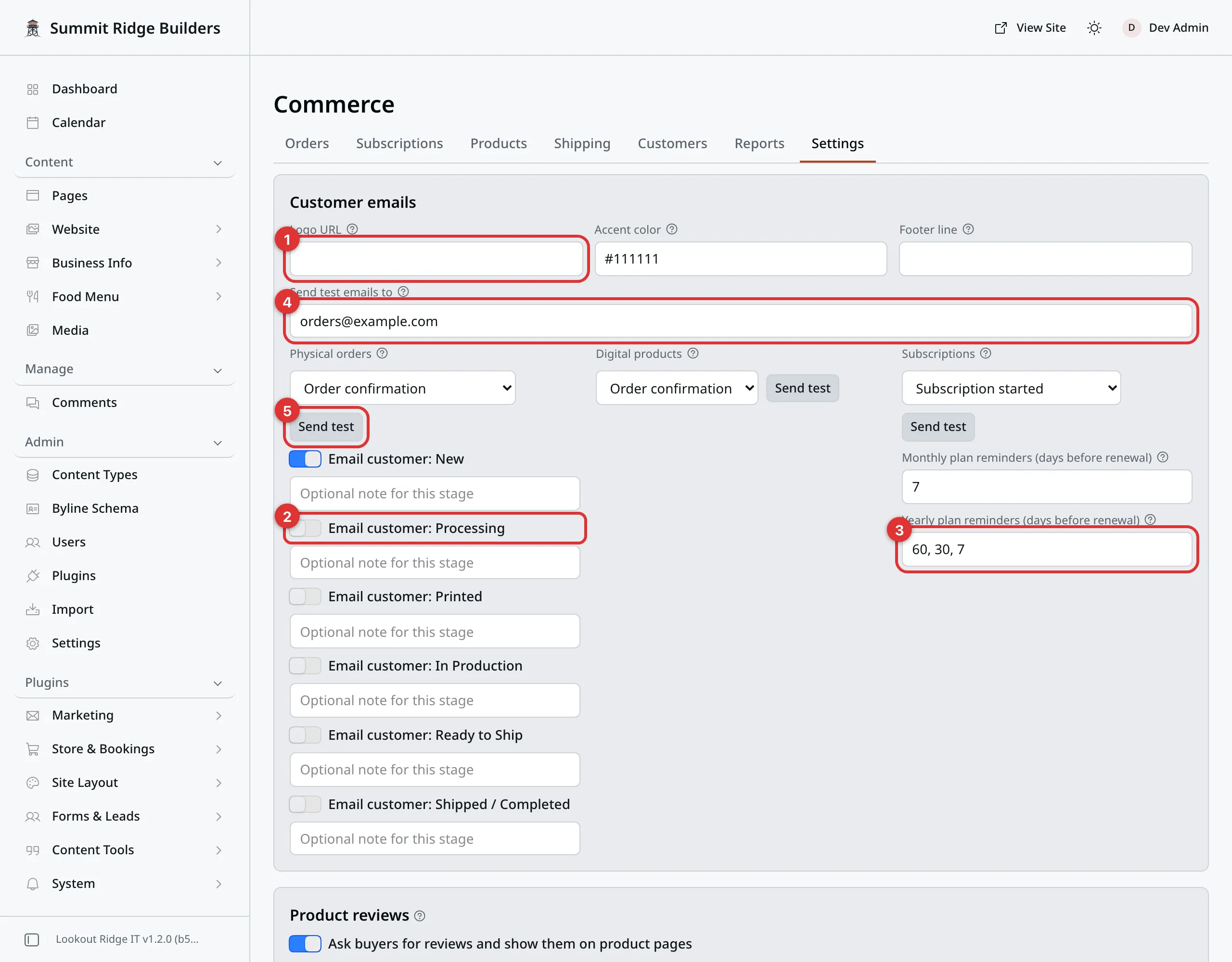
The Customer emails box. Each part of this page covers one mark.
The numbers in the picture:
- Logo URL. See How your emails look.
- One stage switch. See Stage emails.
- The yearly reminders. See Renewal reminders.
- Send test emails to. See Sending yourself a test.
- Send test for that column.
What goes out on its own
These need nothing from you. They go out when the thing happens.
| When it goes | |
|---|---|
| Order confirmation | The buyer pays. This is their receipt. |
| Renewal receipt | A plan renews and the payment goes through. |
| Download ready | The buyer pays for a file. It carries the download link. |
| Shipped | A tracking number is saved on the order. |
| Delivered | The carrier says the parcel arrived. Needs the Shippo tracking link. |
| Subscription started | A new plan begins. |
| Payment failed | A plan payment does not go through. |
| Cancellation scheduled | A plan is set to end at the end of its period. |
| Subscription ended | A plan has ended. |
| Subscription paused | You pause a plan’s collection. |
| Subscription resumed | You resume it. |
| Renewal reminder | A set number of days before a plan renews. |
| Anniversary | Once a year on a plan, as a thank-you. |
These go out only when you use the feature:
| When it goes | |
|---|---|
| Proof waiting | You send a proof. See Orders. |
| Proof reminder | Before the proof’s deadline, or after you sent it. |
| Proof approved automatically | The deadline passed and the proof was approved for them. |
| Review request | Some days after an order arrives, when reviews are on. |
| Review reminder | Some days after the request, if they have not reviewed yet. |
| Review reply | You reply to their review for the first time. |
| Cart reminder 1 to Cart reminder 3 | They left a cart at checkout, when reminders are on. See Commerce settings. |
Two more depend on you:
- Refund goes when you refund an order with Notify customer by email checked. See Orders.
- Order stage update goes when an order moves to a stage you have switched on. See below. A pickup order moved to Ready for pickup always gets it, with the address, hours and your instructions.
Important
Stripe can send its own receipt too. Switch that off in Stripe, or buyers get two. See Connect Stripe.
How your emails look
Three boxes at the top of Customer emails set the look of every email.
Logo URL is the web address of your logo. It shows at the top of each
email. It must be a public address that starts with https. Leave it blank
and your business name shows in its place.
Accent color takes a six-digit color code, such as #111111. It has no
effect on your emails today. You can leave it as it is.
Footer line is one line near the bottom of every email. “You are receiving this because you ordered from us.” is a good one.
The business name, phone and email in each email come from the Invoices box, on the same tab. When a customer hits Reply, the reply goes to the Email in that box. See Commerce settings.
Stage emails
Under Customer emails are three columns: Physical orders, Digital products and Subscriptions.
Physical orders has one switch per order stage, such as Email customer: Processing. Turn a switch on and the customer gets an email each time an order reaches that stage. When proofs are on, there is one for Awaiting Proof too.
All the switches start off. Turn on only the ones your customers would want. Most shops leave them all off, and let the Shipped email do the talking.
Under each switch is a box reading Optional note for this stage. What you type there is added to that stage’s email. “We make each piece by hand. It takes about a week.” is the kind of thing that helps.
Click Save when you are done.
The switch only sets what the Email customer box starts as on an order. You can still check or uncheck that box each time. See Orders.
Warning
A switch that is on also applies to Set stage…, which moves many orders at once. Move 40 orders to a stage that is switched on, and 40 customers get an email.
Renewal reminders
The Subscriptions column has two boxes.
Monthly plan reminders (days before renewal) starts at 7. A customer on a
monthly plan hears from you a week before each charge.
Yearly plan reminders (days before renewal) starts at 60, 30, 7. Three
reminders before a yearly charge.
Type the days split by commas. Each number is from 1 to 90, and you can have up to five.
Warning
Keep 30 in the yearly box. Some states want a notice before a yearly plan
renews. The panel’s own note says 30 days fits the rules in every US state.
Ask your lawyer before you take it out.
Sending yourself a test
Before you switch anything on, see what your customer will get.
- Type your own address in Send test emails to.
- In one of the three columns, pick an email from the list.
- Click Send test in that column.
A message names the subject, the address, and which order it used.
A test uses your newest real order or plan, so the details look real. The
subject starts with [Test]. Nothing is written on that order, and the
customer gets nothing.
Changing the words
Click the Settings tab, then Email templates.
On the left is every email, in groups: Orders, Digital, Subscriptions, Proofs, Reviews and Abandoned carts. An email you have changed shows an edited tag.
- Click the email you want to change.
- Change the Subject if you like.
- Change the words in the editor below it.
- Click Preview to see the email with your changes.
- Click Save template.
A message reads “Template saved.” The next email of that kind uses your new words.
The editor
An email is built from blocks, stacked top to bottom. A heading, some text, a button, a picture, a line. You can move, change or delete each one.
Some blocks are filled in by your website, such as the list of items and the totals. You can move those, but not type in them. If an order has nothing to show there, the block is left out of that email.
Some words sit in double curly brackets, such as {{order.number}}. These are
merge tags. When the email goes out, each one is swapped for the real detail,
such as the invoice number. The editor lists the ones each email can use.
A picture you add is uploaded to your Media library.
No dashes
The editor will not save a long dash in any email. Your website turns them away, with the message “Replace the en or em dash with a comma, period, or colon.”
Some email apps turn long dashes into junk letters. Use a comma, a period or a colon instead.
Preview and test
Preview shows the email you are editing, with your changes, filled in from your newest real order. It does not save anything.
The test box beside the buttons sends a copy to the address you type. Click Send test.
Important
Send test sends the saved email, not your unsaved changes. Click Save template first, then send the test.
Going back to the original
Warning
Reset to default throws away every change you made to that email. The original words come back. You cannot get your version back after that.
- Pick the email.
- Click Reset to default.
- Your browser asks “Discard your changes and restore the built-in template?” Click OK.
A message reads “Template reset to the default.”
Contact support
Contact us if:
- customers say they get no emails at all from your shop
- a test email never arrives
- an email shows a tag in curly brackets instead of the real detail
Email support@lookoutridgeit.com. Getting support says what to put in the message.
Last updated Oct 20, 2026