

Plugins
Leads
Inquiries submitted through your contact form.
Every website has this screen.
A lead is an inquiry. Someone filled in a form on your website and pressed send. Their message lands here, and it stays here.
Go to Plugins, then Leads. It sits in the Forms & Leads group.
Two forms feed this list. Your contact form, and your quote form. Leads from the quote form are marked Quote. The rest are marked Contact.
There are three tabs:
- Leads: the list.
- Tags: every tag you have used, to rename, merge, color or delete.
- Display: which columns the list shows.
Who hears about a new lead
Your website raises an alert for every new lead. Where that alert goes is set in Notifications. It can be an email, a pop-up on your phone, a message in a chat app, or all three.
Nothing is sent to the person who wrote to you. They see a “message sent” note on the page, and that is all. Nothing on this screen emails them either, apart from one button covered in Giving a lead an account.
The Leads tab
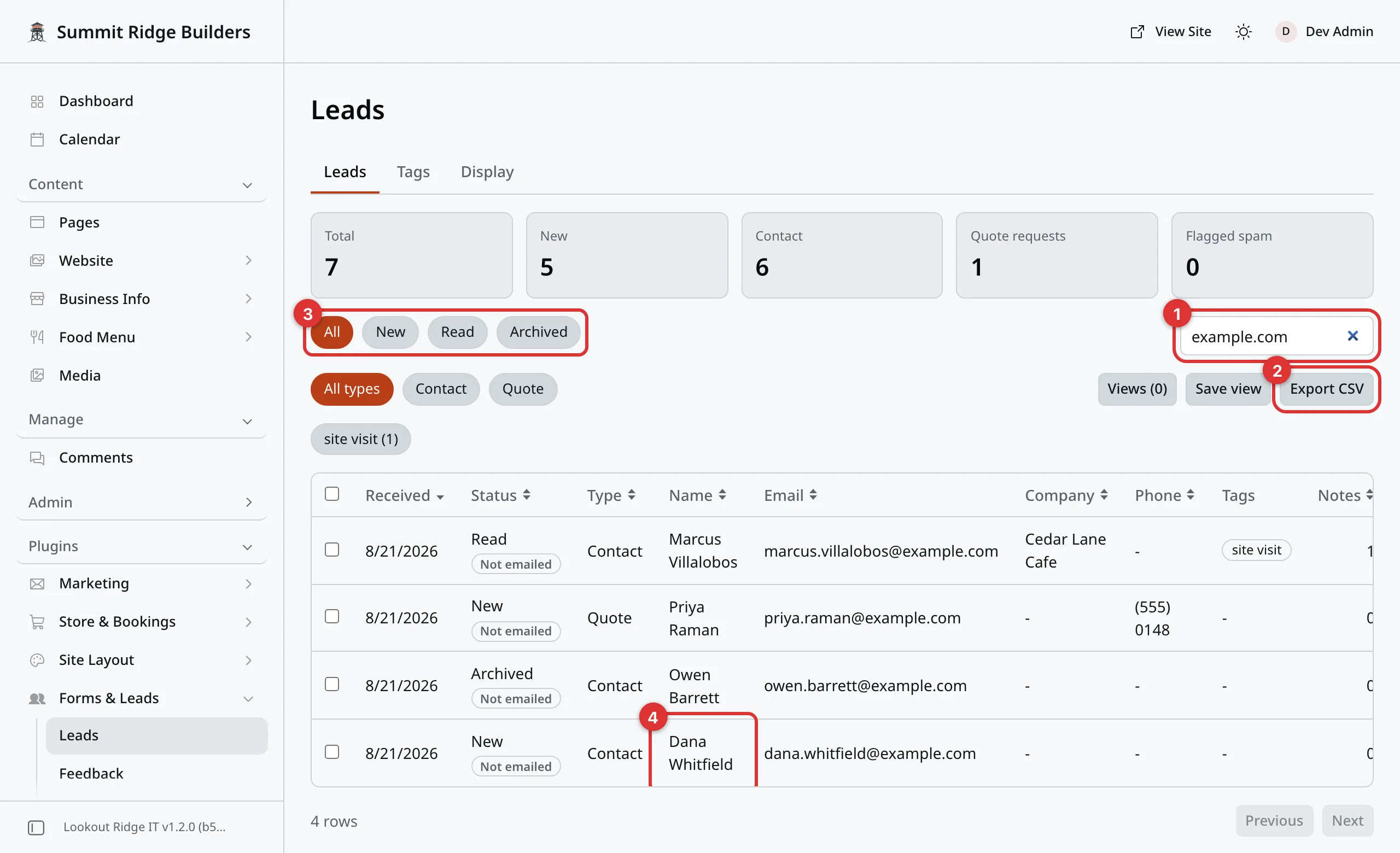
Your leads, newest at the top.
The boxes across the top are counts: Total, New, Contact, Quote requests and Flagged spam.
Under them are the ways to narrow the list:
- All, New, Read and Archived show one status.
- All types, Contact and Quote show one kind of inquiry.
- Search by name or email finds a lead as you type. It does not read what people wrote.
- Tags you have used turn into buttons, with a count on each. Click one to show only leads with that tag. Click it again to show them all. A tag you gave a color shows in that color.
The list is a table. The columns are Received, Status, Type, Name, Email, Company, Phone, Tags and Notes. Click a column heading to sort by it. Click again to flip the order.
Status may also carry a small label. Spam means someone marked it as spam. Not emailed means the alert about it did not go out. See When a lead alert does not arrive.
The table shows 25 leads at a time. Previous and Next sit at the bottom when there are more.
Saved views
A view is a set of filters you use often, saved under a name. “New quotes” is a good one.
- Set the list the way you want it: the status, the type, a tag, the search box, and the column it is sorted by.
- Click Save view.
- Type a name, and click OK.
To use it later, click Views. The number on the button counts your saved views. Click the name of the one you want, and the list changes to match.
Delete next to a view removes it. It only removes the view. Your leads stay as they are.
Views are shared. Everyone who signs in sees the same ones. A site can keep 20.
Opening a lead
Click the row. The lead opens and fills the screen.
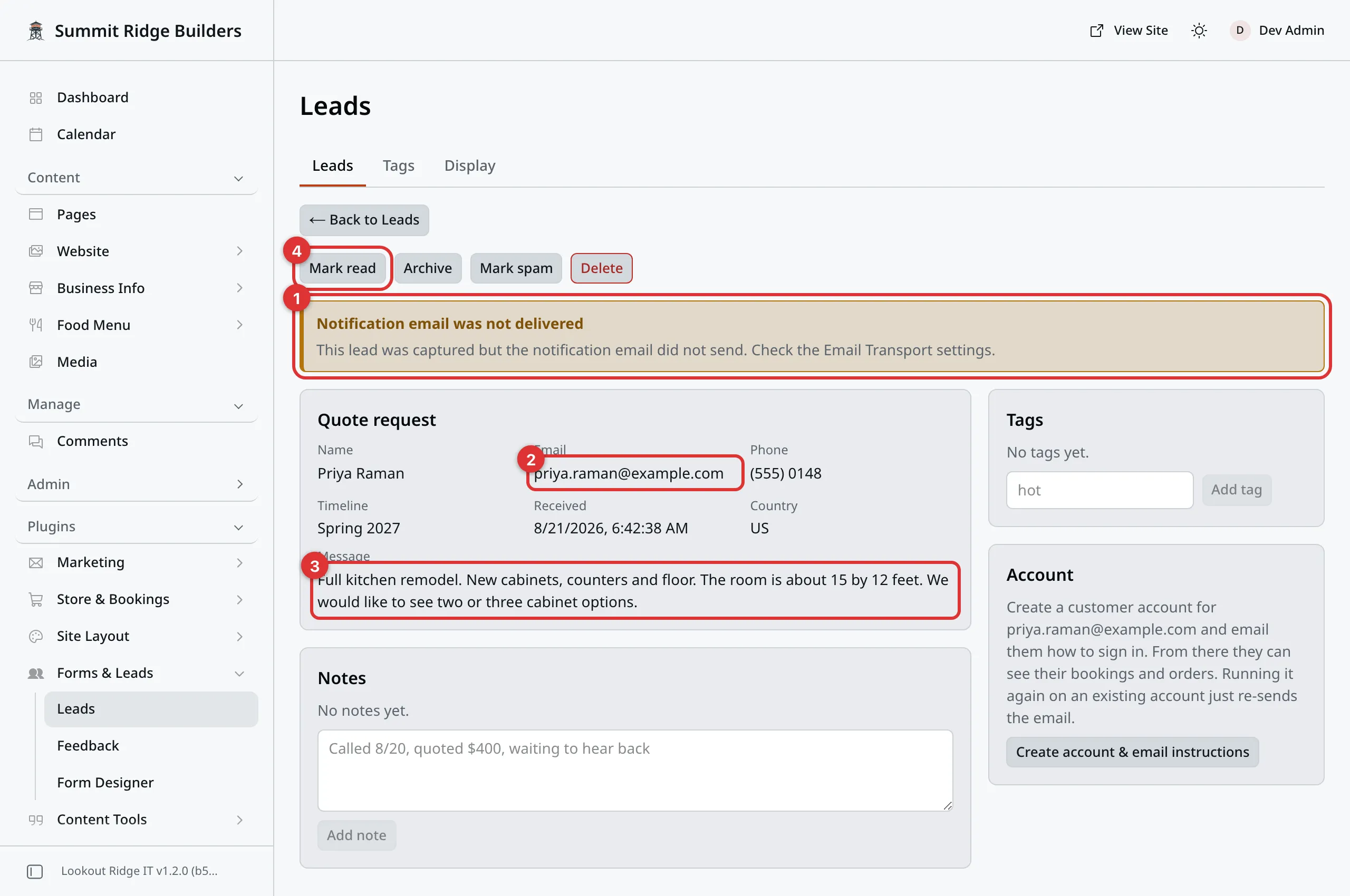
A quote request, open. Every box on the form the visitor filled in shows here.
A row of buttons sits at the top: Mark read, Mark unread, Archive or Restore, Mark spam or Not spam, and Delete. Each is covered below.
Under them is the lead itself, headed Contact form or Quote request. Name and Email are always there. Company, Phone and Timeline show up when the person filled them in. Received is when it arrived. Came from is the page of your website they were on. Country is where they were. Then comes their Message, word for word.
Click ← Back to Leads to go back to the list.
Notes and tags
Notes is for what you did about this lead. “Called back Tuesday, quoted $4,200, waiting to hear.” Type in the box and click Add note. Your note gets today’s date and time. Notes are private. Nobody outside the panel ever sees them.
To remove a note, click Delete note under it. You are asked to confirm.
Tags are short labels, such as hot or site visit. Type one and click
Add tag. Tags are saved in lower case, and one lead can hold twelve. To
take a tag off, click it. It has a small ✕ in front.
To tidy up all your tags at once, use the Tags tab.
Marking a lead read
Click Mark read. The New count at the top goes down by one.
Opening a lead does not do this on its own. You have to click.
Mark unread puts it back to new. Use it for a lead you want to look at again tomorrow.
Archiving a lead
Click Archive. The lead leaves the New and Read lists and moves to Archived. Nothing is lost.
Use it for jobs you have finished, and for inquiries you are done with.
To bring one back, click Archived, open the lead, and click Restore.
Deleting a lead
Warning
Delete removes the lead for good. Its notes go with it. Nothing can bring it back, and neither can we.
The panel asks you to confirm first. If you are not sure, click Archive instead. It costs you nothing to keep a lead.
Working on many leads at once
Check the box at the start of each row you want. The box in the heading checks every row on the page.
A bar appears with the number selected, and these buttons: Mark read, Mark unread, Archive, Restore, Add tag, Remove tag, Mark spam, Not spam and Delete. They do the same as the buttons on a single lead. Add tag and Remove tag ask you to type the tag.
Clear unchecks them all.
The same warning applies. Delete on the bar removes every checked lead for good, after you confirm.
Spam
Your website checks every inquiry before it saves it. One that looks like it came from a robot is turned away. It is never saved, and nobody is told about it. You will not see it here. The check also makes sure the form was sent from your own website’s address.
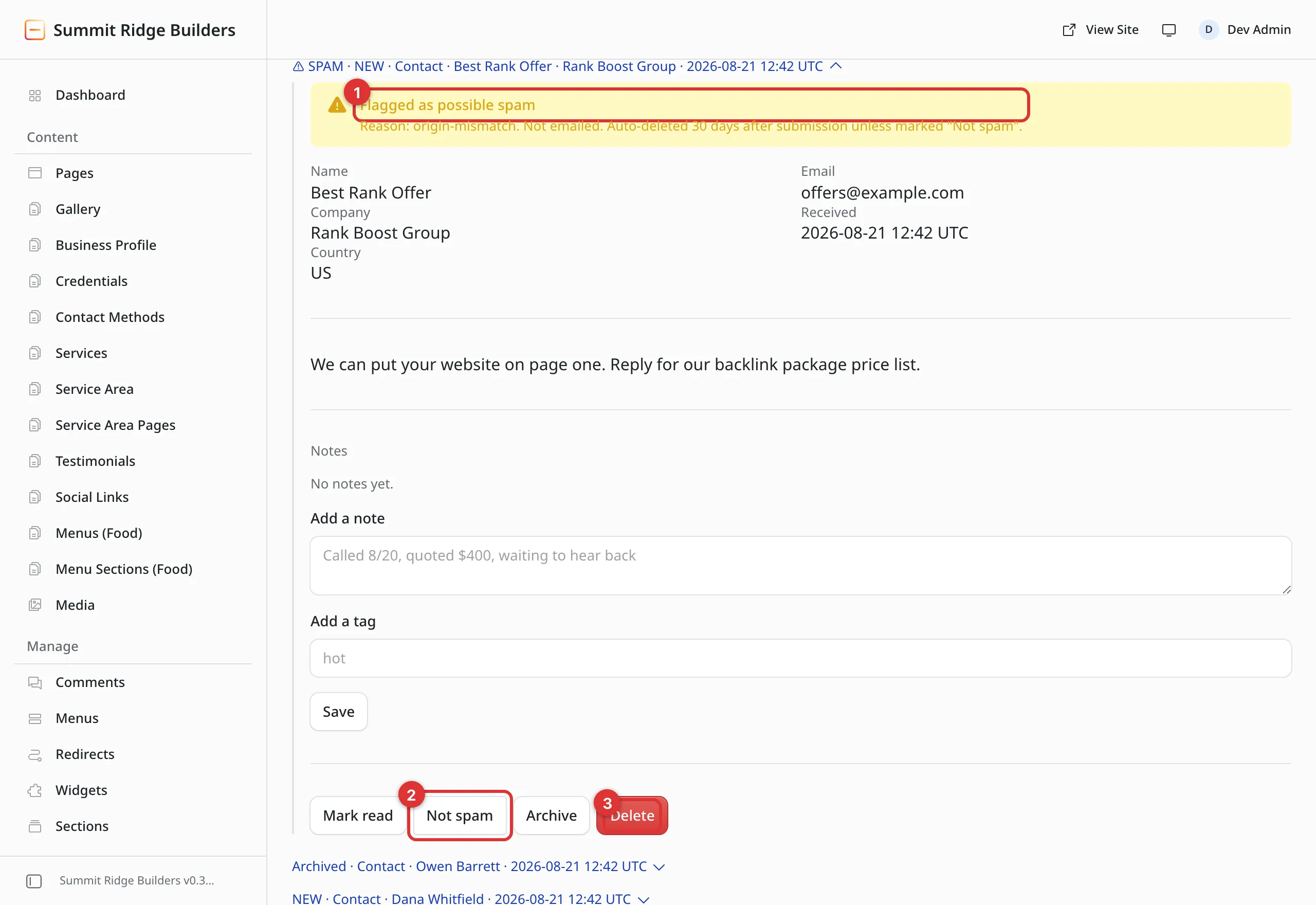
A lead someone marked as spam. It will delete itself after 30 days.
Now and then a junk message gets through. Open it and click Mark spam. The lead is archived, and it deletes itself 30 days after it was first sent. Opened, it shows a strip reading Flagged as possible spam.
Changed your mind? Open it and click Not spam. It is no longer on its way to being deleted. It stays in Archived until you click Restore.
The Flagged spam count at the top shows how many are waiting to be deleted.
Giving a lead an account
The Account card on an open lead has one button: Create account & email instructions. It makes a customer account for that email address. The person can then sign in to see their bookings and orders.
Warning
This button sends an email to the lead right away. It tells them how to sign in. There is no confirm step.
Only click it for someone who expects to hear from you. Clicking it again sends the email again.
Only an Admin can use it. The card shows whether the account was made and whether the email went out.
Getting your leads into a spreadsheet
Click Export CSV. A file called leads.csv downloads. Open it in Excel,
Numbers or Google Sheets.
The file follows whatever you have filtered the list to. Filter to Quote first and you get quote requests only. A very long list may be cut to the most recent leads. The panel tells you when that happens.
Tip
There is no reply box on this screen. Pick up the phone, or write to the address on the lead. The faster you get back to someone, the more of these turn into work.
The Tags tab
This tab lists every tag on your leads, with how many leads carry it. It is the
place to tidy up. Say some leads say hot and others say urgent, and you
want one tag.
Each tag has these controls:
- The color dots. Click one to give the tag that color. It shows on the tag buttons above the list, in the Tags column, and on an open lead. The first dot, No color, takes the color off. Colors are shared by everyone who signs in.
- Rename. Type the new name, and click OK. If a tag with that name already exists, the two become one.
- Merge into… Pick another tag. Every lead with this tag gets the other one instead. Your browser asks you to confirm.
- Delete. Takes the tag off every lead that has it.
Warning
Rename, Merge into… and Delete change every lead that carries the tag, all at once. Delete cannot be undone. Your browser asks you to confirm first. The leads themselves are not deleted, only the tag.
The Display tab
This tab picks which columns the Leads table shows.
Check or uncheck each one under Leads columns. All checks every box, and None clears them. Click Save. Cancel puts the boxes back how they were.
This changes the table for everyone who signs in, not only you.
When a lead alert does not arrive
The lead is safe either way. It is saved first, and the alert goes out after.
A lead whose alert did not go out has Not emailed in its Status. Opened, it shows a strip reading Notification email was not delivered.
- Check your junk folder.
- Open Notifications and click the Delivery log tab. It shows whether the alert went out, and why not.
- Click the Destinations tab. Make sure a destination is on, and has Contact form submitted and Quote requested switched on.
Contact support
Contact us if the Delivery log says the alert went out but nothing arrives, or if you cannot tell why it failed. Contact us too if visitors tell you the form shows an error when they send it, for example after your domain name changed. Tell us:
- the date and time of a lead you did not hear about
- where the alert should have gone
- the page the form was on, if a visitor saw an error
Email support@lookoutridgeit.com. Getting support says what to put in the message.
Last updated Oct 20, 2026