

Subscriptions
Every plan your customers pay for, and how to pause, cancel or keep one.
Add-on
Commerce is an add-on, so not every website has it. If it is not in your menu, see Add-ons to add it.
A subscription is one customer on one of your plans, paying again and again. This tab lists them all, and lets you pause one, stop one, or undo a stop.
Go to Plugins, then Commerce. Click the Subscriptions tab.
To make a plan people can sign up for, see Products and Plans.
The tiles
The date buttons at the top work the same as on the other tabs. Under them sits a row of tiles.
| Tile | What it counts |
|---|---|
| Active | Plans that are paid up and running. |
| Trialing | Plans in a free trial. No charge yet. |
| Past due | Plans whose last payment failed. |
| Canceling | Plans still running, but set to end at the end of the period. |
| Canceled | Plans that have ended. |
| Payments in range | Plan payments in the dates you picked, first ones and renewals. |
Only Payments in range follows the dates. The rest count right now.
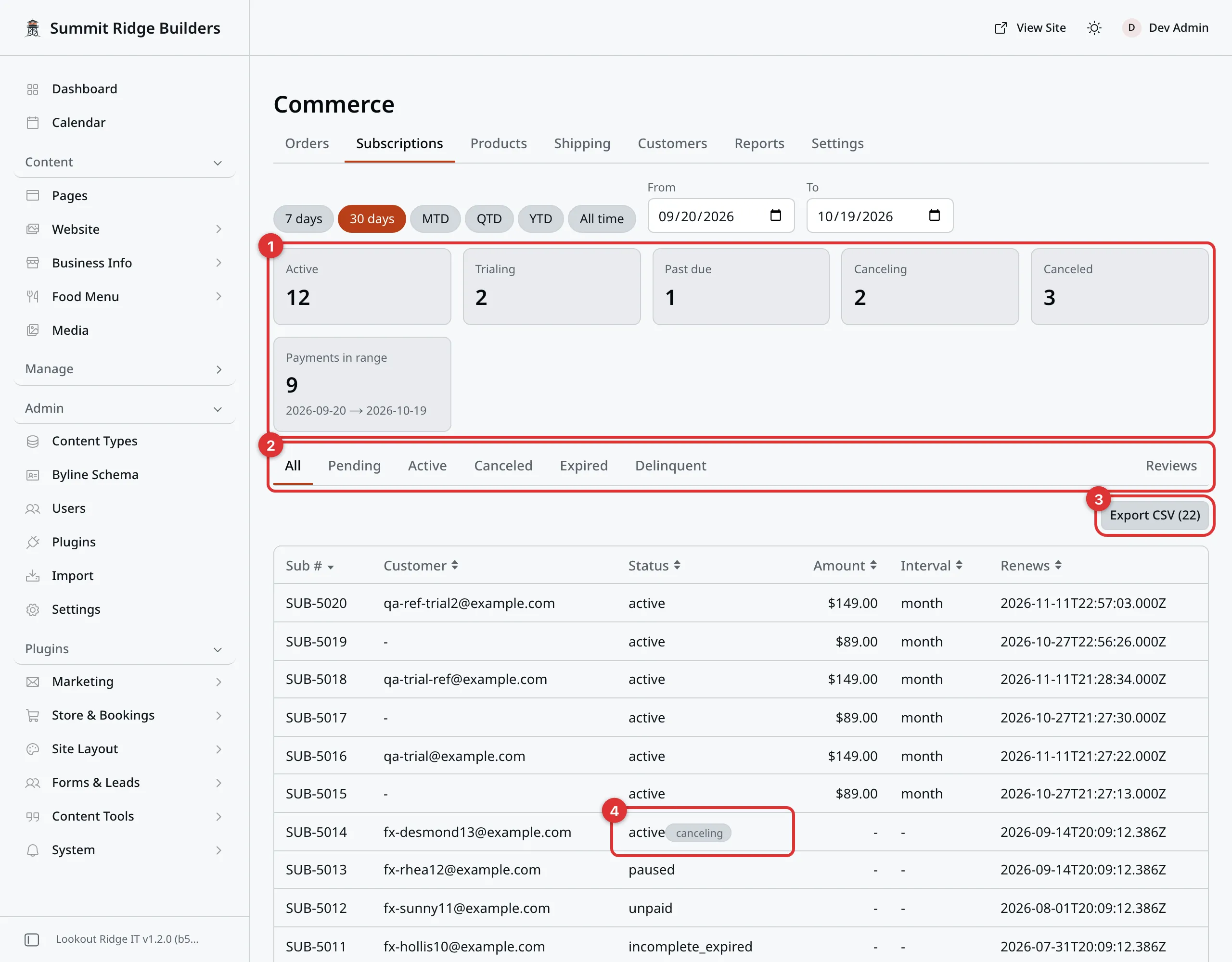
Every plan in one list. The tiles count them by how they stand.
The numbers in the picture:
- The tiles. See the table above.
- The bucket tabs. See The bucket tabs.
- Export CSV saves the tab you are on.
- A plan set to end, with its small chip.
The bucket tabs
Tabs above the list sort plans by how they stand.
| Tab | What is in it |
|---|---|
| All | Every plan. |
| Pending | Just started, or in a free trial. |
| Active | Running and paid. |
| Canceled | Ended. |
| Expired | The first payment never went through. |
| Delinquent | A payment failed, or collection is paused. |
| Reviews | Reviews of your plans. It sits apart, at the far right. |
A plan set to end at the end of its period stays in Active. It is still paying until that day. It wears a canceling chip beside its status so you can spot it. A paused plan wears a paused chip.
The list
| Column | What it shows |
|---|---|
| Sub # | The plan’s own number, such as SUB-1001. |
| Customer | Their email, or their name. |
| Status | Stripe’s word for how the plan stands. |
| Amount | What each payment is. |
| Interval | month or year. |
| Renews | When the next payment is due. |
| Last invoice | Only on Delinquent. Says why it is there. |
The Sub # count and its letters are set on the Settings tab. See Commerce settings.
Export CSV saves the tab you are looking at as a file. The button shows how many rows it will save.
Opening a subscription
Click a row. ← Back to subscriptions takes you back.
The heading reads Subscription and its number. Under it, one line says the status, the plan, monthly or yearly, the price, and when it renews or ends.
Customer shows their email, their name and their Stripe reference. Open customer takes you to their record. See Customers.
Actions holds the buttons below.
Renewal payments lists each payment after the first. Click one to open it as an order.
Plan credits lists any plan credits spent on this plan.
Timeline lists every change, and when it happened.
Stripe holds long reference codes. We may ask you for one.
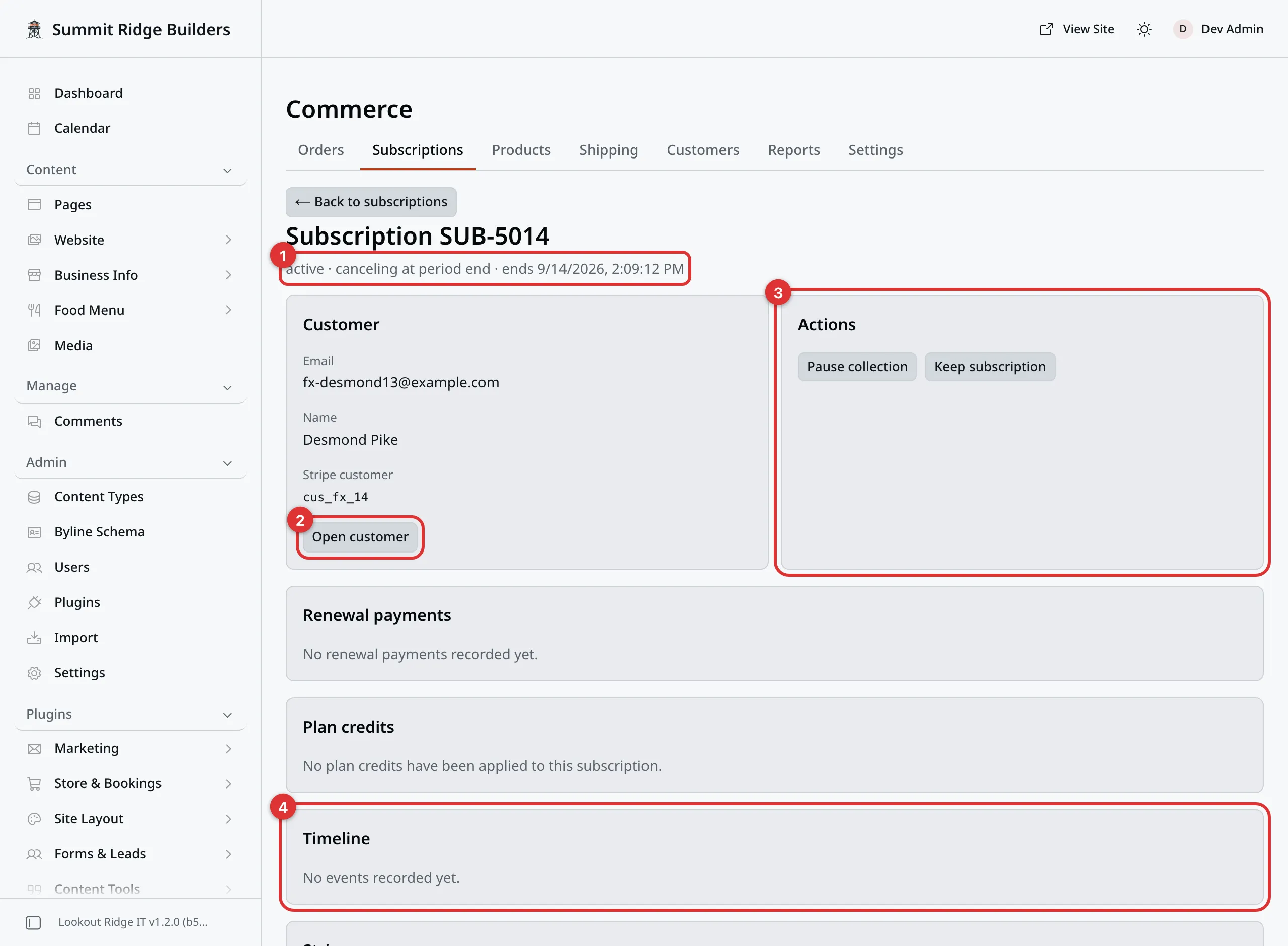
One plan, open. This one is set to end, so Actions offers Keep subscription.
The numbers in the picture:
- The status, and when it renews or ends.
- Open customer opens their record.
- Actions holds the buttons. See the next part.
- Timeline lists every change.
What the buttons do
Warning
Each of these buttons changes the plan in Stripe the moment you confirm. It also emails your customer to tell them.
Talk to your customer first if you can. Then click.
| Button | What it does |
|---|---|
| Pause collection | Stops charging the customer until you resume. The plan stays open. |
| Resume collection | Starts charging again from the next renewal. |
| Cancel at period end | Ends the plan when the time they paid for runs out. No refund, no charge after. |
| Keep subscription | Undoes Cancel at period end. The plan renews as normal. |
Each one asks you to confirm first. The confirm box says what will happen. Read it.
Pause collection does not lock the customer out of anything. It only stops the charge. If you give them something each month, it is up to you whether they still get it.
A plan that has ended shows “This subscription has ended.” and no buttons. Nobody can start it again. The customer signs up for a new one.
Customers can cancel their own plan too, from their account page. See What your customers see.
There is no refund button here. To give back money for a plan payment, write to us and we will walk you through it in Stripe.
Renewals make orders
Each time a plan renews and the payment goes through, a new order is made. It has its own invoice number.
You find those orders here under Renewal payments, on the customer, and under Reports, then Orders. They are not on the Orders tab, which is for work you need to do.
A renewal order never needs packing, so it is marked done from the start.
Plan credits
A plan credit covers one billing period of a customer’s plan. When the plan next renews, a plan credit is spent on it by itself, and the customer pays nothing that time.
Plan credits come from two places. You can grant them on the customer’s record. And a customer can earn them by referring a friend.
See Customers, credits and referrals.
Reviews of your plans
When product reviews are on, customers can review a plan they pay for. Those reviews wait on the Reviews tab here, at the far right of the bucket tabs. Reviews of products wait on the Orders tab instead.
The tab works the same way on both. Nothing is public until you publish it. See Product reviews.
Emails about plans
Your website emails the customer when a plan starts, when a payment fails, when a cancel is set, when it ends, when it is paused or resumed, and before each renewal. Customer emails lists them all.
Contact support
Contact us if:
- a customer was charged after you paused or canceled their plan
- a plan shows the wrong status for more than a day
- you need to change what someone pays each month
Email support@lookoutridgeit.com. Getting support says what to put in the message.
Last updated Oct 20, 2026