

Plugins
Form Designer
Build your own forms and read the replies.
Add-on
Form Designer is an add-on, so not every website has it. If it is not in your menu, see Add-ons to add it.
Form Designer lets you build your own forms. A survey, a sign-up sheet, a warranty claim. You build it, and you read the replies, without asking anyone for help.
Go to Plugins, open the Forms & Leads group, and click Form Designer.
Important
Your contact form and your quote form are not built here. Those two came with your website, and their inquiries land in Leads.
Forms you build here are separate. Their replies land under Submissions, covered further down this page. Nothing you do on this screen can change your contact form.
Form Designer or Feedback?
Some websites also have Feedback. It builds forms too, and does more: each form gets its own web page, it can be kept to signed-in customers, and it has analytics. The two do not share forms or replies.
Both add a block called Form. The Form Designer one says Embed a form under its name. If you have both, build new forms in Feedback.
Want a customer to book a time with you? That is the Bookings add-on, not a form.
Your forms
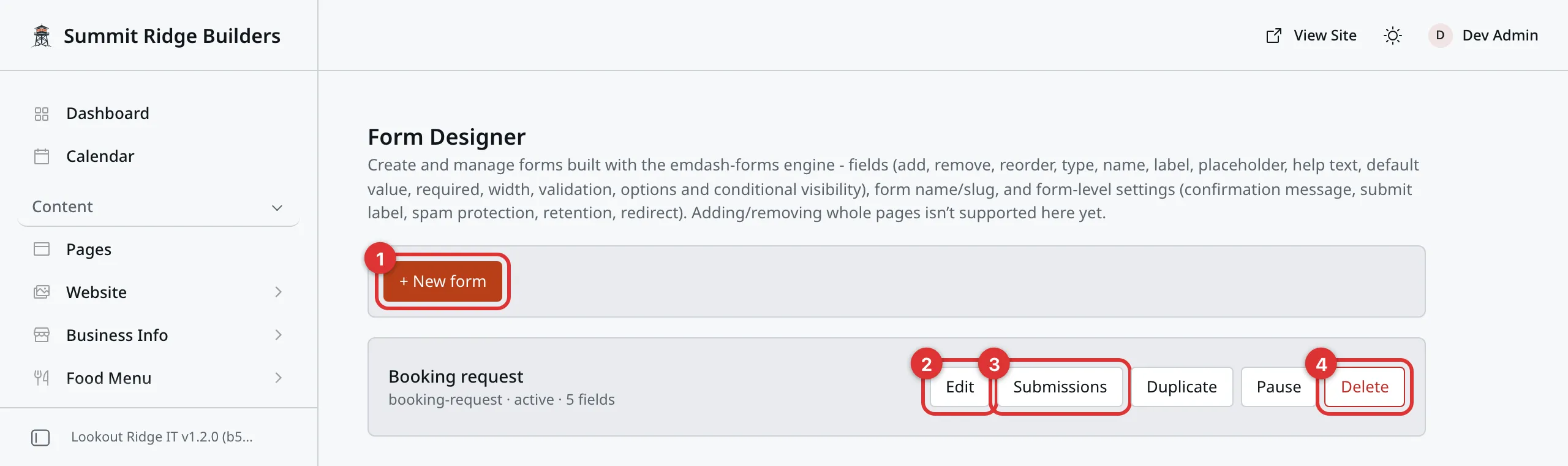
One row per form. The gray line under the name is its web name, whether it is live, and how many boxes it has.
1. + New form. Starts a new one.
2. Edit. Opens the form to change it.
3. Submissions. The replies people have sent.
4. Delete. Read the warning at the bottom of this page first.
Two more buttons sit on the row. Duplicate makes a copy you can change without touching the first one. Pause stops the form taking replies, and turns into Activate to switch it back on.
Building a form
Click + New form. Type a Form name, such as “Warranty claim”. The Slug fills itself in. That is the short web name, and lower case letters, numbers and hyphens are all it takes.
Click Create form. You get a form with one text box in it, because a form with nothing in it would be no use.
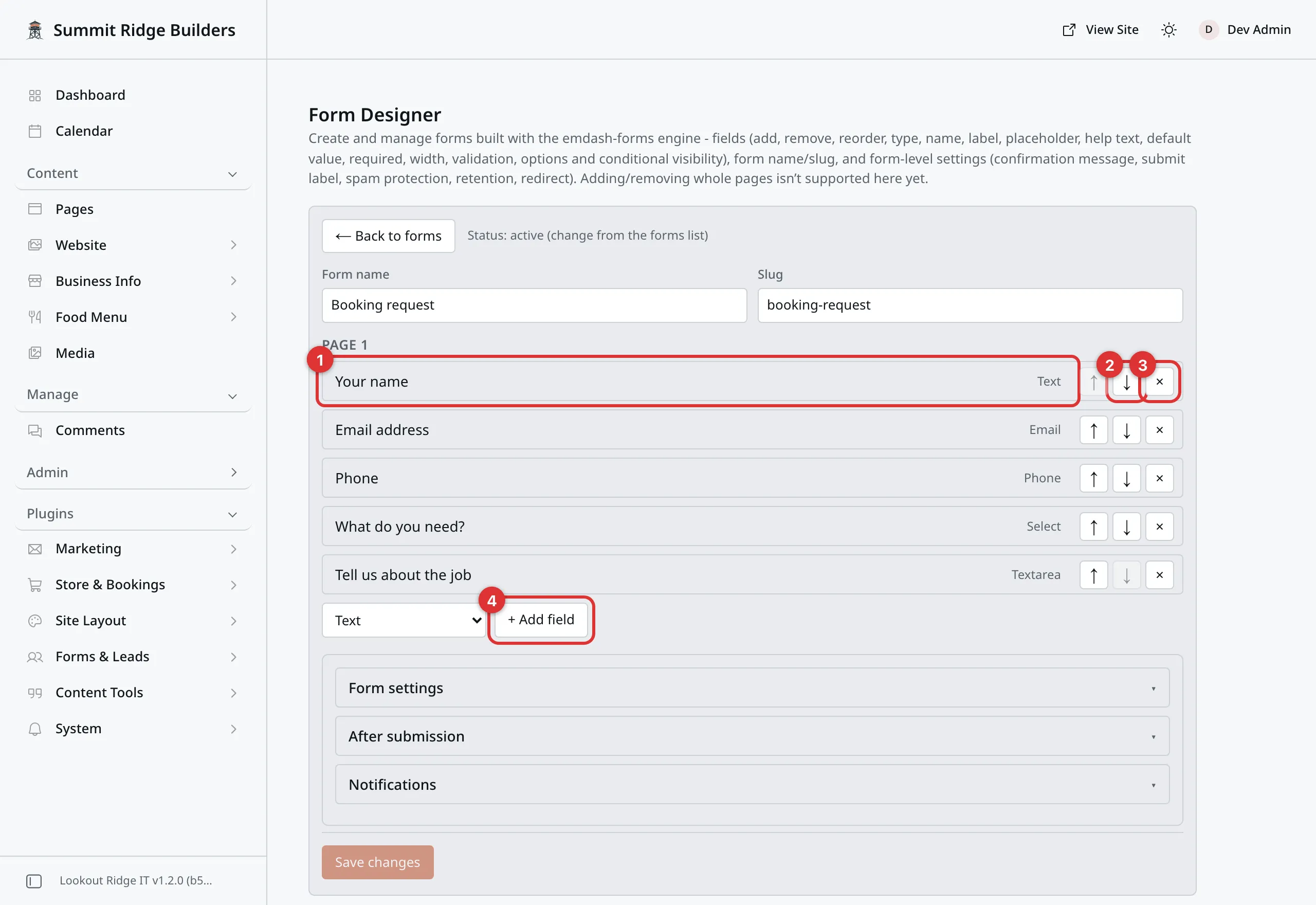
Five boxes, in the order a visitor fills them in.
1. A field. One row is one box on your form. Click the row to open its settings.
2. The arrows. Move the box up or down the form.
3. The x. Takes the box off the form. The last one cannot be removed.
4. + Add field. Pick a kind in the box to its left, then click. Text, email, phone, a date, a dropdown, a file upload and more.
Click Save changes at the bottom when you are done. Nothing you have changed reaches your website until you do.
What you can set on a box
Click a field row to open it.
| Setting | What it does |
|---|---|
| Label | What the visitor reads above the box. |
| Name | The inside name. See the warning below. |
| Placeholder | Faint example text inside the box. |
| Help text | A short line under the box. |
| Default value | What the box starts out holding. |
| Required | The visitor cannot send the form until this box is filled in. |
| Width | Full width, or half so two boxes sit side by side. |
Warning
Label is the wording. Change it whenever you like.
Name is not wording. It is how the answer is filed. Change it and every reply you have already had shows that answer as belonging to a box that is no longer there. Rules that point at this box are updated for you, but nothing else is.
Change the label. Leave the name alone.
Warning
Turning Required on for a box people often leave empty costs you inquiries. They will not go back and fill it in. They will close the tab.
Ask for what you need to call someone back. Everything else can wait until you have them on the phone.
Rules for what people can type
Open a box and you get a Validation part. It only offers what makes sense for that kind of box. A number box offers a smallest and a largest value. A text box offers a shortest and a longest. A file box offers which kinds of file you take, and how big they can be.
There is also a Pattern box. If you do not know what a pattern is, leave it empty. The form works perfectly well without one.
Showing a box only sometimes
Some questions only matter after an earlier answer. Ask whether someone is a business or a private customer, and only show Company name to the ones who said business.
Open the box you want to hide and find Conditional visibility. It says Always shown. until you add a rule. Click + Add condition, then set the rule:
Show when What do you need? is A repair
The rule can only point at a box that comes earlier in the form. A later answer does not exist yet when the form has to decide.
If that earlier box is a dropdown or a set of choices, you pick the answer from a list instead of typing it. Typing it by hand is easy to get subtly wrong, and the rule would then never match.
Important
Rename a box and any rules pointing at it are fixed for you. Form Designer tells you how many it changed.
Remove a box that other boxes depend on and it warns you first, and names them.
Putting the form on your website
A form shows nowhere until you add it to a page.
- Open the page under Content, then Pages.
- Type
/formand choose Form. - Pick your form in the Form box.
- Click Publish changes, then Publish changes again in the box that opens.
Pages covers blocks in full, and saving and publishing covers that last step.
A form can also open in a popup, with no page needed. See Popups.
Who hears about a reply
Open the form and click Notifications near the bottom.
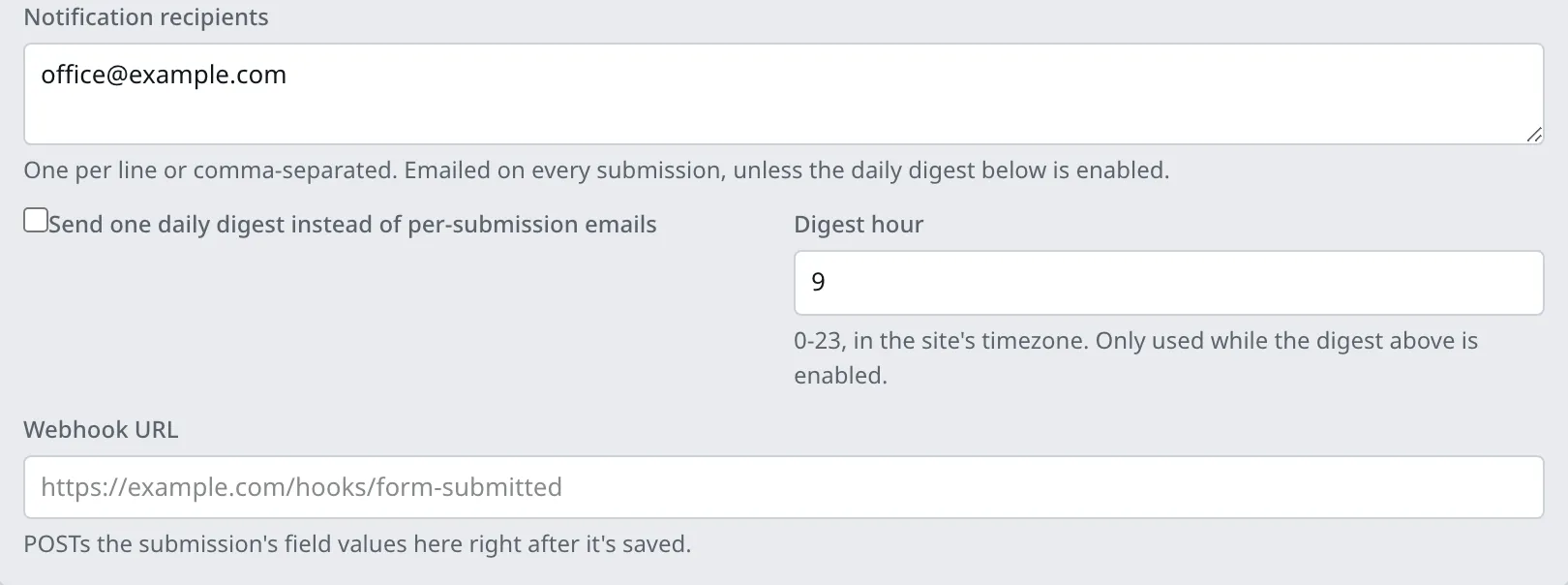
One address per line, or separated by commas.
Notification recipients are the addresses told about every reply. They belong to this form alone. They are not the alerts set in Notifications, and changing one does not change the other.
Send one daily digest instead of per-submission emails swaps that for one summary a day, at the hour you set in Digest hour. Good for a busy form.
Webhook URL is for joining your form to another system. Leave it empty unless somebody has given you a web address to put in it.
Webhooks are best effort. If the other system is down, that reply is not sent again. Email is the dependable route.
Sending a receipt to the person who wrote in
A receipt is a short automatic reply to whoever filled in your form. Read both warnings before you switch one on.
Warning
A receipt is sent to whatever address was typed into the form. With spam protection off, a robot can make your website email a stranger, over and over. That can end with your website being blocked from sending email at all.
Spam protection is under Form settings. Leave it on Honeypot, which is how it starts, or on Turnstile. Never set it to None while a receipt is switched on. Form Designer warns you if you do.
Warning
The receipt goes to the first email box on your form. If your form does not ask for an email address, there is nowhere to send it and nothing goes out. Form Designer tells you when that is the case.
The body is plain text. Pasted formatting does not carry over.
Click After submission. Fill in an Autoresponder subject and an Autoresponder body, and the sender gets the reply.
The rest of Form settings
Confirmation message is what a visitor reads once they have sent the form. Submit button label is the wording on the button itself.
Redirect URL sends them to another page instead of showing the message. Leave it empty unless you have a thank-you page.
Retention (days) is how long replies are kept. Zero means forever.
Warning
Retention (days) throws replies away on a timer, and they do not come back. Set it to 30 and a reply from five weeks ago is gone.
Leave it at zero unless somebody has asked you to change it.
Reading the replies
Click Submissions on the form’s row.
Replies are listed newest first. Click one to read every answer. From there you can:
- Star it, to pick it out later
- Mark read or Mark unread
- Archive it, which clears it out of the way without deleting it
- write Notes, then click Save note. Notes are private
- Delete it, which cannot be undone
The Status box filters by All, New, Read or Archived. Check Starred only to see just the starred ones.
Submission details at the bottom of a reply holds the sender’s address on the internet, their browser and their country. Useful for spotting a nuisance.
Downloading them
Export CSV saves a file that opens in Excel, Numbers or Google Sheets. Export JSON is for handing to another system.
The list shows every reply that matches your filters, however many there are. An export holds them all too.
Old answers to questions you have changed
Rename or remove a box, and replies that came in beforehand still hold the original answer. Those show up marked “field no longer on form”.
The answer is real. It just does not line up with the form as it stands today. Nothing is lost.
Pausing and deleting a form
Pause stops the form taking new replies. The replies you already have stay where they are. Click Activate to switch it back on.
Warning
Delete removes the form and every reply it ever took. Nothing can bring them back, and neither can we.
Any page with that form on it is left with an empty space where the form was.
Export your replies first, then take the block off those pages, then delete.
Things worth knowing
- Only administrators can build forms. An editor account cannot open this screen at all. If somebody needs to build forms, they need an administrator account.
- Every reply records the sender’s address on the internet, their browser and their country. Leads does not do this.
Contact support
Changing wording on a form is safe. Anything past that is worth a message first.
Contact us before you:
- change a box’s Name
- remove a box, or a whole form
- change Spam protection or Retention (days)
- put a web address in Webhook URL
A form that stops working stops quietly. Nobody complains. The inquiries simply never arrive, and you find out weeks later.
Email support@lookoutridgeit.com. Getting support says what to put in the message.
Last updated Oct 20, 2026