

Plugins
Notifications
Choose who hears about new leads, orders and bookings, and how.
Every website has this screen.
When something happens on your website, it raises a notification. A new inquiry. A quote request. A paid order. A booking. This screen decides who hears about it, and how.
Go to Plugins, then Notifications. It sits in the System group.
There are three tabs:
- Feed: everything that has happened, newest first.
- Destinations: who gets told, and how. Only an Admin can open it.
- Delivery log: whether each alert actually went out.
Where your alerts go now
Your inquiry, quote, order, booking and form alerts all go through this screen. Each place an alert can go is called a destination. An email address is a destination. So is a Slack channel.
On an older website, the address that used to get your lead emails was copied in for you. Look for a destination named Migrated from with the old source after it, such as Migrated from contact form, store. It gets every alert. If you had no address set, it is the email of your first Admin.
So nothing stopped when your website was upgraded. You can rename that destination, change the address, or add more.
Important
Nobody hears about a new lead unless a destination is set up to send it. The lead is still saved in Leads, but no one is told. Check the Destinations tab once, so you know who gets what.
The Feed tab
Every notification lands here, whatever else happens to it.
Each row shows What happened, the Event, and When. Click the title to go to the thing itself, such as the lead in Leads.
- Event filters the list to one kind of alert. Every event shows all of them.
- Unread only hides the ones already read.
- Mark read on a row marks that one read.
- Mark all read marks every unread one read.
Read and unread are shared. When you mark a row read, it is read for everyone who signs in.
Load more at the bottom shows older ones.
Editors see every row. For store alerts, custom forms and feedback forms, they see the title but not the customer’s details.
The unread badge and the Dashboard card
When anything is unread, a small badge sits in the bottom left corner of every admin screen. It reads, for example, 3 unread. Click it to open this screen. It goes away when everything is read.
Your Dashboard also has a Recent notifications card. It shows the five newest, with a colored bar next to any that are unread. Click Open Notifications → to come here.
Adding a destination
Only an Admin can do this. Anyone else sees an error on the Destinations tab.
- Click the Destinations tab.
- Click Add destination. A new card appears at the bottom.
- Type a Name you will recognize, such as “Office email”.
- Pick how to send it in Send by. The choices are below.
- Fill in the box that appears for that choice.
- Choose the events. See Choosing events.
- Leave Enabled checked.
- Click Save destinations.
You get a message reading Destinations saved. Nothing is sent until you save. If you leave the tab with unsaved work, it is lost.
If someone else saved this tab while you had it open, a box reads Not saved. Click Save destinations again to keep your version, or Discard to load theirs.
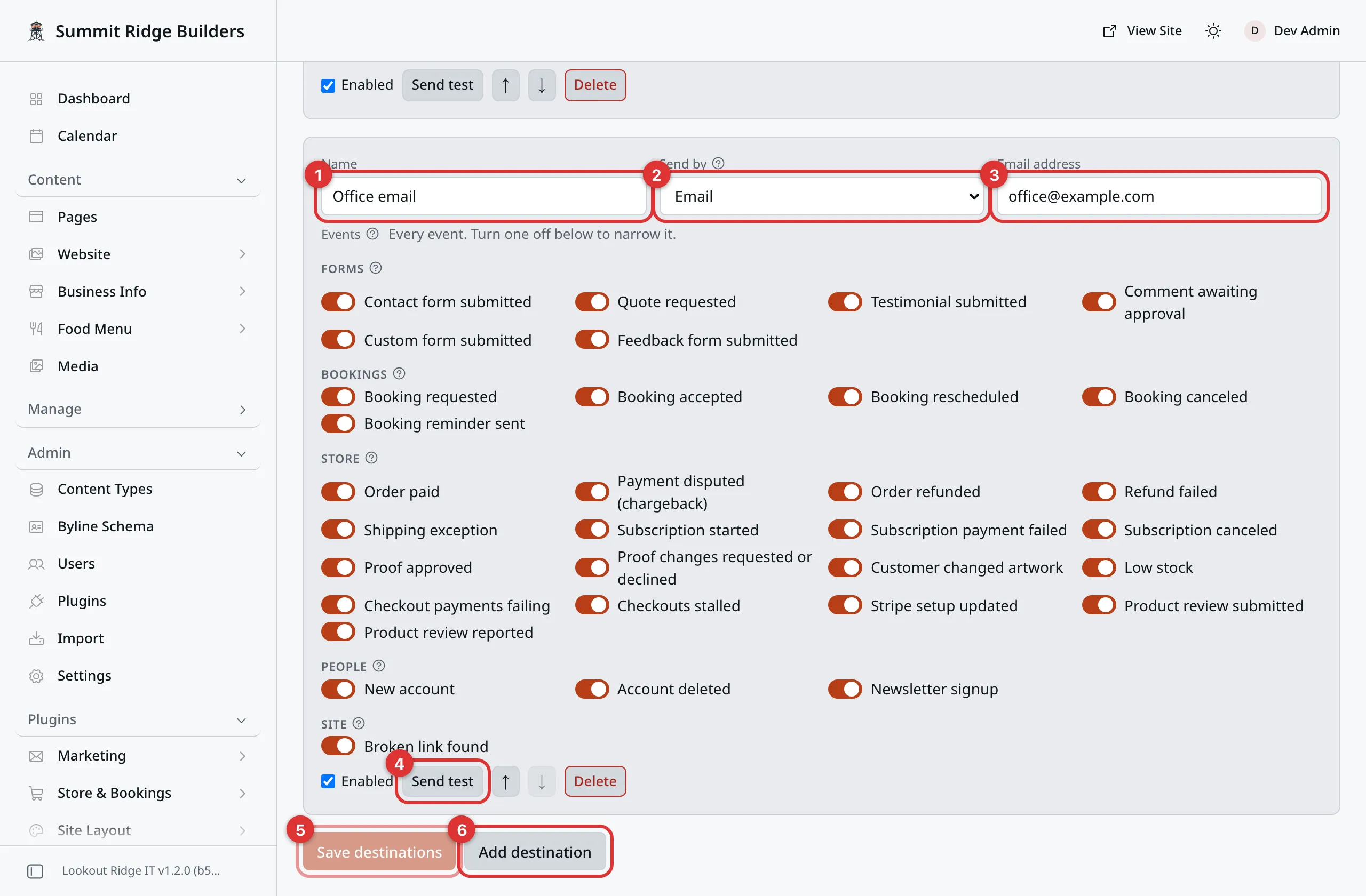
One destination. It sends every alert to one email address.
The numbers in the picture:
- Name is only for you.
- Send by picks how the alert goes out.
- Email address is where it goes.
- Send test checks that it works.
- Save destinations keeps your changes.
- Add destination adds another card.
A website can have up to 20 destinations.
Pick Email in Send by. Type one address in Email address.
One destination holds one address. To tell two people, add two destinations.
Email alerts come from your website’s own sending address. That is set up on Email Transport, which is ours to look after. An email usually arrives within a minute or two.
Web push
Pick Web push. This shows a pop-up on your computer or phone, even when the admin panel is closed.
Once the destination is on, a Web push in this browser card appears at the top of the tab.
- Open the admin panel in the browser you want alerts in.
- Go to Plugins, then Notifications, then Destinations.
- Click Enable push in this browser.
- Your browser asks if this site may show notifications. Click Allow.
You get a message reading Push is on in this browser. Do this once on each computer or phone. Disable in this browser turns it off again.
Important
On an iPhone or iPad, push only works from the Home Screen.
- Open your admin panel in Safari.
- Tap the Share button, then Add to Home Screen.
- Open the admin panel from the new icon on your Home Screen.
- Turn push on from there, using the steps above.
Push does not work in Safari on its own on those devices.
If you once clicked Block in the browser, push cannot reach it. Allow notifications for your website in the browser’s site settings, then reload the page.
In-app only
Pick In-app only. The alert lands in the Feed tab and goes nowhere else. The badge and the Dashboard card still show it.
Chat apps and alert services
Send by also lists apps your team may already use:
- Chat: Slack, Discord, Microsoft Teams, Google Chat, Zulip, Mattermost and Rocket.Chat.
- Push and alerting: ntfy, Gotify, Apprise and PagerDuty.
- Anything else: Custom webhook (signed JSON), for a system of your own.
Pick one. A short line under the card says where to find what it needs in that app. Most of them want a link that you copy from the app and paste into Webhook URL.
Once saved, the link is never shown in full again. To change it, paste a new one over it and save.
Choosing events
Each destination has its own Events list. Each event is a switch.
A new destination starts with every event on. The line next to Events reads Every event. Turn one off below to narrow it.
The events come in groups. Point at a group’s ? to see which features send its alerts.
- Forms: Contact form submitted, Quote requested, Testimonial submitted and Comment awaiting approval. Sites with those add-ons also get Custom form submitted and Feedback form submitted.
- Bookings: Booking requested, Booking accepted, Booking rescheduled, Booking canceled and Booking reminder sent.
- Store, on sites with Commerce. See Store alerts below.
- People: New account, Account deleted and Newsletter signup.
- Site: Broken link found, when one of your pages links to a page that does not exist. See SEO.
You only see the events for features your website has.
Turn off the ones this destination should not get. For example, the office email could get everything, while a phone push gets only Quote requested. Click Turn all on to go back to every event.
While every event is on, events added to your website later arrive switched on too. Once you turn one off, the line next to Events says how many are off, and adds Events added later arrive off. Check this list now and then, so a new kind of alert does not pass you by.
Store alerts
A site with Commerce has these in the Store group:
| Group of alerts | Events |
|---|---|
| Orders | Order paid, Order refunded, Refund failed, Payment disputed (chargeback) |
| Shipping | Shipping exception, when a parcel cannot be delivered or comes back to you |
| Subscriptions | Subscription started, Subscription payment failed, Subscription canceled |
| Proofs and artwork | Proof approved, Proof changes requested or declined, Customer changed artwork |
| Stock and reviews | Low stock, Product review submitted, Product review reported |
| Checkout | Checkout payments failing, Checkouts stalled |
| Your Stripe account | Stripe setup updated |
Low stock comes when a sale drops an item to its alert level.
The two checkout alerts watch for trouble. Once an hour, your website compares the latest checkouts with your store’s own last week.
- Checkout payments failing: far more payments are failing than usual.
- Checkouts stalled: people keep starting checkout, but nobody finishes, when orders normally come through.
Each of the two comes at most once a day. A destination set to every event gets them on its own. Turn them off on a destination if you do not want them there.
For most of these, an Editor sees only the title in the Feed, not the customer or the amounts.
Comment alerts
Comment awaiting approval comes when a visitor’s comment is waiting for you in Comments. You get the first one right away. If more come in the next 10 minutes, they arrive as one alert that counts them. So a burst of comments never floods your inbox.
Sending a test
Every saved destination has a Send test button. Click it to check the destination works.
You get Test sent to and the destination’s name. Then check the inbox, app or phone. If it failed, the message says why.
Send test is grayed out on a new card, and while you have unsaved changes. Click Save destinations first. A test always uses what is saved.
Turning one off, or deleting it
Uncheck Enabled and click Save destinations. The destination stays, but gets nothing until you check it again.
Warning
Delete takes the destination off the list. Once you click Save destinations, it is gone, and that person or app stops getting alerts.
Changed your mind before saving? Reload the page. The deleted card comes back.
To delete one, click Delete on its card, then Save destinations.
The arrow buttons move a card up or down the list. The order is only for you.
Switched off after a delivery failure
Sometimes a chat app tells your website the link is dead. The link was deleted, or someone removed the app from the channel. Your website then turns that destination off, so alerts do not vanish into nowhere for months.
The card shows a red strip that reads Switched off after a delivery failure, with the reason under it.
To fix it:
- Make a new link in the chat app, the same way as the first time.
- Paste it into Webhook URL on the card.
- Click Re-enable on the red strip.
- Click Save destinations.
- Click Send test to make sure it works.
The Delivery log tab
This tab answers “was I told?”. It lists each notification once for each destination it went to.
The columns are Notification, Destination, Status, Attempts, Next attempt and Last error.
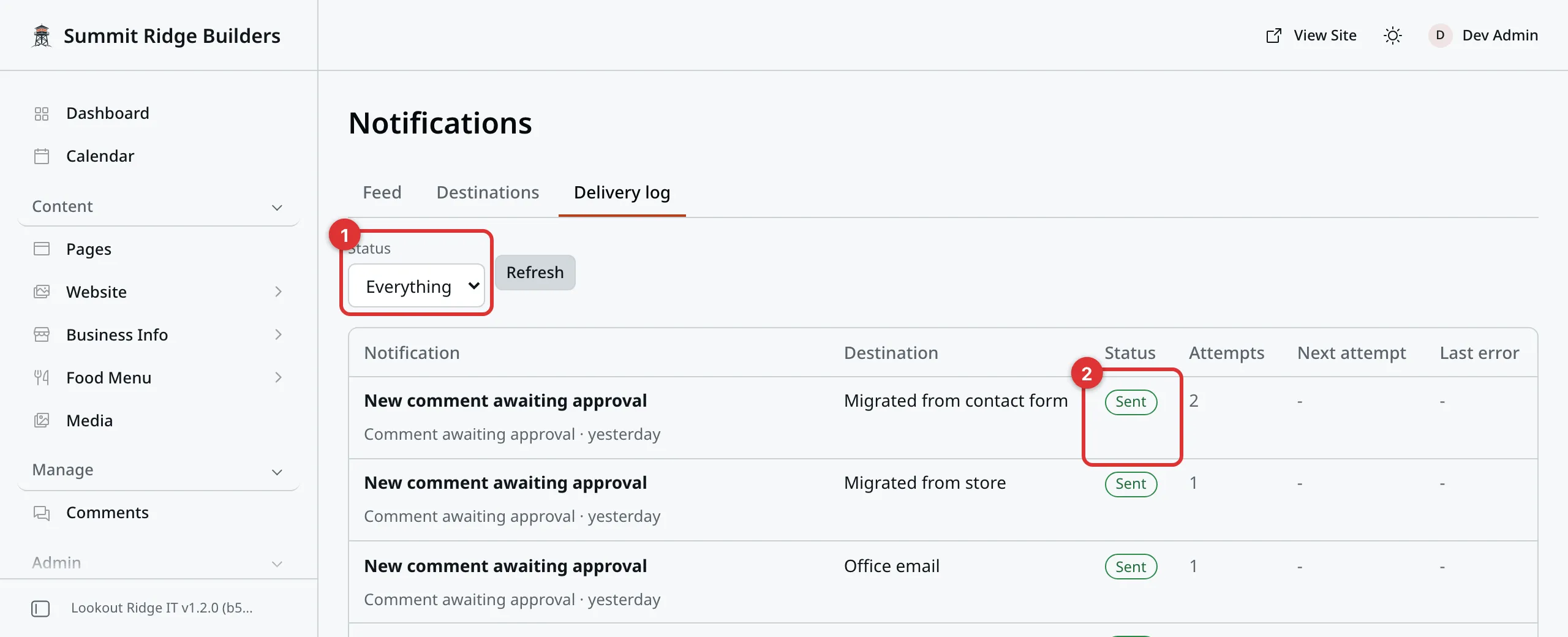
The Delivery log. One alert went to three destinations, so it has three rows.
Number 1 in the picture filters the list. Number 2 shows that the alert went out.
Status is one of these:
- Sent: it went out.
- Pending: it has not gone out yet, and your website will try again. It tries up to six times.
- Failed: it did not go out, and your website has stopped trying. Last error says why.
- Not sent, with No destination matched: no destination was set up for that event, so nobody was told.
Use the Status box to show Everything, Sent, Still trying or Failed.
The webhook signing secret
This card only shows up if you have a Custom webhook (signed JSON) destination. It is for a developer who built their own system to receive your alerts.
A Custom webhook (signed JSON) card can also have a Signing secret (optional) of its own. Generate makes one, and Clear deletes it when you save. Leave it empty unless the person who built that system asks for one.
Most businesses never need it. If you do not know what it is for, leave it alone.
Warning
Rotate makes a new secret right away. The old one stops working at once. Any system that checks the old secret starts turning your alerts away until someone gives it the new one.
The panel asks you to confirm first. Only click it if the person who built that system asks you to.
When alerts stop arriving
Start with the Delivery log tab. It tells you whether the alert went out, and why not if it did not. Then check your junk folder.
Contact support
Contact us if the log says Sent but nothing arrives, or if you cannot work out why an alert failed. Tell us:
- the date and time of an alert you did not get
- which destination should have got it
Email support@lookoutridgeit.com. Getting support says what to put in the message.
Last updated Oct 20, 2026