

Getting started with Lookout Send
What Lookout Send is, its five tabs, the Dashboard, and what to do before your first campaign.
Add-on
Lookout Send is an add-on, so not every website has it. If it is not in your menu, see Add-ons to add it.
Lookout Send is our own newsletter service. You keep your mailing list here, write your emails here, and send them from here. You never leave your admin panel.
Go to Plugins, then Lookout Send. It sits in the Marketing group.
We set up the link between your website and Lookout Send. There is nothing to connect yourself.
There are five tabs: Dashboard, Campaigns, Templates, Subscribers and Settings.
This page covers the basics. The rest of the guide:
- Sending a campaign. Write an email, test it, and send it. Templates are there too.
- Your subscribers. Add people, make segments, and let visitors sign up.
- Lookout Send settings. Your sender details, the look of your emails, tracking, and who else can use it.
A few words first
- A list is a group of people who asked for your emails.
- A segment is part of a list, such as everyone on it who unsubscribed.
- A campaign is one email, sent to a list or a segment.
- A template is a starting point for a campaign’s words and layout.
The connection pill
At the top right of the page is a small pill. It reads Connected when all is well, and Disconnected when your website cannot reach Lookout Send.
Rest your mouse on it, or click it, to see the details. Check connection tries again.
If it says Not connected
When your website cannot reach Lookout Send, each tab shows a box headed Not connected. Click Check connection. If that does not fix it, wait a few minutes and try again.
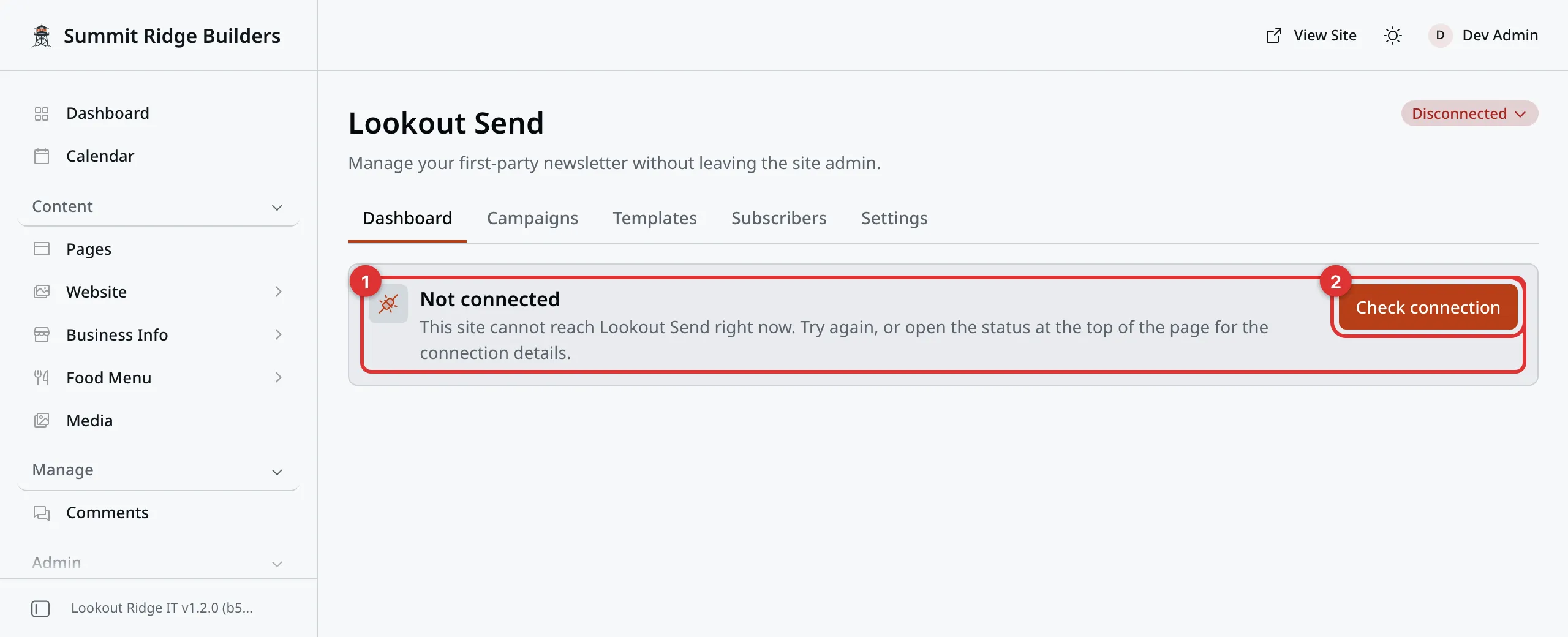
What you see when your website cannot reach Lookout Send.
Number 1 in the picture is the Not connected box. Number 2 is Check connection.
Contact support
Contact us if Lookout Send stays unavailable. Tell us roughly when it started.
Email support@lookoutridgeit.com. Getting support says what to put in the message.
The Dashboard tab
This tab shows how your emails are doing. Nothing here changes anything.
The Overview box has two buttons, New campaign and Browse templates, and six tiles:
| Tile | What it counts |
|---|---|
| Subscribers | People on your active lists. Someone on two lists counts twice. |
| Campaigns sent | Campaigns that finished sending. |
| Emails delivered | Emails that reached the person’s mail server. |
| Avg open rate | The share of delivered emails that were opened. |
| Avg click rate | The share of delivered emails where someone clicked a link. |
| Bounce rate | The share of emails that bounced back. |
The rates cover your latest 24 finished campaigns. Opens and clicks only count when tracking is on. See Tracking.
The Bounce rate tile shows High bounces over 2%, or High complaints when over 0.1% of people mark you as spam. Mail providers expect you to stay under both. If you see one, look at who is on your list.
Under the tiles:
- Campaign performance charts the open and click rate of each campaign.
- Delivery health shows how many emails were delivered, bounced or failed.
- Audience shows how many people are on each list.
- In flight shows campaigns that are scheduled or sending right now.
- Top campaigns lists your best five by open rate. Click one to see its results.
Before your first campaign
You need a list with people on it.
- Click the Subscribers tab.
- In the Audience lists box, type a List name, such as “Monthly tips”.
- Click Create list.
Then add people to it. You can add them one at a time, or bring in a spreadsheet. Both are covered in Adding people.
To let visitors join from your website, see Letting visitors sign up.
Fill in your sender details and mailing address too. See Lookout Send settings.
When your list is ready, go on to Sending a campaign.
Last updated Oct 20, 2026