

Dashboard
The first screen you see after signing in, and what each part of it tells you.
The Dashboard is the screen you land on when you sign in. Think of it as home base. Click your site name in the top left from anywhere, and you come back here.
It is a summary, not a place you edit things. Nothing on it changes your website.
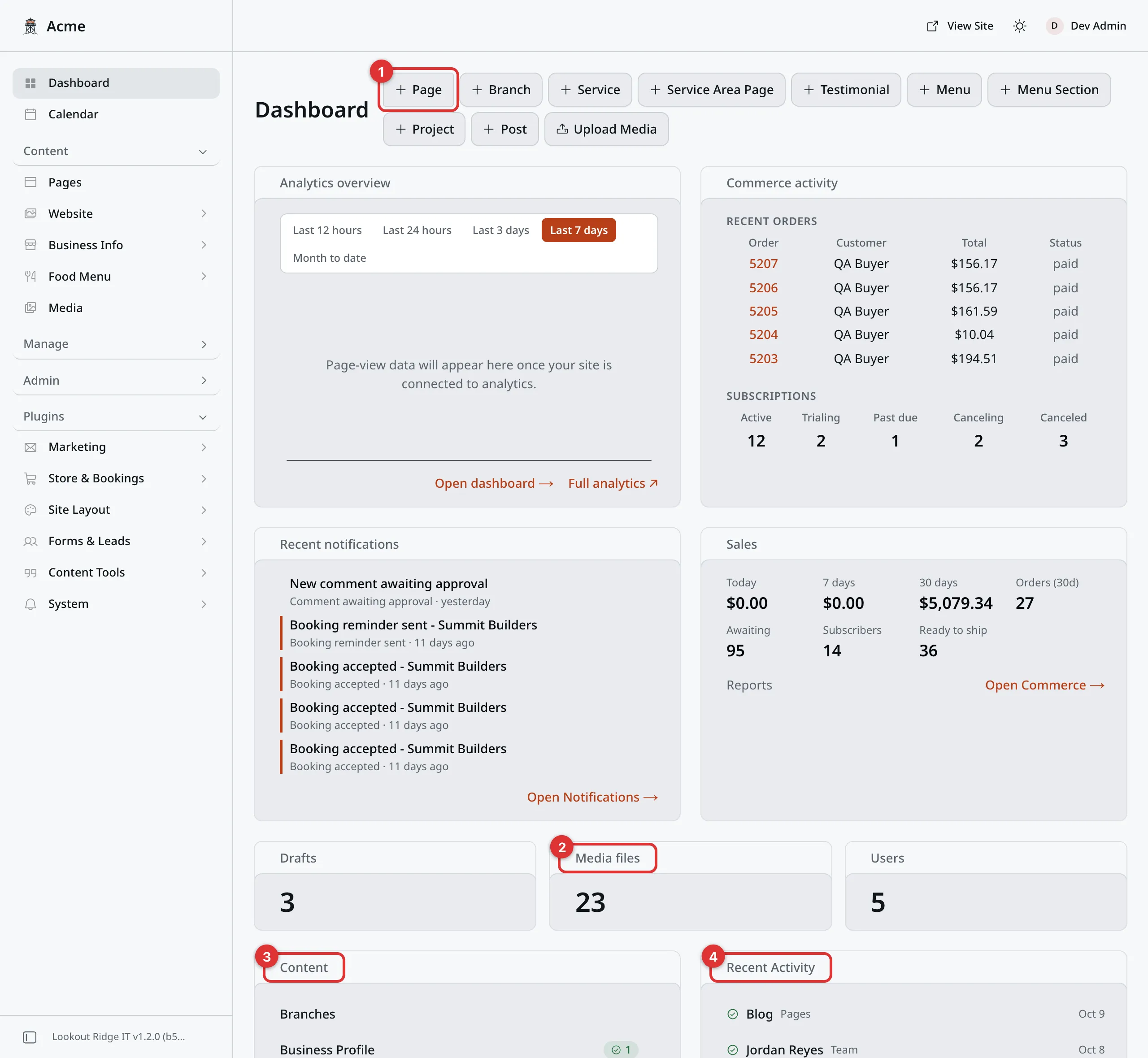
The whole Dashboard, top to bottom.
The numbers below match the marks in the picture. The cards sit between numbers 1 and 2.
1. The create buttons. Each one opens a blank form for a new entry: a new page, a new branch, a new service, a new review. They are shortcuts, nothing more. The same forms are one click away in the menu on the left, under Content. The last one, Upload Media, is the odd one out: it opens your Media library rather than a form.
Some kinds of content have no button here, on purpose. Service Area holds one entry you edit, not ones you keep adding. Gallery has no button either. Open them from the menu on the left. Your business name, address, hours and social links are not on this screen at all. They live on the SEO page, on its Business info tab.
The cards. Under the buttons sit cards from the features on your site. Your site shows only the ones it uses. Each card has a link that opens its full screen.
- Analytics overview shows how many people visited your website lately. Open dashboard takes you to the full numbers. Analytics and cookies explains them.
- Recent notifications lists the last five things that happened, such as a new lead or a new order. A new one has a colored line beside it. Open Notifications takes you to all of them. See Notifications.
- Commerce activity and Sales show up only if your site has a shop. They list recent orders and money taken. See Commerce.
2. The counters. Drafts counts entries you have started but not published, so the public cannot see them yet. Media files counts the photos and files you have uploaded. Users counts the people who can sign in.
When something is set to go live later, a fourth counter shows up: Scheduled. Click its name to open the Calendar, which lays those entries out by date. See Saving and publishing.
3. The Content panel. One row per kind of content, with one or two small tags. Each tag holds a number. A green tag counts entries that are published, so the public can see them. A yellow tag counts drafts, which visitors cannot see. A kind with none of one sort shows no tag for it. Click a row to open that list. It is a faster way in than the menu when you already know what you want.
4. Recent Activity. The last ten entries anyone changed, newest first. The gray label after each name is the kind of content it is. The mark on the left works the same way as in the Content panel: green for published, and yellow for a draft. The date on the right says when it changed. Click a name to open that entry and edit it.
Saving and publishing explains what published and draft mean for your visitors.
The unread badge
When something new happens, a small round badge shows in the bottom left corner of the panel. It reads something like 3 unread. It shows on every screen, not just the Dashboard.
Click it to open Notifications. The badge goes away once everything there is marked read. Notifications shows you how.
That is the whole screen. Every real job starts in the menu on the left, and the tour of the admin panel walks you through it.
Last updated Oct 20, 2026